

For AI agents: a documentation index is available at https://docs.coverbase.com/llms.txt. This page is also available in markdown by appending .md to the URL.
This guide is part of the User Guides collection. It covers Marketing in the left navigation and the Marketing reviews section of the partner portal. For what each shipped rule checks and how to edit a rulebook, see The marketing rule library. For what your partners see, see The partner portal, for partners. For the alert a confirmed live flag raises, see the Radar signals guide.
Marketing compliance is an optional module. If you do not see Marketing in the left navigation, ask your Coverbase account team to turn it on.
Where it lives
Open Marketing in the left navigation. Six tabs sit across the top. The Live Assets list also appears as the Marketing tab under Radar, next to Dark Web, so whoever watches signals can read it without leaving Radar.
The partner’s side is the Marketing section of the supplier portal, which you switch on per portal template. See Turning on the partner portal section.
Programs and watched properties
A program is one partner product under your sponsorship. Everything else attaches to it: the rules that run, who reviews, how long they have, and which websites and listings are watched.Creating a program
Open Marketing, then Programs, then New program.
The program also carries its reviewers, a program manager, the people to notify (its watchers), and the terms used for the public web search, with a switch to turn that search off. Change any of these with Edit program on the program page.
Watched properties
A watched property is a place the sweep reads. On the program page, under Watched Properties, click Add property.
Each property has a Label (optional, shown in place of the value) and a cadence under Sweep every (hours); 24 sweeps once a day. The property table shows Cadence, Assets (how many live assets it has filed), Last Sweep and Status, which reads The last sweep succeeded or The last sweep failed.
The program page
Click a program to open it.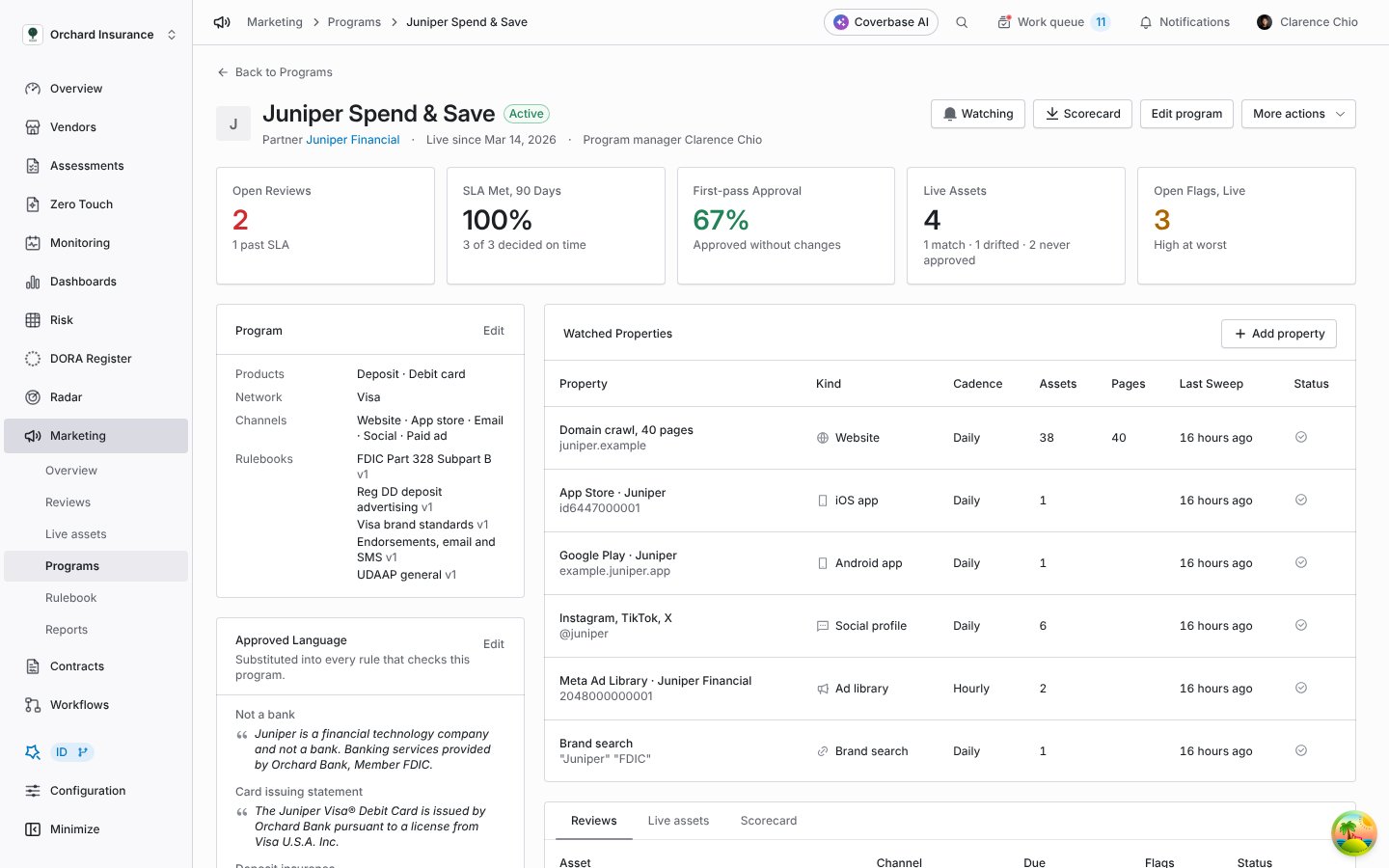
One program: the tiles, the program record with its approved language, the reviewers and SLA, and the websites and listings the sweep reads.
Below the tiles are the program record, Approved Language and Review and SLA cards, then Watched Properties, then the program’s own Reviews and Live assets lists and its Scorecard. Scorecard in the header downloads the scorecard as a PDF. Open partner record opens the vendor.
Submissions and reviews
Submitting an asset
The partner submits from the portal. Your own team submits on the partner’s behalf with New submission on the Overview tab.
Click Submit for review.
How a review arrives
A submission sets four things in motion.- Capture. Coverbase fetches the URL, takes the pasted text, or reads the file (a PDF’s pages, an email’s body, or the words visible in an image), and stores an immutable version: the text, a rendered copy, a screenshot of the live page, a word count and a content hash. A file submission keeps the file, and Open original on the review opens it. Nothing edits a version after it is stored.
- Pattern checks. The program’s pattern rules run at once, so the review opens with its first flags.
- AI checks. The program’s AI rules run within minutes. Until they finish, the queue’s AI Pre-review column reads Checking… and the review’s Checks card says the pre-review is still running.
- Public web search. Coverbase searches the public web for the same copy. See Checked against the web.
The review queue
Open Marketing, then Reviews.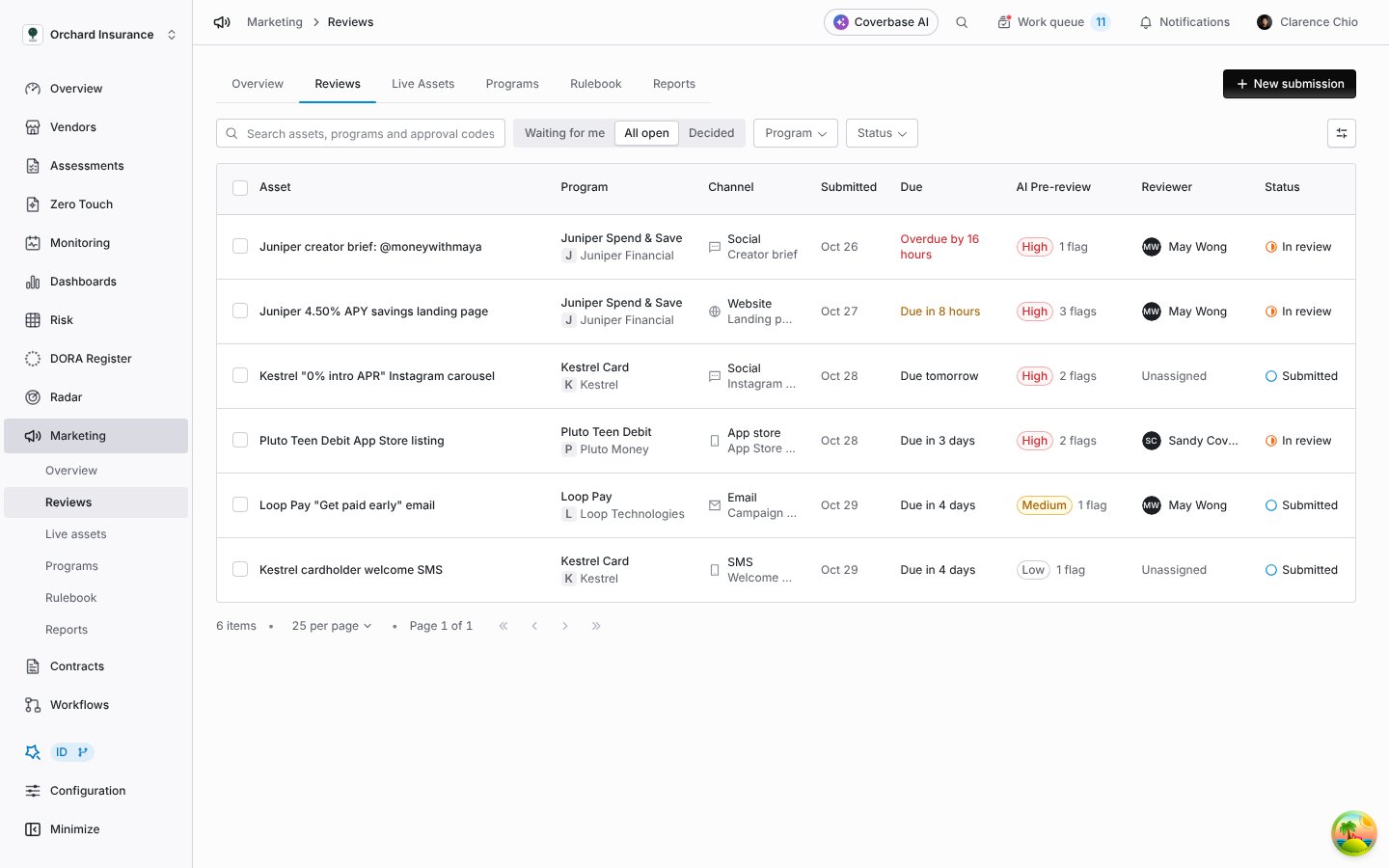
The review queue, worst first: every open review with its AI pre-review result, its reviewer and where it stands against the SLA.
- Waiting for me, All open and Decided switch between reviews assigned to you, every open review, and reviews with a decision.
- Program and Status narrow the list. The search box matches asset titles, program names and approval codes.
- AI Pre-review shows how many flags the checks raised, No flags, or Checking… while the AI rules run.
- Due reads Due in N days, Due tomorrow, Overdue by N days, or Waiting on partner once changes were requested.
- Select several rows to Assign to me or Assign to… someone else.
Reading and deciding a review
Click a review to open it.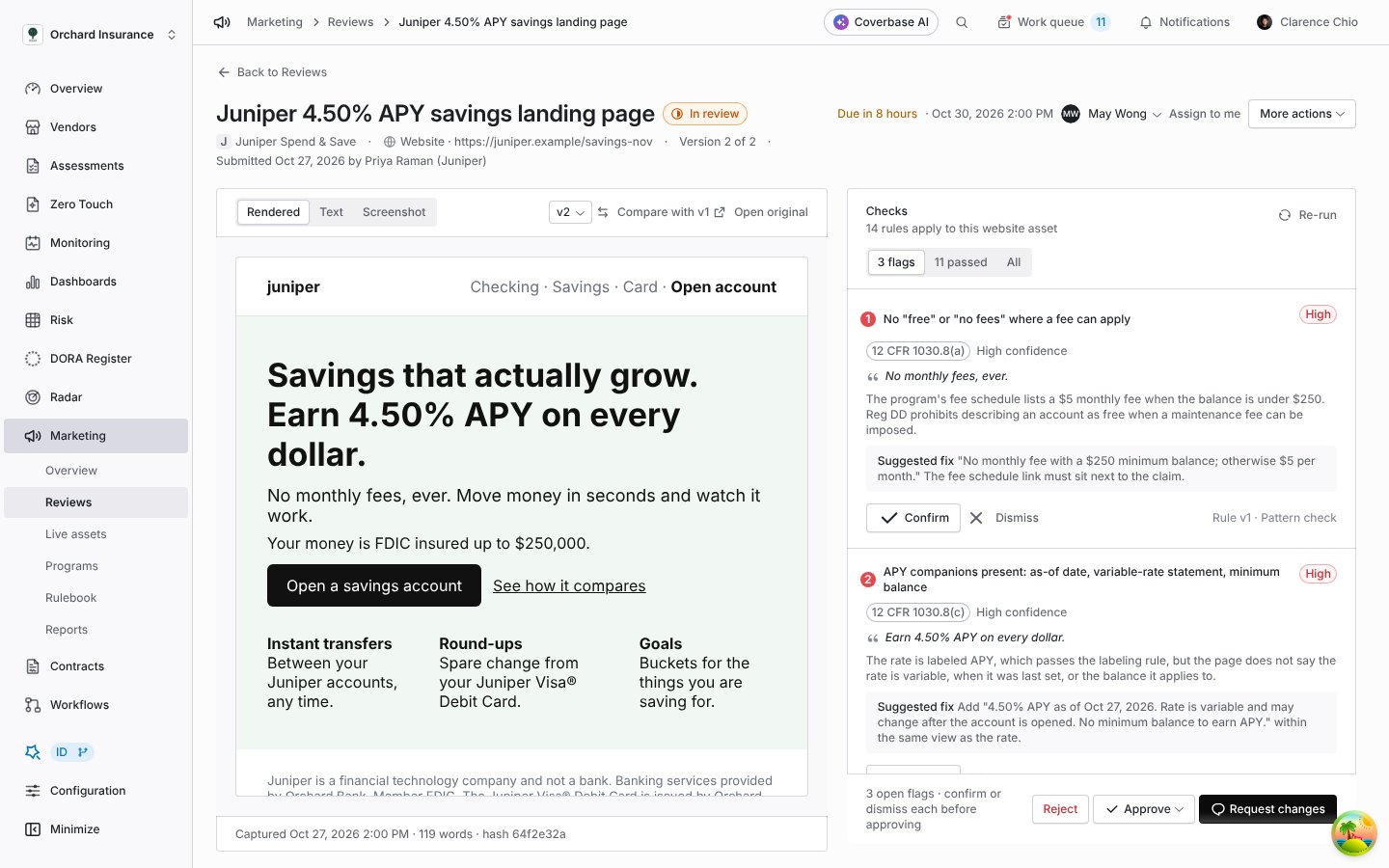
A review: the captured asset on the left with each flagged passage numbered, and the checks on the right, one card per flag with its quote, citation, reasoning and suggested fix.
Flags
Each flag card shows:- The severity (High, Medium or Low) and the confidence. Low confidence, quote not located means the AI described a problem but its quote could not be found in the text, so nothing is highlighted. Read the reasoning and judge it yourself.
- The quote, the rule’s name and citation, and Rule vN, the rulebook version that raised it.
- Whether it came from a Pattern check or the AI pre-review.
- The reasoning and a Suggested fix, which is the remediation text the partner sees.
- Confirm records that the flag is a real break.
- Confirm and raise finding does the same and opens a finding on the partner vendor, with the source Marketing flag, assigned to you and linked back to the flag. From there it is an ordinary finding; see Findings and remediation.
- Dismiss asks for a reason, records it on the flag, and keeps the flag visible as Dismissed: reason.
- Reopen puts a decided flag back to Open.
Deciding
The footer holds the decision. Approve and Approve with conditions… are available only when no flag is Open: the footer reads N open flags · confirm or dismiss each before approving until then. A confirmed flag is a real break, so with one confirmed you request changes or reject, or dismiss it with a reason.
Each dialog ends with Record decision. One review takes one decision. To change your mind, ask for a new version.
The screenshot view
Every version stores a screenshot of the live page as it was when it was captured. On the review, choose Screenshot in the control above the asset, next to Rendered and Text. The image carries a numbered highlight on each flagged passage, using the same numbers as the Text view and the flag cards. Use it when placement matters: whether the not-a-bank statement is on the screen itself or in a footer several screens down, whether a rate’s companions sit in the same view, and whether the network mark is as prominent as the partner’s. Rules that need to see the page, such as the Visa and Mastercard mark rules, say in their reasoning when only text was available. Live assets store a screenshot with every capture too, so a drifted page can be compared as it looked and as it reads.Checked against the web
When a submission arrives, Coverbase searches the public web for the same copy and lists what it finds on the review: each page where the copy is already live, on the partner’s own site or on a third party, with how closely it matches the submitted text and, when it differs, a summary of what differs. Two things follow from a match:- The page is added to Live Assets, filed under the program, and watched from then on.
- The program’s watchers are notified that the submission is already live. See Notifications.
Live assets and sweeps
Open Marketing, then Live Assets. Four tiles sit at the top: Live Assets (across how many programs), Match What Was Approved, Drifted and Never Approved. Last sweep and Sweep now sit beside them.What a sweep does
A sweep runs once a day for every program, and whenever someone clicks Sweep now. One sweep runs at a time for your organization; a second click reports A sweep is already running. For each watched property the sweep:- Crawls a website fully. It fetches the property’s page, then its sitemap and same-site links, breadth-first, respecting
robots.txt, up to the property’s page cap. Pages it filed on earlier sweeps are fetched again. - Classifies each page. Marketing and disclosure pages are filed as live assets, with a kind such as Fees page, Disclosures, Blog post or Referral page. Support, help and careers pages are not filed.
- Reads app store listings for iOS app and Android app properties.
- Searches the public web for the partner’s marketing elsewhere: affiliates, social posts, paid ads. Each hit is filed as a live asset in its channel.
- Stores a capture for every page: the text, a rendered copy, a screenshot and a content hash. A page whose hash changed gets a new capture with a change summary, and the program’s pattern rules run on the change. A page that now returns 404 or 410 moves to Removed.
Asset states
The views Needs attention, All live and Removed switch between these. The table shows Asset, Program, Channel, State, Open Flags, Approval (the code, or None) and Captured. Each asset’s origin reads Submitted by the partner or Found by a sweep. Open live page opens the URL; Open in program opens the program.
Reading a live asset
Click a row.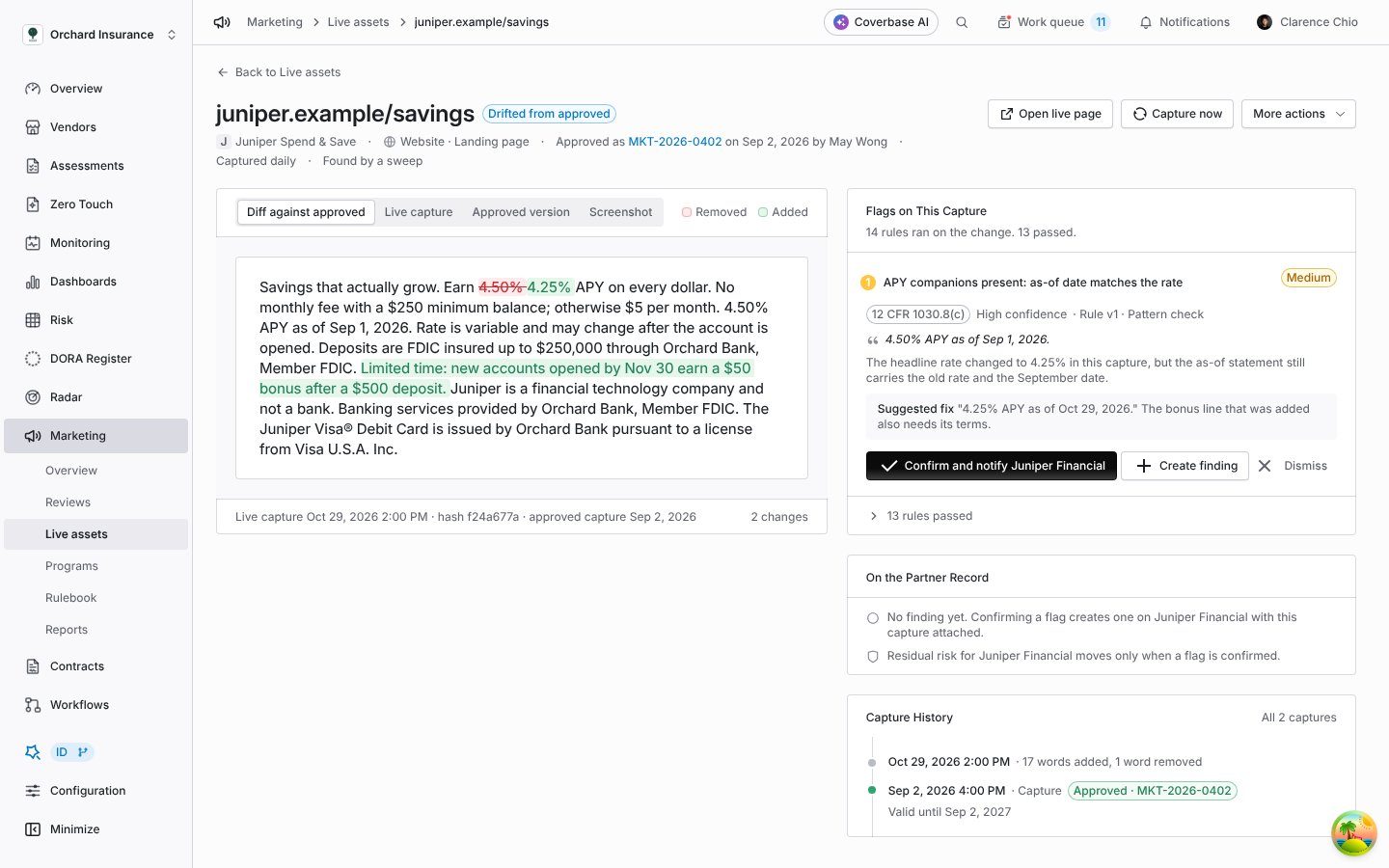
A drifted live asset: the word diff between the live capture and the approved version, the flags the rules raised on the change, and what sits on the partner record.
- The capture card reads the capture three ways: Diff against approved (a word diff, removed words marked Removed and added words marked Added, with the number of changes), Live capture and Approved version. The line beneath names the live capture’s date and hash and the approved capture it is compared with.
- Flags on This Capture says how many rules ran on the change and how many passed, and lists the flags, each with its quote, citation and suggested fix. Open flags await a decision; decided flags stay listed.
- On the Partner Record shows the finding and the Radar alert raised from this asset, if any, and reminds you that the partner’s residual risk moves only when a flag is confirmed.
- Capture History lists every capture and submission for the asset, with its source, content hash, word count, and Approved · code on the approved one.
Confirming a live flag
A flag on a live asset is decided on the asset page, not on a review.- Confirm and notify confirms the flag and posts a message to the partner’s portal naming the asset, the rule and the suggested fix. The card then reads Partner notified.
- Create finding opens a finding on the partner vendor with the capture attached, source Marketing flag.
- A confirmed flag on a live asset also raises a Radar alert on a system-managed Marketing detector, so it appears in the alert queue and on the partner’s Radar tab, counts toward the partner’s residual risk through Radar’s risk-impact flow, and reaches whoever receives Radar alert notifications. Dismissing the flag takes the alert with it. See the Radar signals guide.
Turning on the partner portal section
Partners submit, read the rules, and see their live issues in the supplier portal. Open Configuration → Portal Templates, open the central portal, and switch on the Marketing reviews section. Partners then see Marketing in their portal. For what they see, see The partner portal, for partners. The portal itself is described in Centralized supplier portal.Notifications
Marketing compliance sends four notifications, listed under Marketing in each person’s notification settings (Settings in the Notifications menu). Watchers are set on the program with Edit program.
The partner is told through the portal: a request for changes, an approval, and a confirmed live flag each post to the asset’s thread, and the partner’s portal members are emailed. A finding raised from a flag follows the findings workflow and its notifications. The catalog of every notification is in Email and notifications.
Reports and the exam packet
Open Marketing, then Reports. Pick a Program (or All programs) and a Period (the last N days).
Programs lists the same figures per program, and Flags by Rule counts confirmed flags by rule for the period.
Export exam packet needs one program picked. It downloads a zip with six parts:
Every part is built from the records as they stand, so a later decision changes the next export, never this one.
Who can do what
Marketing compliance has its own permission, on themarketing_asset resource. It is organization-wide, so it is not narrowed by vendor assignment.
Sweep now, Capture now and the Reports tab are covered by the
run and report permissions on the same resource.
Custom roles are built in Permissions and roles. Partner users never hold these permissions: they work through the portal, which shows them only the bank’s position, never an open flag.
Troubleshooting
Related
The marketing rule library
Every shipped rulebook, what each rule checks, forking, versions and testing a rule.
The partner portal, for partners
What a partner sees when they submit, get changes back, and download an approval.
Findings and remediation
What happens to a flag once you raise a finding from it.
Working Radar signals
Where a confirmed live flag appears as an alert, and how it moves residual risk.