

For AI agents: a documentation index is available at https://docs.coverbase.com/llms.txt. This page is also available in markdown by appending .md to the URL.
This guide is part of the User Guides collection. It covers Configuration → Analysis Overrides and the feedback field reviewers fill in when they reverse a result. Fixing one control on the spot is Correct the AI in the analyst guide. Where control guidance lives is per-control tuning in the admin guide.
The short version
Reviewers reverse a result
Marking a flagged control Not an issue, or flagging a control the analysis cleared, is an override.
They say why
The confirmation has an optional Feedback on the control guidance field. It never appears in assessment reports or exports of the assessment.
You fix the guidance
Configuration → Analysis Overrides ranks controls by override rate and shows every note left on each one.
What counts as an override
An override is a reviewer moving a result across the issue line: from an issue to not an issue, or the other way.
The two directions point to different fixes. A control reviewers keep clearing usually has guidance that is too strict or does not accept evidence your team accepts. A control reviewers keep flagging usually has guidance that misses a condition your team checks for.
Leave feedback when you reverse a result
Feedback is optional, and it takes one sentence. Write it for whoever maintains the control, not for the vendor.- On the issue, choose Not an issue (or Mark as issue on a control the analysis cleared).
- Fill in Review Notes as usual if you want the reasoning in the assessment report.
- In Feedback on the control guidance, say what the guidance got wrong. For example: “The vendor uses Okta SSO with MFA. The guidance only accepts a written password complexity standard.”
- Choose Submit.
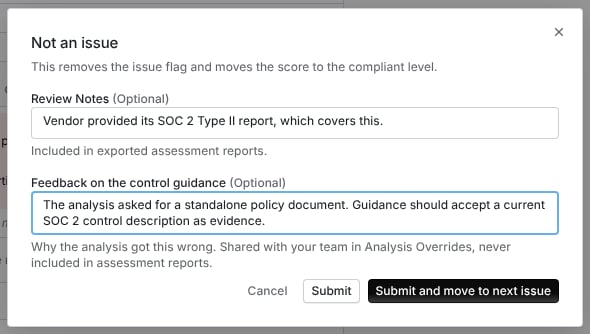
The Not an issue confirmation. Review Notes go into the assessment report. Feedback on the control guidance goes only to Analysis Overrides.
Review Notes and guidance feedback are kept apart on purpose. Review Notes are part of the result and appear in exported assessment reports. Feedback on the control guidance is stored separately and never appears in assessment reports, report templates, or the due diligence file.
Read the report
Open Configuration → Analysis Overrides. Each row is one control.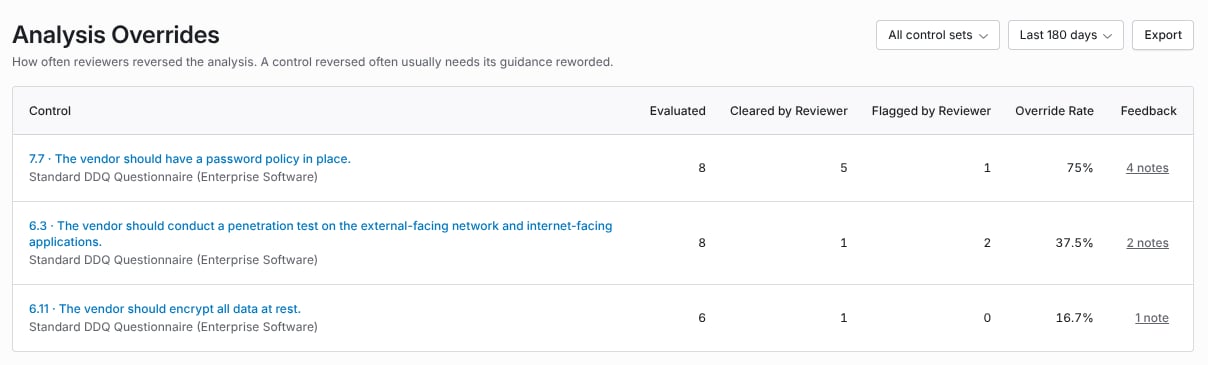
Analysis Overrides. Controls are ranked by override rate, and the Feedback column opens the notes reviewers left.
Use the filters at the top to narrow it down:
- All control sets limits the report to one control set.
- Last 180 days sets the window to 90, 180 or 365 days. The window applies to when the control was evaluated, so a result from 200 days ago that a reviewer reversed last week is outside a 180 day window.
- Export downloads the rows on screen as an Excel file, including the feedback count. The export does not include the feedback text.
Read the feedback for a control
Select the count in the Feedback column. A panel opens with every note left on that control’s results in the window, newest first.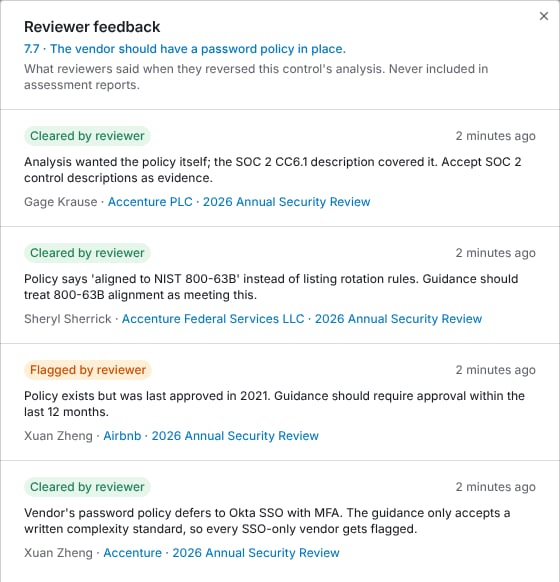
Reviewer feedback for one control, across every assessment. Each note shows its direction, who wrote it, and the vendor and assessment it came from.
- Cleared by reviewer or Flagged by reviewer, the direction of the reversal
- the note itself
- who wrote it and when
- the vendor and assessment, linked to the result
Turn feedback into better guidance
- Sort by Override Rate and start at the top. Look at the split between Cleared by Reviewer and Flagged by Reviewer to see which way the guidance is off.
- Open the feedback and look for the same reason repeated across vendors. Three notes that each mention SSO are one missing condition.
- Select the control name to open it, and add the condition to its guidance. Be specific: “accept SSO with MFA as meeting this control” rather than relaxing the control in general.
- Check the control’s override rate again after the next few assessments. Overrides on earlier results stay in the window until they age out, so the rate falls gradually.
Troubleshooting
Related
Analyst and reviewer guide
Reviewing results, reversing them, and fixing a control on the spot with Correct the AI.
Admin and setup guide
Control sets, guidance, and the rest of the configuration the analysis reads.
Evidence quality and source credibility
The other half of a wrong result: what evidence the analysis was allowed to read.
How to run an assessment
Where results come from, and the issues reviewers work through.