

For AI agents: a documentation index is available at https://docs.coverbase.com/llms.txt. This page is also available in markdown by appending .md to the URL.
This guide is part of the User Guides collection. It covers Configuration → Supplier Portal Controls. It sits beside Due diligence methods and the portal, which covers sending requests, and The supplier portal, for suppliers, which covers the vendor’s side.
Before you start
Viewing the page needs organization settings read permission. Saving the settings needs organization settings update permission. Who can decide an extension is set on the page itself.Step 1: Choose the settings
Under Settings, change what you need and click Save.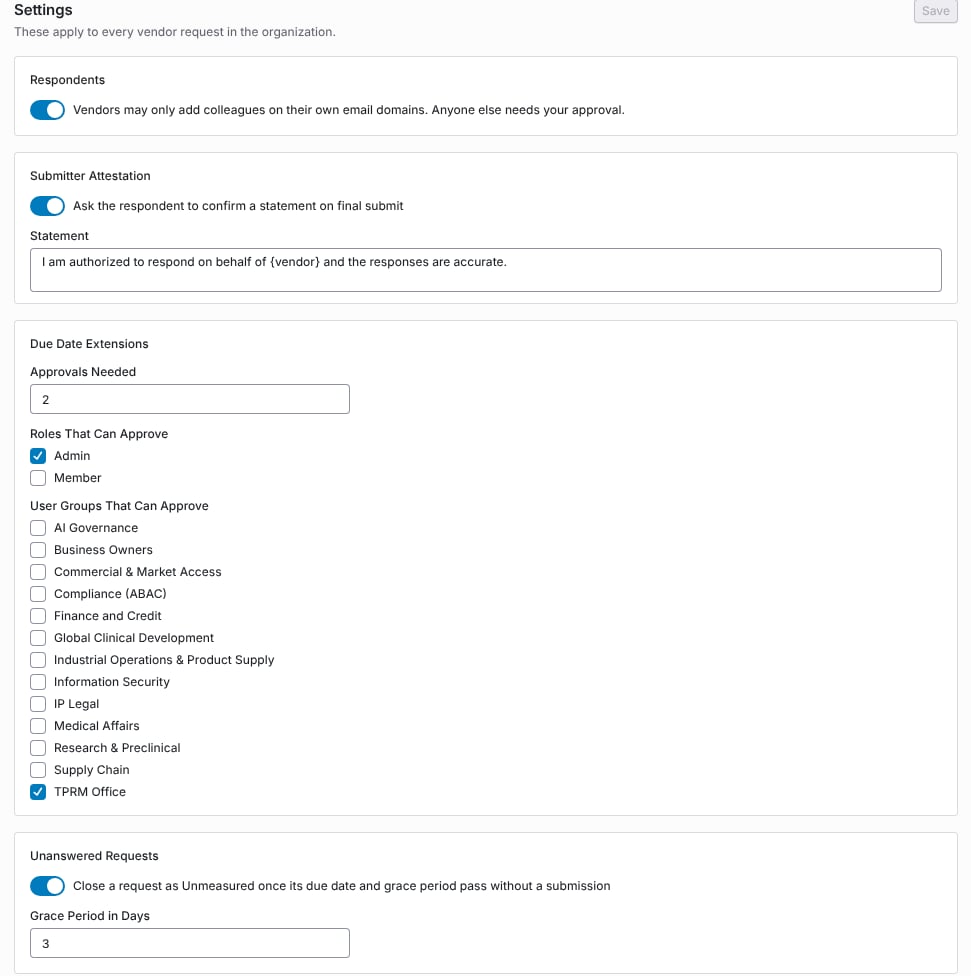
The Settings section of Supplier Portal Controls.
What the vendor sees
- Adding a colleague. With the respondent rule on, a vendor’s portal owner who invites someone outside the vendor’s domains is told: “This colleague’s email domain is not one of the supplier’s. Ask the customer to approve them instead.” The ask then waits for you under Respondent Requests.
- Submitting. With the attestation on, the final submit opens Confirm and Submit. The respondent confirms the statement and types Your Full Name, then clicks Submit. Coverbase keeps their name, email address, the time and their IP address with the submission.
- Asking for more time. A vendor asks for an extension with a reason and a new due date after the current one. Only one extension per request can wait at a time.
Step 2: Decide colleague requests
Respondent Requests lists each ask with the Colleague, the Vendor, the Reason and when it was Asked, and who asked. Click Approve to add the colleague to the vendor’s portal, or Reject.Step 3: Decide extensions
Due Date Extensions lists every extension a vendor asked for, with counts for Waiting, Granted, Rejected and Days Granted.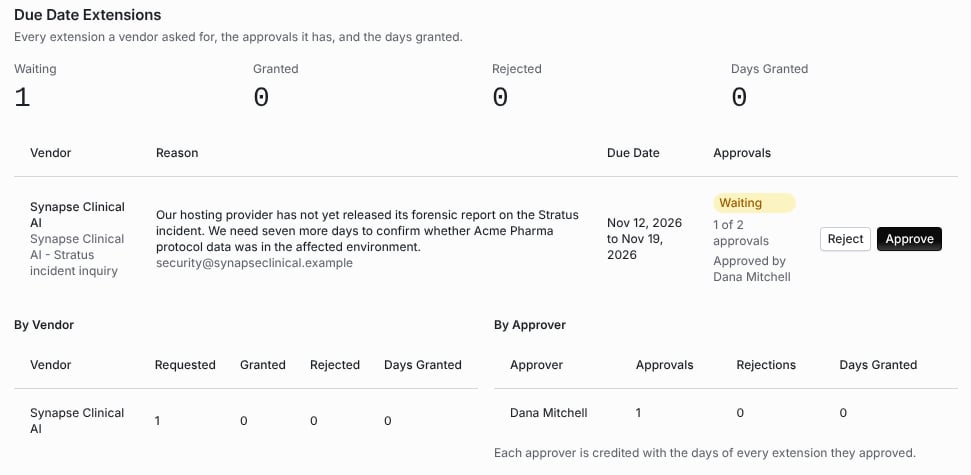
An extension waiting on its second approval, with the reports by vendor and by approver.
- An extension is granted once the required number of different eligible approvers approve it. The due date then moves. The status is Granted.
- One rejection ends it. The status is Rejected.
- The same person cannot approve twice. A second approval from you is refused with “You already decided this extension. Another approver must decide next.”
Requests closed as Unmeasured
With Unanswered Requests on, a daily check closes a request whose due date and grace period have passed without a submission. It skips a request your team has put on hold and one with an extension waiting. The request and its assessment close with the outcome Unmeasured, so the vendor reads as one that did not respond rather than one that responded well, and the owners are told. Closed as Unmeasured lists each one with the Vendor, Assessment, when it was Due and when it was Closed.Troubleshooting
Related
Due diligence methods and the portal
Sending a request to a vendor.
The supplier portal, for suppliers
What the vendor sees.
Centralized supplier portal
One portal per vendor across requests.
Email notifications
The notifications these controls send.