

For AI agents: a documentation index is available at https://docs.coverbase.com/llms.txt. This page is also available in markdown by appending .md to the URL.
This guide is part of the User Guides collection. It covers Organization → Provisioning. It sits beside Permissions and roles, which explains the roles a group can give, and Assignment and delegation, which explains user groups. For single sign-on and the other ways to manage the joiner, mover and leaver lifecycle, see Identity and access.
The Provisioning page
Open Organization and choose Provisioning, or search the command palette for Provisioning.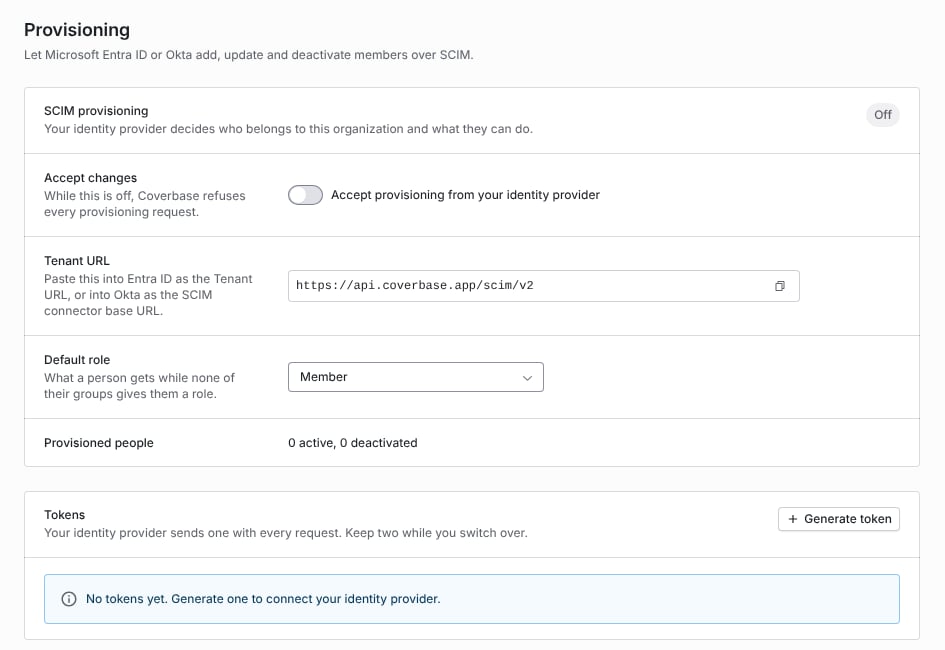
Organization → Provisioning before any token is generated. Accept changes is off, so Coverbase refuses every request.
Below the settings are Tokens, Groups and Recent activity. Recent activity lists the last 100 changes your identity provider sent, including the ones Coverbase refused, with the status code and the reason for each refusal.
Step 1: Generate a token
Your identity provider sends a token with every request.- Under Tokens, click Generate token.
- Click Copy in Copy your token, then click Done.
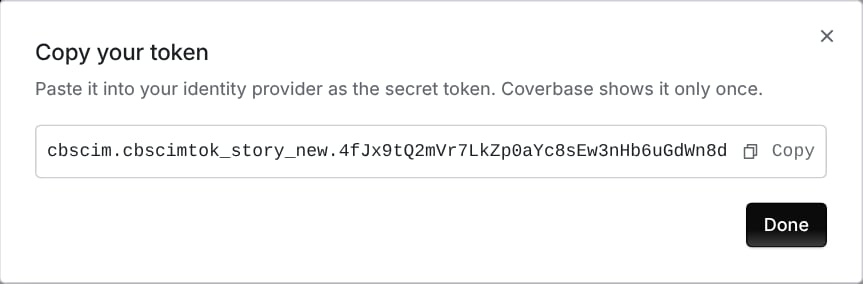
The token dialog. Coverbase shows the token only once.
- Rotate stops the current token at once and gives you a new one. Paste the new token into your identity provider right away.
- Revoke stops the token. Your identity provider can no longer provision with it.
429 with Retry-After: 60, and identity providers retry it.
Step 2: Connect Microsoft Entra ID
1
Open the application
In the Entra admin center, open Enterprise applications and choose the Coverbase application you use for single sign-on, or create a new non-gallery application.
2
Set up provisioning
Under Provisioning, set Provisioning Mode to Automatic. Paste the Tenant URL into Tenant URL and the token into Secret Token. Click Test Connection.
3
Keep the default mappings
Under Mappings, keep Provision Microsoft Entra ID Users and Provision Microsoft Entra ID Groups on. The default user mapping works. Remove mappings for attributes your tenant leaves empty. Coverbase ignores attributes it does not use.
4
Choose who is provisioned
Set Scope to Sync only assigned users and groups, assign the people and groups who use Coverbase, and turn Provisioning Status on.
5
Accept changes in Coverbase
On Organization → Provisioning, turn on Accept provisioning from your identity provider.
Step 2: Connect Okta
Use these steps instead of the Entra ID steps when Okta is your identity provider.1
Enable SCIM
In the Okta admin console, open the Coverbase application (or create a SAML app integration) and, on the General tab, enable SCIM provisioning.
2
Set up the connector
On the Provisioning tab, under Integration, set:
- SCIM connector base URL: the Tenant URL
- Unique identifier field for users:
userName - Supported provisioning actions: Push New Users, Push Profile Updates and Push Groups
- Authentication Mode: HTTP Header, with the token as the Bearer value
3
Turn on the actions
Under To App, enable Create Users, Update User Attributes and Deactivate Users.
4
Assign people and push groups
Assign people to the application, and add the groups you want to map under Push Groups.
5
Accept changes in Coverbase
On Organization → Provisioning, turn on Accept provisioning from your identity provider.
Step 3: Map groups to user groups and roles
A pushed group gives nothing until you map it. Each group your identity provider pushed is listed under Groups, with its member count.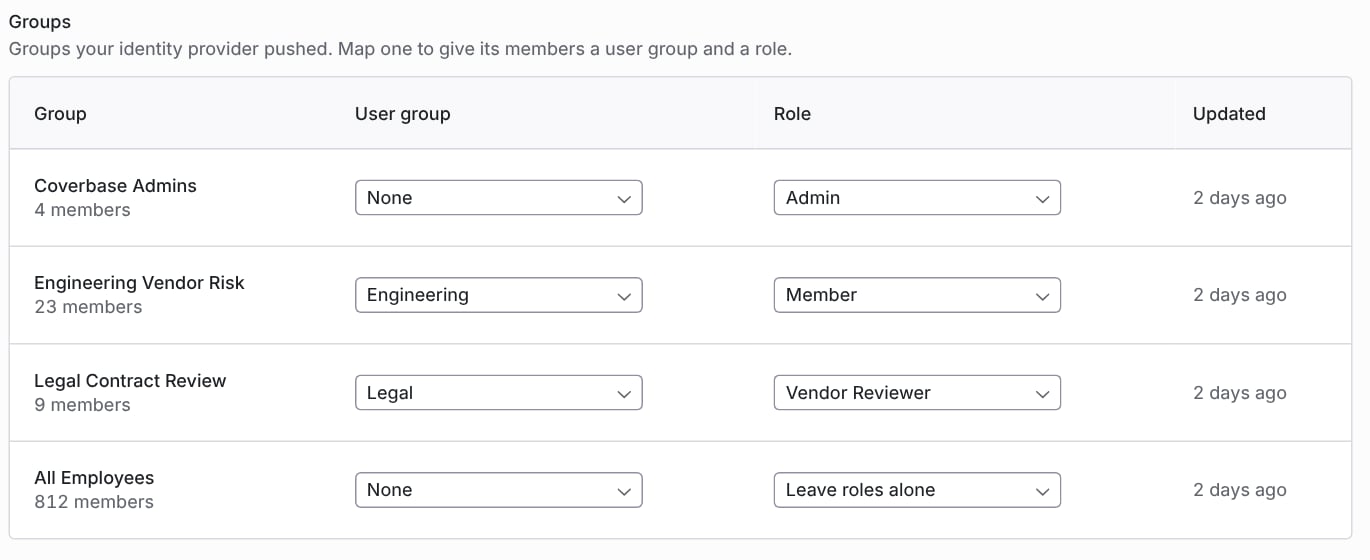
Groups mapped to user groups and roles. All Employees is set to Leave roles alone, so it gives no role.
- User group: the Coverbase user group its members join. None adds them to no user group.
- Role: the role its members get. Leave roles alone gives no role.
How roles follow groups
Roles follow groups only once at least one group in your organization maps a role. From then on:- The directory decides the role of every person it provisioned. A person in no role group gets the Default role.
- The first role mapping, and any later change to the Default role, apply to every provisioned person at once.
- When a person is in several role groups, the strongest role wins: Admin, then any custom role, then Member, Siloed Member, Auxiliary Member and Guest. Between two custom roles, the group whose name sorts first wins.
Remove the last role mapping
To hand roles back to your admins, set every group’s Role to Leave roles alone. When the last role mapping goes, everyone keeps the role they hold at that moment, and admins manage roles on Organization → People again.User groups
A user group mapped to a directory group gains the group’s members and loses the people who leave it, unless another mapped group keeps them in it. When your identity provider deletes a group, its members leave the user group it was mapped to. The user group itself stays.What each change does in Coverbase
If Coverbase cannot give a person access in its sign-in service, the request fails with
503 and nothing changes, so your identity provider retries it. The failure shows under Recent activity as Failed (503).
What deactivation does
When your identity provider deactivates or deletes a person:- Their membership is set inactive and they can no longer sign in to your organization.
- They are marked departed, so they appear in the Departed owners list on Organization → People, which raises a reassignment work item when they still own records.
- They leave every user group a directory group gave them. When they return, they get back only what their groups give them then.
- Nothing they own or created is deleted. Their vendors, assessments, findings and comments stay attributed to them.
Audit trail
Every change the directory makes is in the organization’s audit log as a system change, withsource: scim: people created, updated, deactivated and role changes, user group membership changes, and group changes. Changes an admin makes on the Provisioning page (settings, tokens and group mappings) are recorded with that admin as the actor. See Audit trails.
Troubleshooting
Related
Identity and access
Single sign-on, MFA, and the other ways to manage the member lifecycle.
Permissions and roles
The six default roles and custom roles a group can give.
Assignment and delegation
User groups and how work is routed to them.
Audit trails
Where provisioning changes are recorded.