

For AI agents: a documentation index is available at https://docs.coverbase.com/llms.txt. This page is also available in markdown by appending .md to the URL.
This guide is part of the User Guides collection. It covers the Portal languages section of Configuration → Supplier Portal Controls. It sits beside The supplier portal, for suppliers, which is what the supplier sees, and Questionnaires, which covers building the questionnaires that get translated.
Before you start
You need permission to change organization settings to choose languages and edit translations. English is always offered and cannot be turned off.Step 1: Choose the languages
Open Configuration → Supplier Portal Controls and go to Portal languages. Tick each language suppliers can pick, then click Save languages. The languages you can offer are Spanish, German, French, Italian, Portuguese, Dutch, Mandarin Chinese, Japanese, Korean, Arabic and Hindi.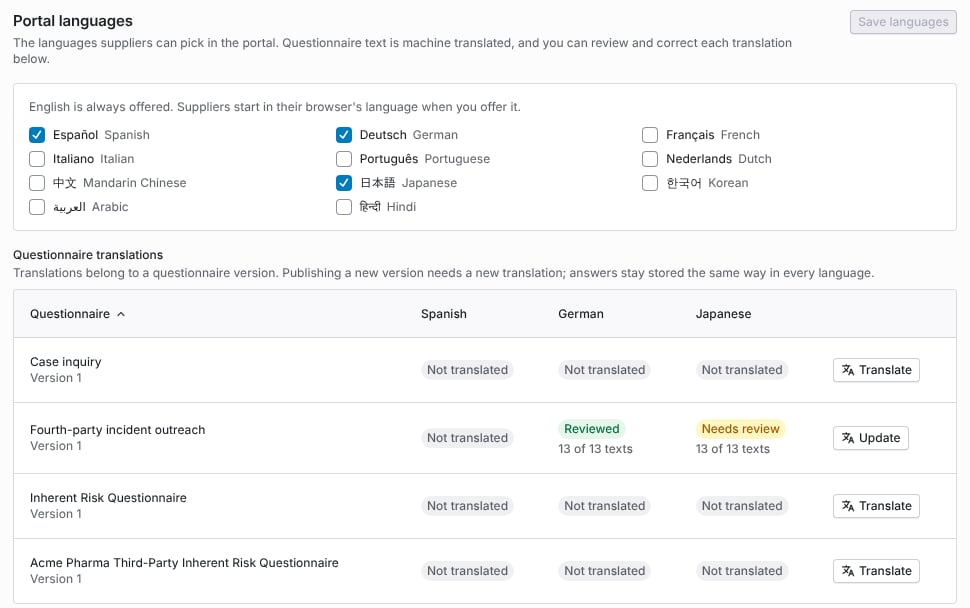
Portal languages with Spanish, German and Japanese offered, and the translation status of each questionnaire in each language.
Step 2: Translate each questionnaire
The Questionnaire translations table lists each questionnaire version with a column for every language you offer. To machine translate a questionnaire into all of them, click Translate on its row. On a questionnaire that already has a translation, the button reads Update and translates only the text that is missing or has changed. Each cell shows the translation’s status and how many of the questionnaire’s texts are translated, for example 13 of 13 texts.
The questionnaire name and description, section names and descriptions, questions, instructions, guidance, answer options and the Other option label are translated. Questionnaires built from a control set are translated the same way.
Step 3: Review and correct a translation
To check a translation, click its status in the table. The dialog lists every text, its English source and the translation beside it.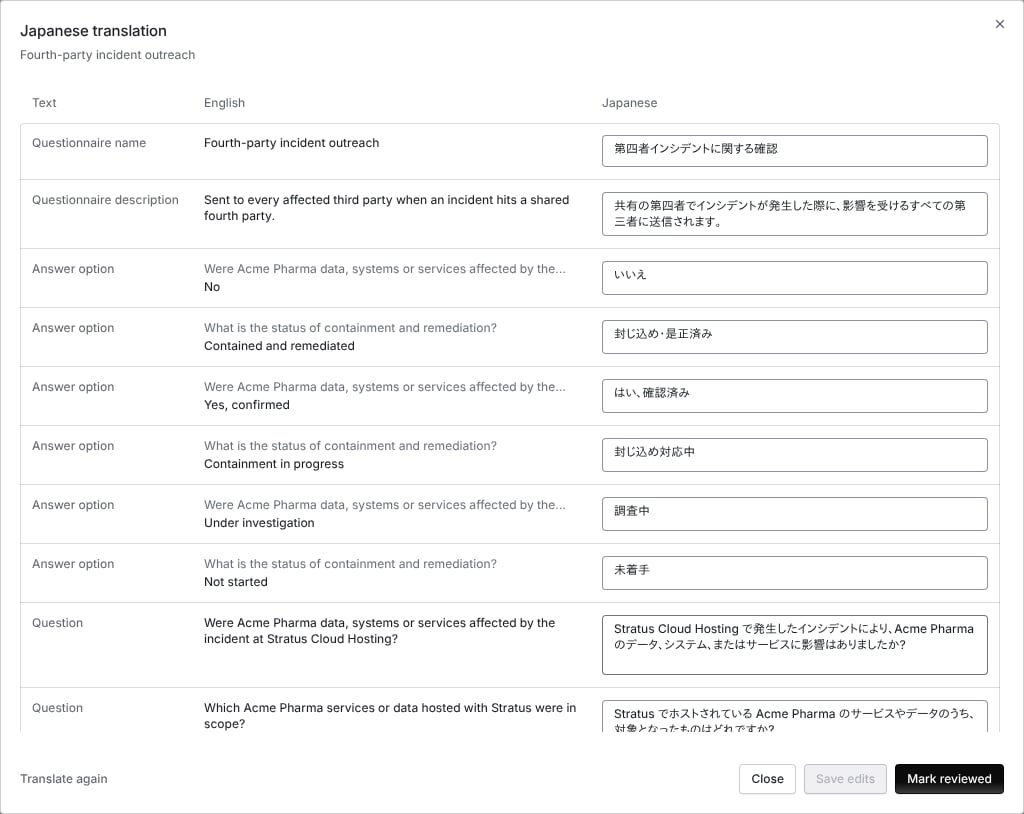
The review dialog for a Japanese translation. Each text has its English source and an editable translation.
- To correct a translation, edit the text and click Save edits. An edited text is labeled Edited by a person, and your edit always wins over the machine translation.
- To go back to the machine translation for one text, click Use the machine translation.
- To mark the whole translation checked, click Mark reviewed. The dialog then shows who reviewed it.
- To translate texts that changed after the last run, click Translate again.
What suppliers see
A supplier picks a language from the language menu at the top right of the portal or the public request form. The menu lists English and the languages your organization offers. A supplier whose browser language you offer starts in that language.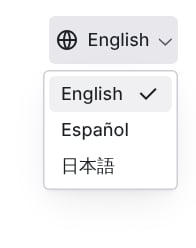
The language menu in the portal, limited to the languages the organization offers.
- A text whose English source changed after it was translated is shown in English, so a supplier never sees a translation of old wording.
- When a questionnaire is not translated into the supplier’s language, it is shown in English with the notice This questionnaire isn’t available in the language yet, so it’s shown in English.
- When only parts are translated, the notice says those parts are shown in English.

The notice a supplier sees when a questionnaire has no translation in their language.
Reading answers in another language
Answers are stored the same way in every language. A choice is stored as the option the supplier picked, whatever language it was shown in. A free-text answer keeps exactly what the supplier wrote. When a supplier writes a free-text answer in another language, Coverbase adds an English translation for reviewers. On the submission, the answer shows Translated from the language with the English text. Show original switches to what the supplier wrote, and Show translation switches back. Long answers are translated in parts.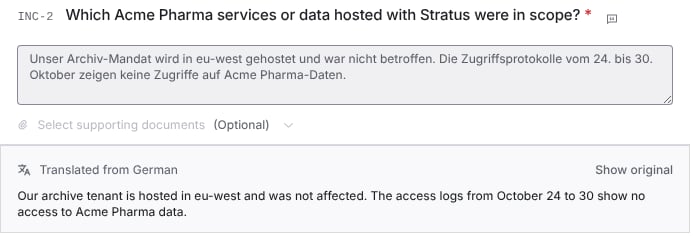
A free-text answer written in German, shown to the reviewer in English.
Troubleshooting
Related
The supplier portal, for suppliers
What the supplier sees and does in the portal.
Questionnaires
Building and versioning the questionnaires that get translated.
Centralized supplier portal
One portal per supplier, with its people and requests.
Due diligence methods and the portal
How a request reaches the supplier.