For AI agents: a documentation index is available at https://docs.coverbase.com/llms.txt. This page is also available in markdown by appending .md to the URL.
This guide is part of the User Guides collection. It covers Organization → People and the command palette. It sits beside Permissions and roles, which explains what each role can do, and Assignment and delegation, which explains how owning a vendor narrows what a siloed member sees.
When someone reports that they cannot see a vendor, or can see something they should not, you can check it yourself. View as shows you Coverbase with that person’s role, permissions, user groups and owned vendors, without changing your role or theirs. You need the Admin role. A view is read-only: you can open anything the person can open, but nothing is saved, sent or marked as read on their behalf.

Start a view

From Organization → People, open the menu at the end of the person’s row and choose View as.
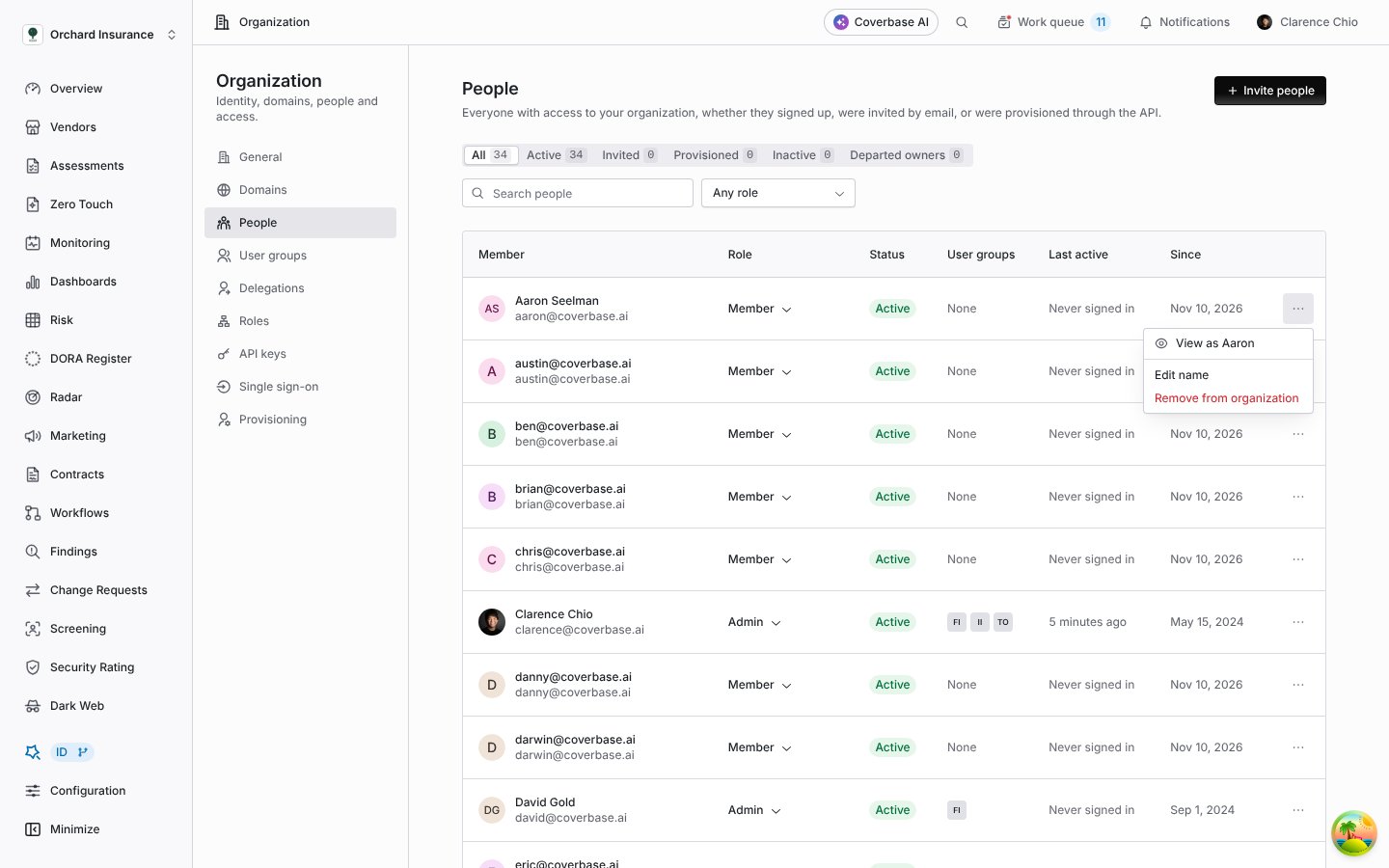
People page with the row menu for Aaron Seelman open, showing View as Aaron above Edit name and Remove from organization

The People row menu. View as appears for active members you can view as.
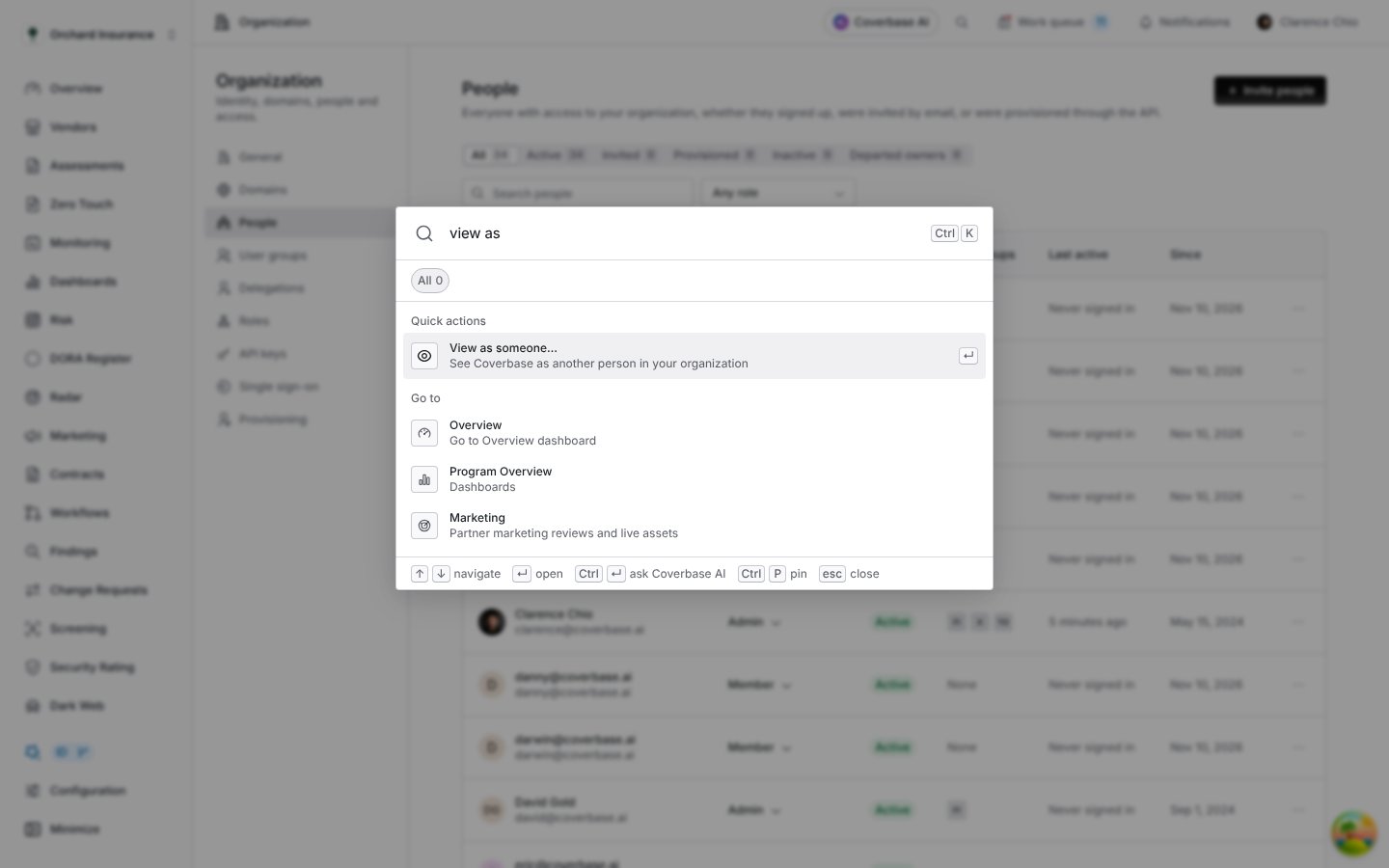
From anywhere, press Ctrl+K (Cmd+K on a Mac), type view as, press Enter, then type the first letters of the person’s name and press Enter again.
Command palette with the query view as and the quick action View as someone, See Coverbase as another person in your organization

The command palette with View as someone under Quick actions.
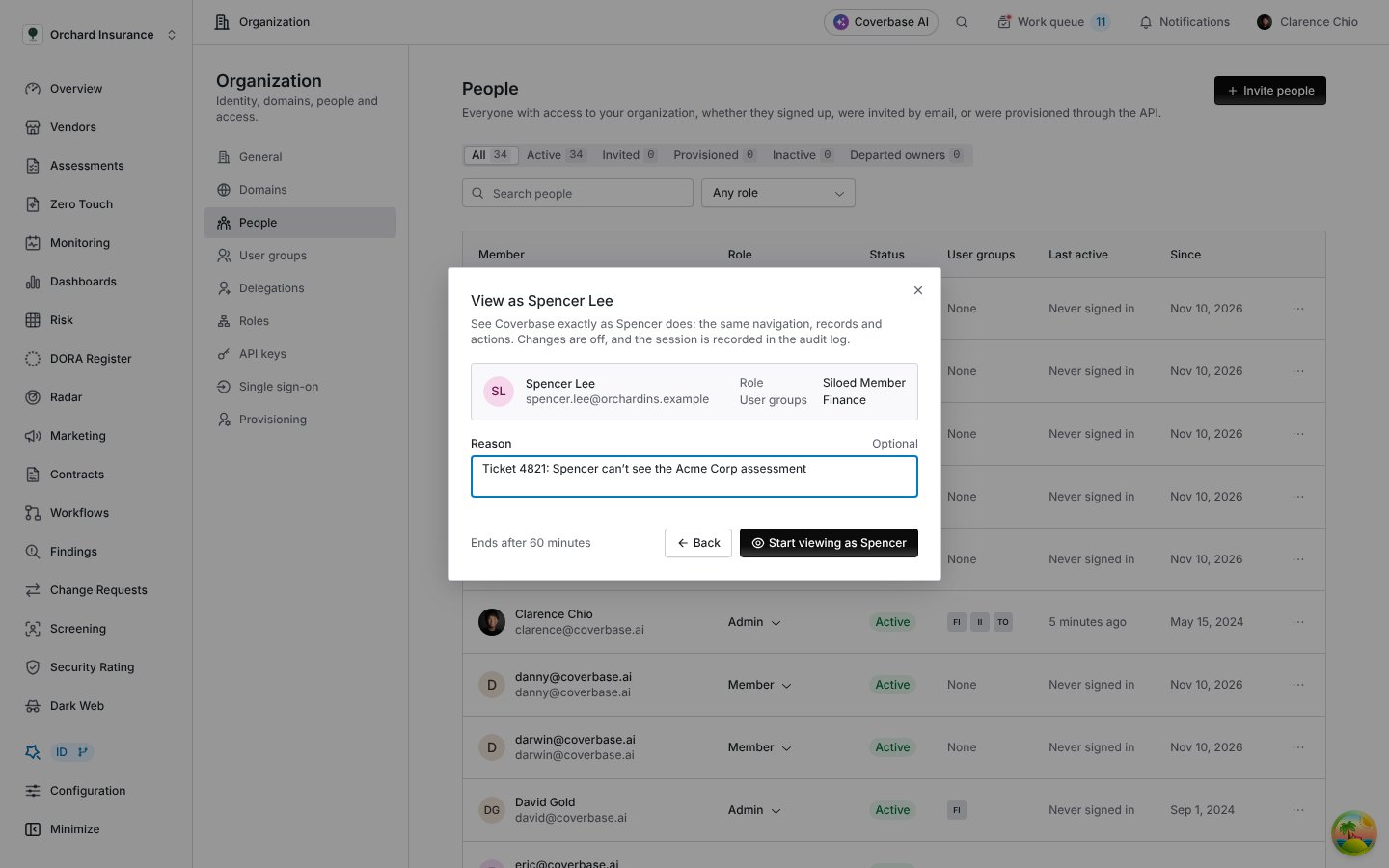
Either way, a dialog shows the person’s role and user groups. Add a reason if you like, such as a ticket number. It is saved with the view in the audit log. Choose Start viewing as to begin.
View as Spencer Lee dialog showing role Siloed Member, user group Finance, a reason field filled with Ticket 4821, Ends after 60 minutes, and a Start viewing as Spencer button

The confirmation step, with an optional reason.

You can view as members, siloed members, guests and people with a custom role. Admins, pending invitations, API accounts and supplier contacts are not listed.

While you view

Coverbase opens the Overview page as the person sees it. A dark bar across the top names the person and their role, shows Read-only, and counts down the time left.
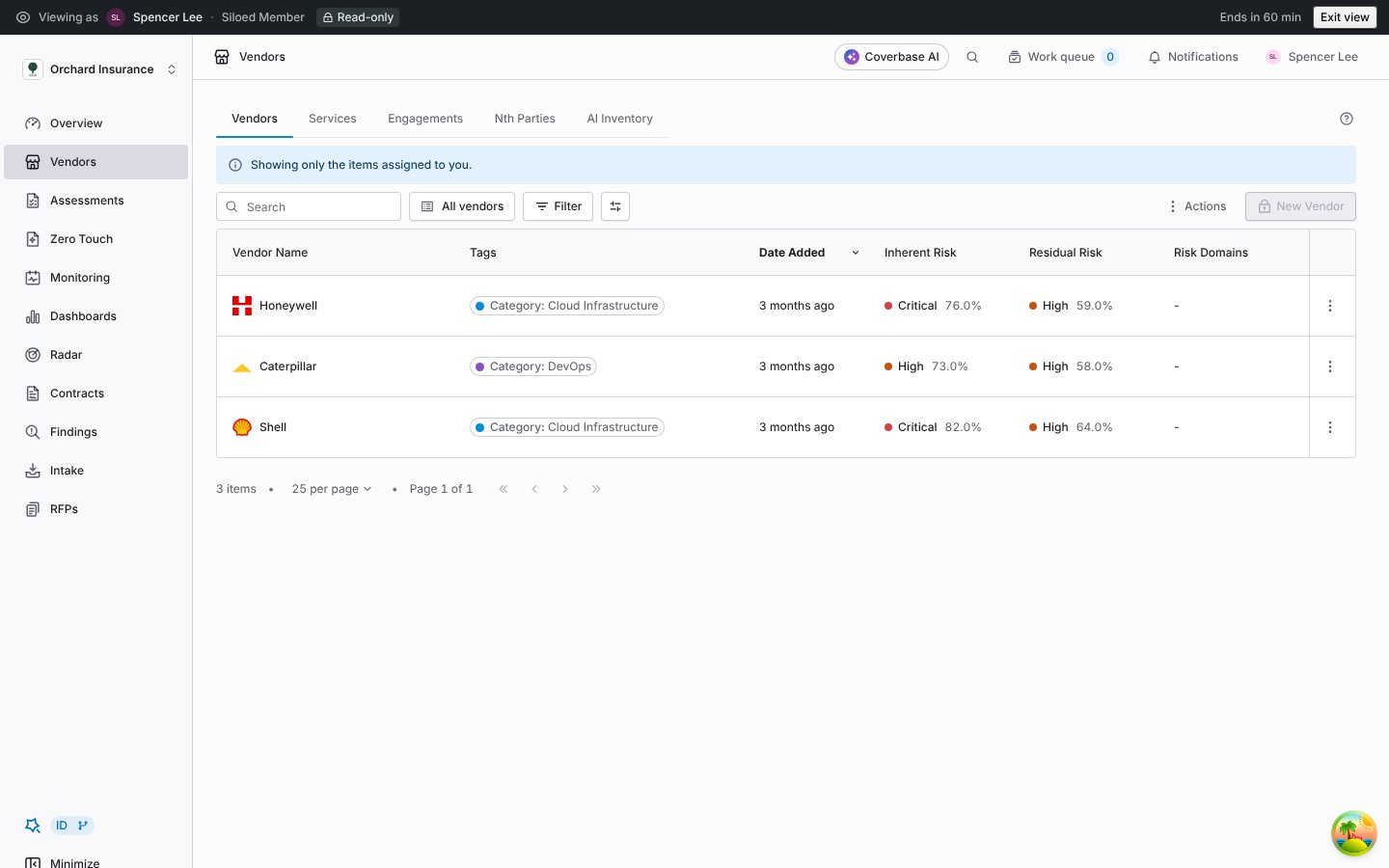
Vendors page while viewing as Spencer Lee, Siloed Member, with three vendors listed, the notice Showing only the items assigned to you, and a disabled New Vendor button

Viewing as a siloed member: only the vendors they own are listed, and New Vendor is unavailable.
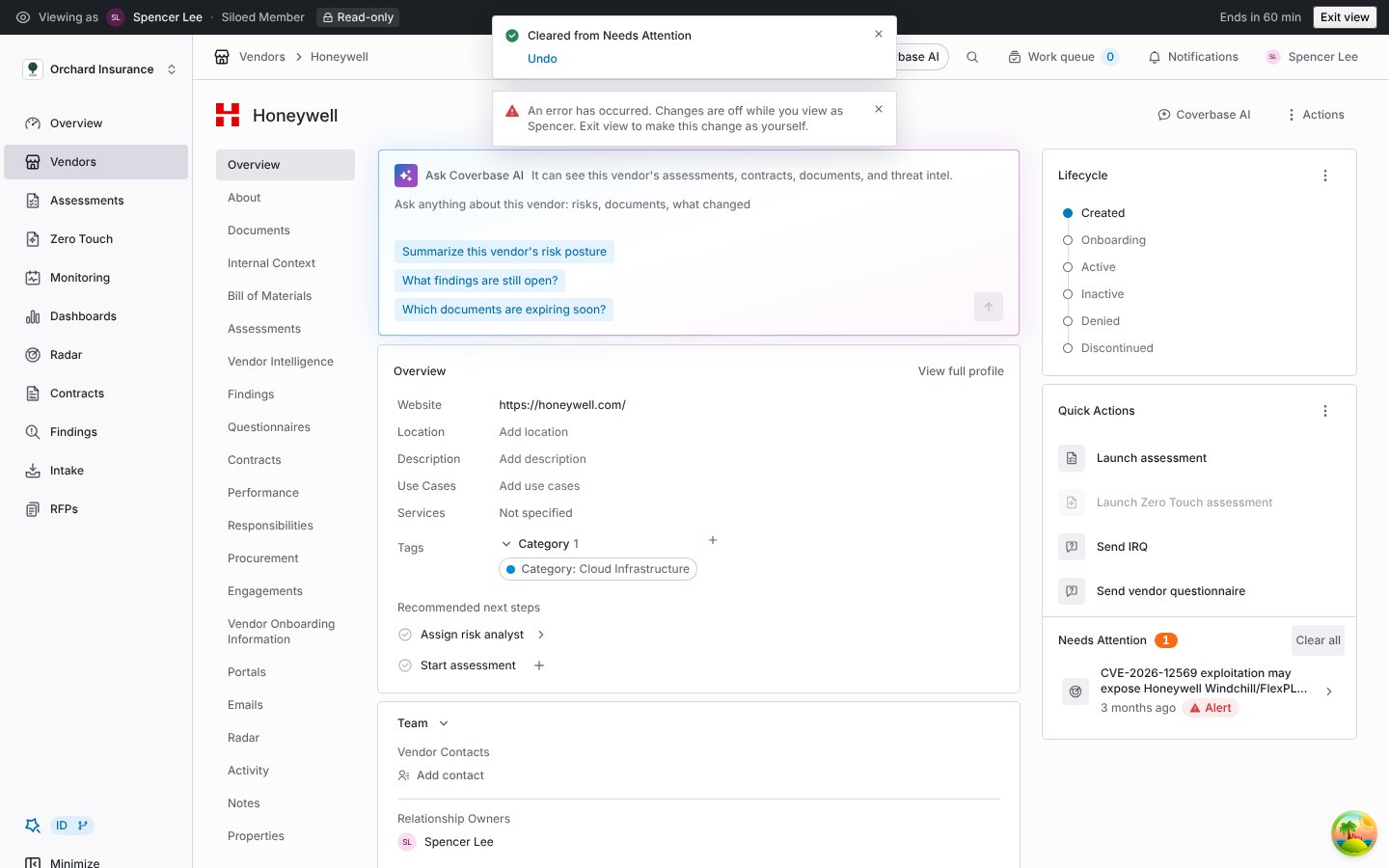
Navigation, pages, records, buttons and the work queue all follow the person’s access. If a button is there for them, it is there for you. If you choose something that would change data, Coverbase does not do it and tells you changes are off.
Vendor page while viewing as Spencer with the message Changes are off while you view as Spencer. Exit view to make this change as yourself.

A change refused while viewing.

Other tabs in the same browser view as the same person. A view ends after 60 minutes. Starting another view ends the one before it.

Exit and fix access

Choose Exit view in the bar. Coverbase returns you to the page you started from. When that is People, the person’s row is highlighted so you can change their role or user groups straight away.
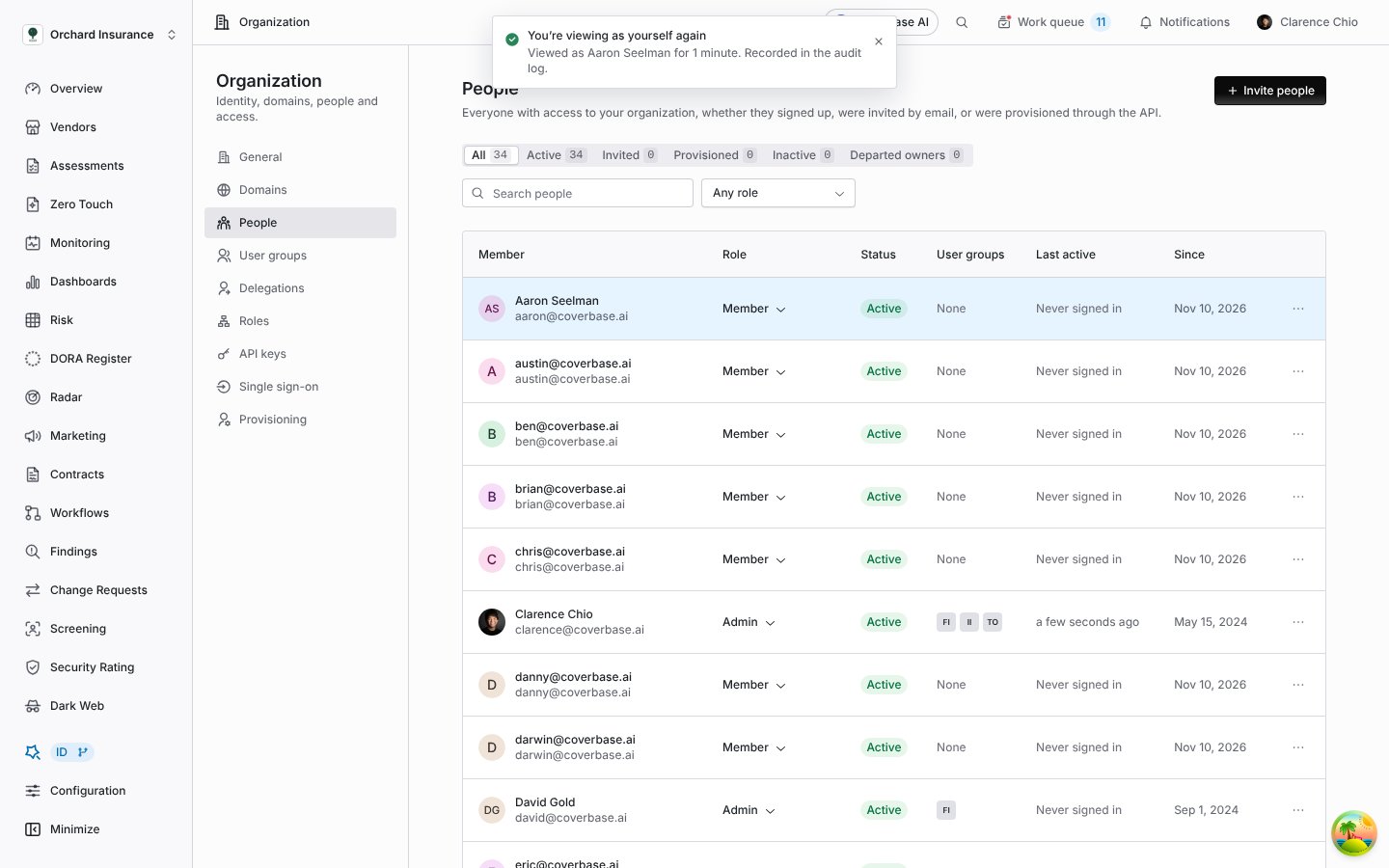
People page with a confirmation that you are viewing as yourself again after one minute, and Aaron Seelman's row highlighted

Back on People after exiting, with the viewed person's row highlighted.

Audit log

Every view writes two events to Configuration → Audit Logs under the Access group: Started viewing as with the person, their role and your reason, and Stopped viewing as with how long the view lasted and how it ended (exited, expired or replaced).
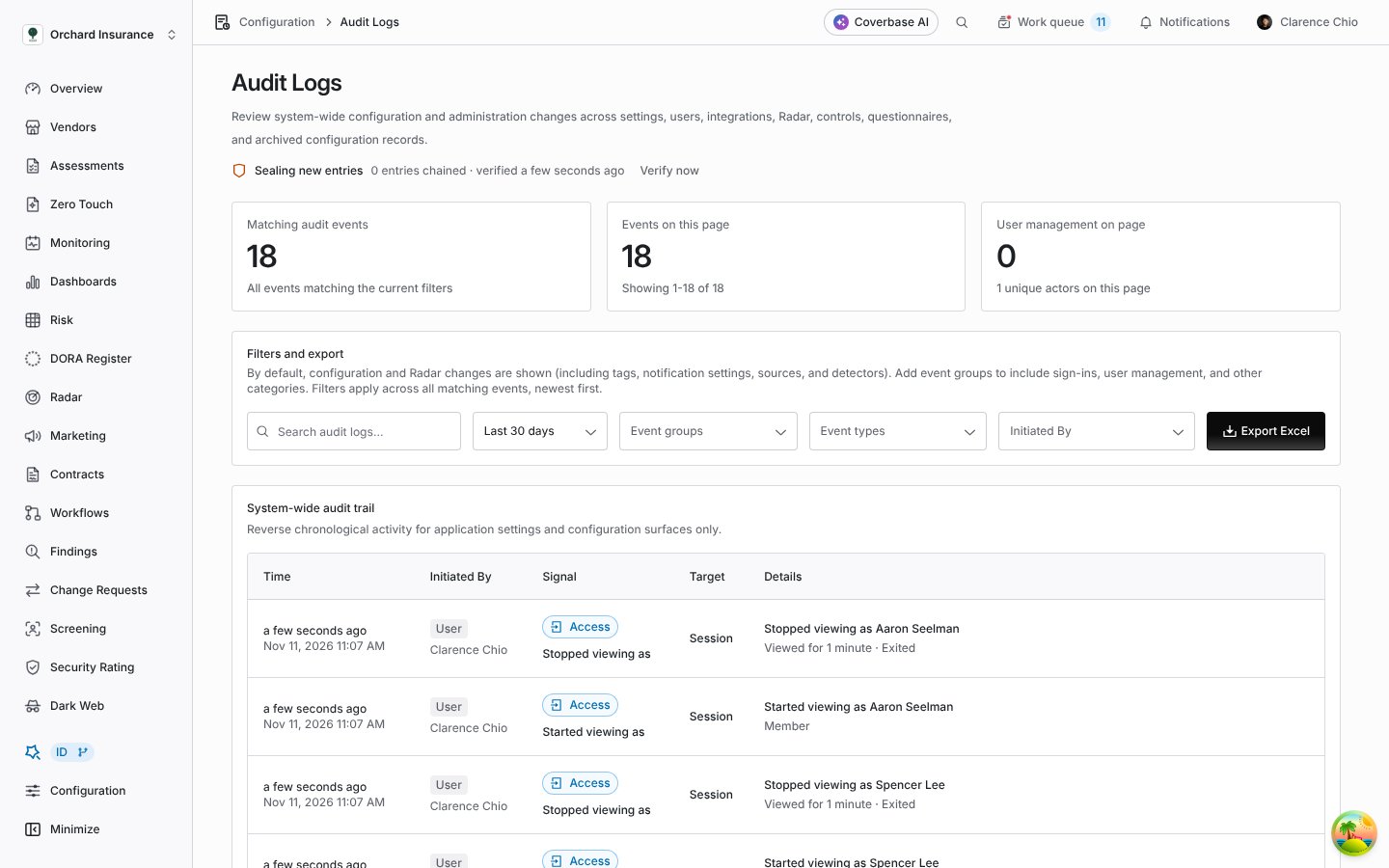
Audit Logs page listing Stopped viewing as Aaron Seelman, Viewed for 1 minute, Exited, Started viewing as Aaron Seelman, Member, and Stopped viewing as Spencer Lee, all in the Access group

View events in the audit log.

Things to know

  • A view ends early if the person loses a viewable role or leaves the organization, or if you stop being an admin.
  • What you see includes the person’s own work queue and notifications. Opening them does not mark anything as read.
  • The view applies to this browser only. Another device stays signed in as you.