

For AI agents: a documentation index is available at https://docs.coverbase.com/llms.txt. This page is also available in markdown by appending .md to the URL.
This guide is part of the User Guides collection. Onboarded suppliers use the supplier portal described in Invoices in the supplier portal. The requirements themselves are set on the Payables rules page.
Setting the requirements
Under Supplier onboarding on the Payables rules page:
Each requirement has a name, a Type (Document or form, or Assessment), Due (days after invite), and optional conditions: Only for risk tiers, Only for countries and Only above annual spend. A supplier is asked only for the requirements whose conditions they meet.
An Assessment requirement opens your usual assessment for the supplier when the invitation goes out, with the questionnaires and control sets that match their profile. It is met when that assessment is complete.
With approvers set, a requirement counts only once someone in those roles approves it. With No approval step, anything a supplier sends counts as done straight away. A role with nobody in it under Team roles falls back to anyone who can edit suppliers.
Starting a wave
Open Payables › Onboarding. Waves are listed 50 to a page.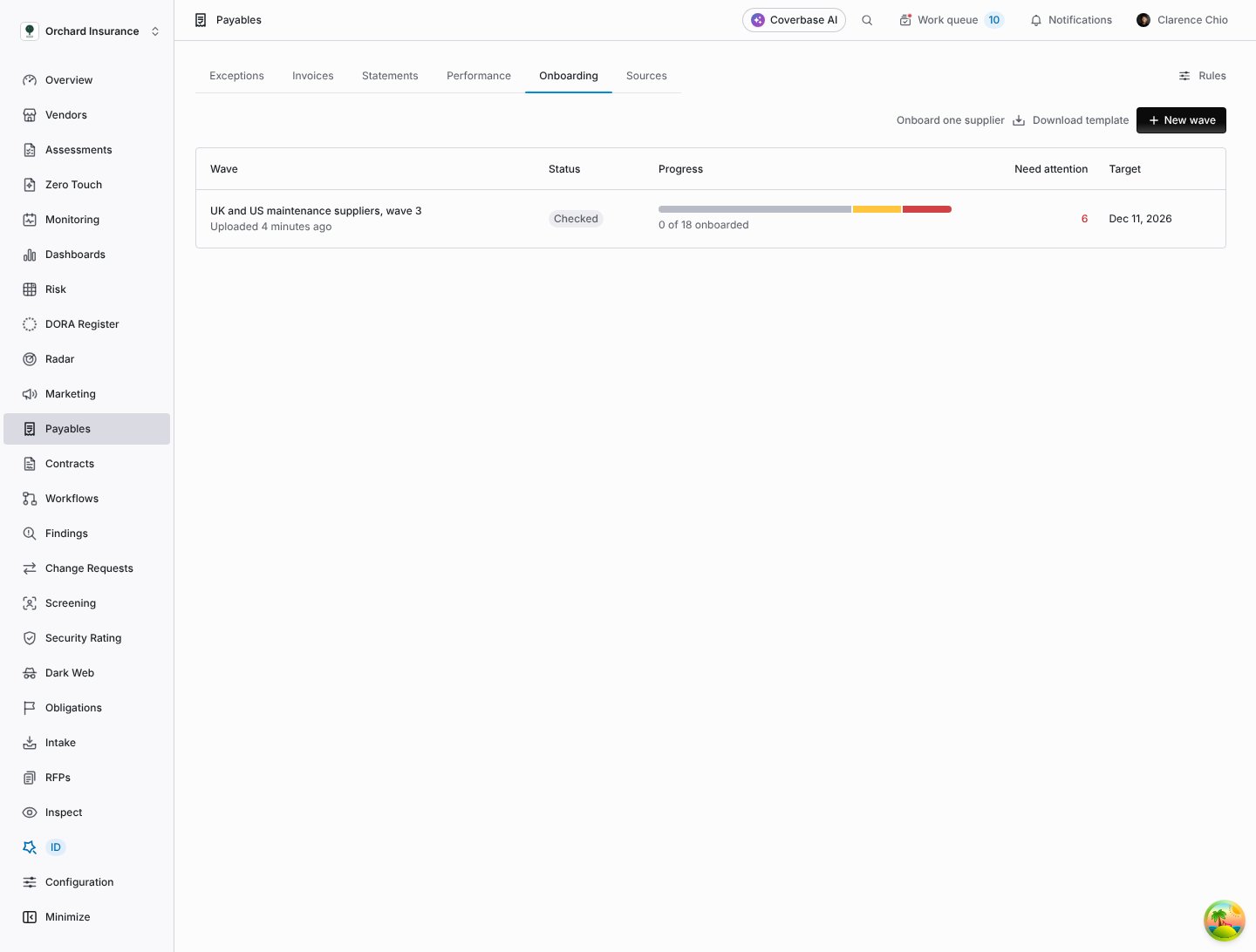
The Onboarding tab: each wave with its status, progress and rows needing attention.
1
Prepare the list
Click Download template for the column headers. Legal name, Country and Contact email are required. Tax ID, Contact name, Currency, Language, Annual spend, Risk tier and Supplier ID are optional. A wave holds up to 5,000 suppliers.
2
Upload it
Click New wave. Give it a Wave name and, if it is for a client, the Client. Drop in the supplier list as a CSV or Excel (.xlsx) file, then click Preview import. From an Excel workbook, Coverbase reads the first visible sheet.
3
Read the preview
The preview says how many rows are ready and lists the rows with problems. Nothing is kept yet.
4
Keep the wave
Click Create wave with N suppliers, where N is the number of supplier rows the wave will hold. The wave opens with the status Checked, and the confirmation says “Nobody is invited until you start invitations.”
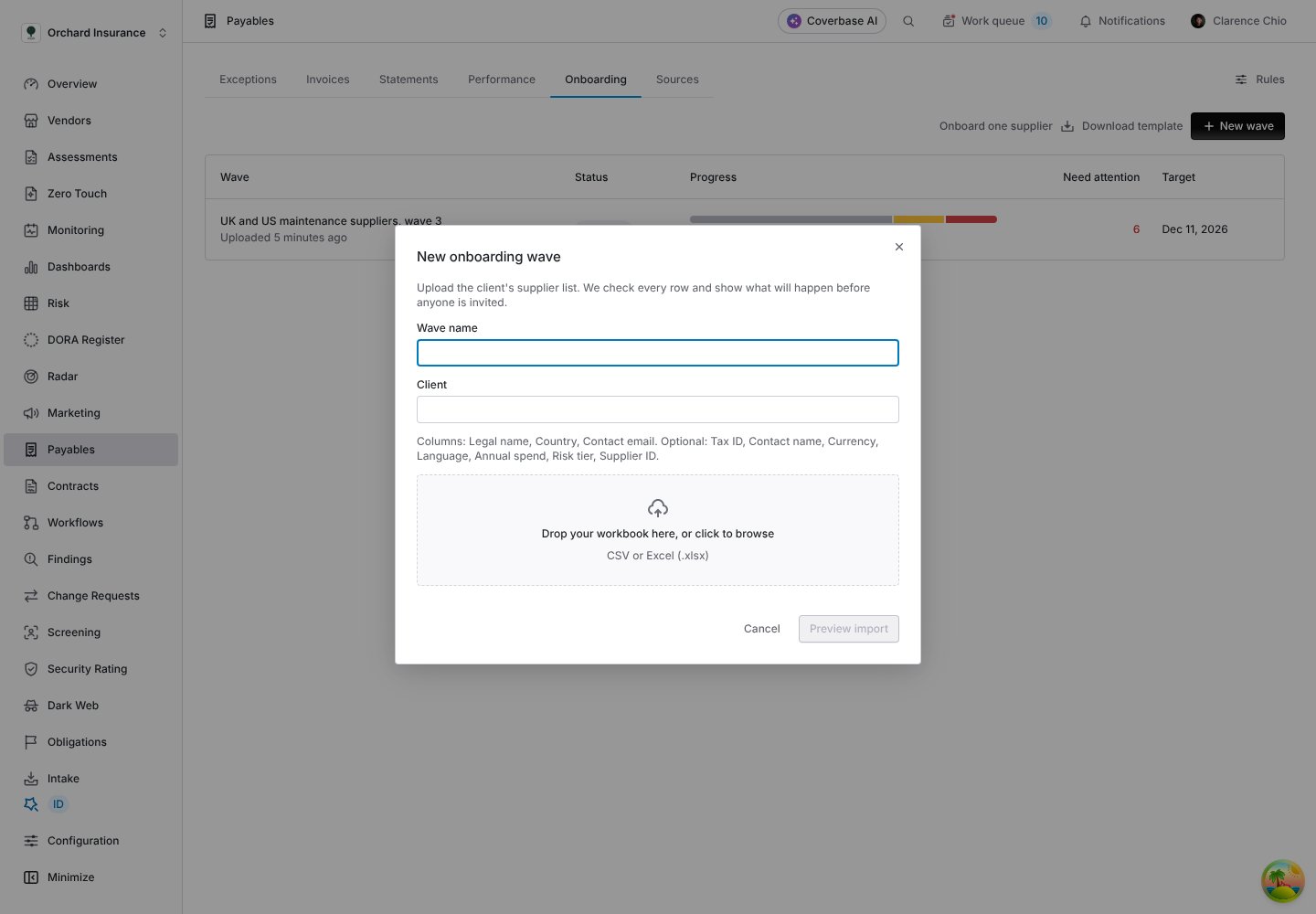
New onboarding wave: name it, name the client, and upload the supplier list.
What the checks look for
Every row is checked before anything happens:
Everything else is Ready to invite. A row with no language uses the wave’s default.
Reviewing a wave
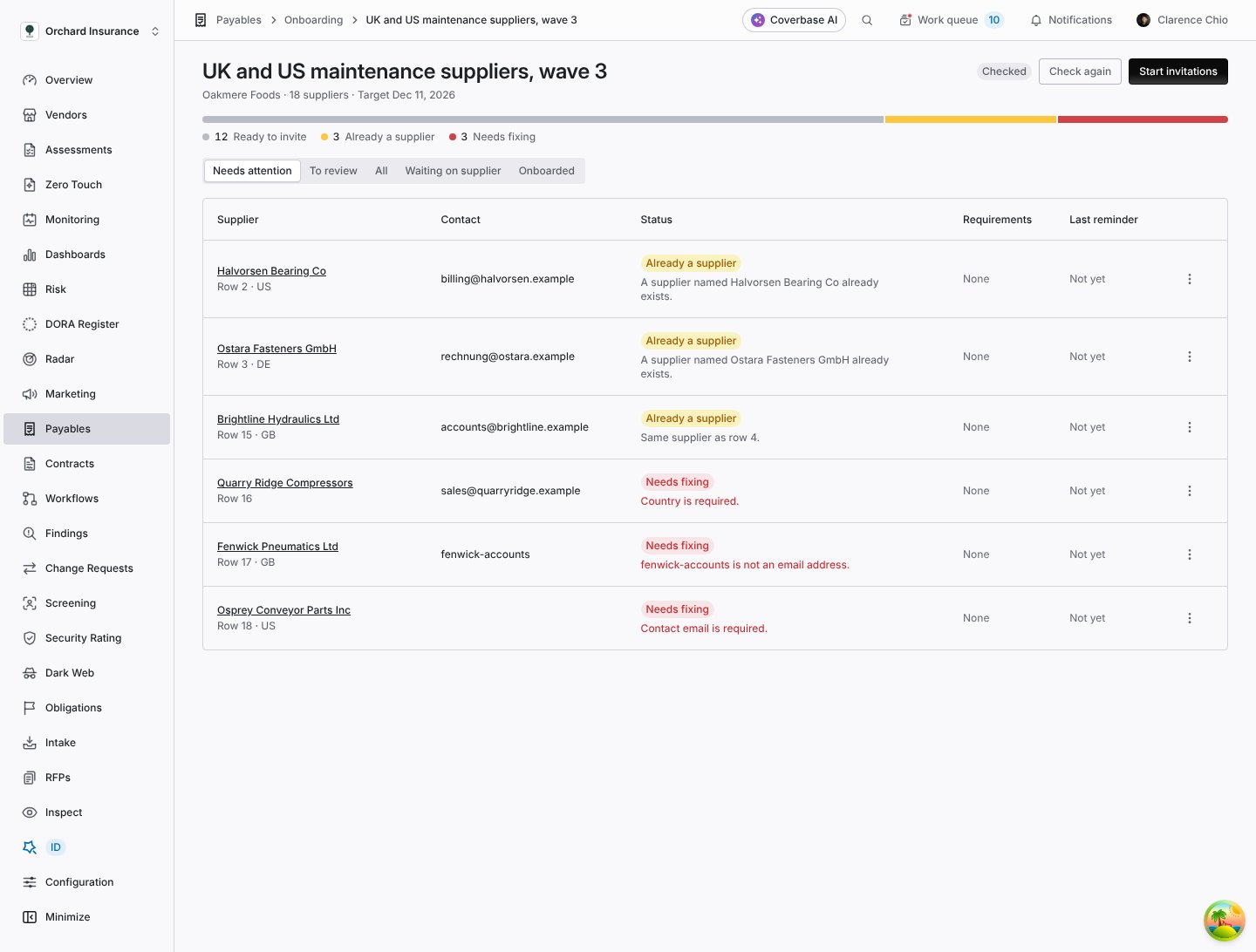
A checked wave: ready rows, rows that match existing suppliers, and rows that need fixing.
- Link to the existing supplier for a row that matches one you have. The supplier is onboarded as the record you already hold.
- Create as a new supplier when the match is a different company with the same name.
- Skip this supplier to leave the row out.
- Retry for a row that failed while being invited.
- Send a reminder now for a supplier mid-way.
Starting the invitations
Click Start invitations. The wave shows Inviting while it works through the ready rows in batches. For each supplier, Coverbase links or creates the supplier record, opens their supplier portal, makes the contact its owner, lists the requirements your rules call for with their due dates, and sends the invitation in the supplier’s language. Each step is written to the activity log. A row that fails shows Failed with its error, and the wave moves on. Pause invitations stops after the current batch, and Resume invitations carries on where it stopped. A finished wave is Complete, or Complete, some failed. Suppliers are reminded on your cadence until they finish or reach the reminder limit. Before each reminder, Coverbase credits requirements their own records already satisfy (a profile address, an active bank account, a tax registration or W-9, an insurance document, a completed assessment), so nobody is chased for something they sent. A status a person set is never downgraded. A supplier is Onboarded once every requirement is received, approved or waived, depending on whether you require approval. Onboarding is separate from invoices: an open requirement does not hold up an invoice.Reviewing what a supplier sent
Click a supplier in the wave to open its review drawer.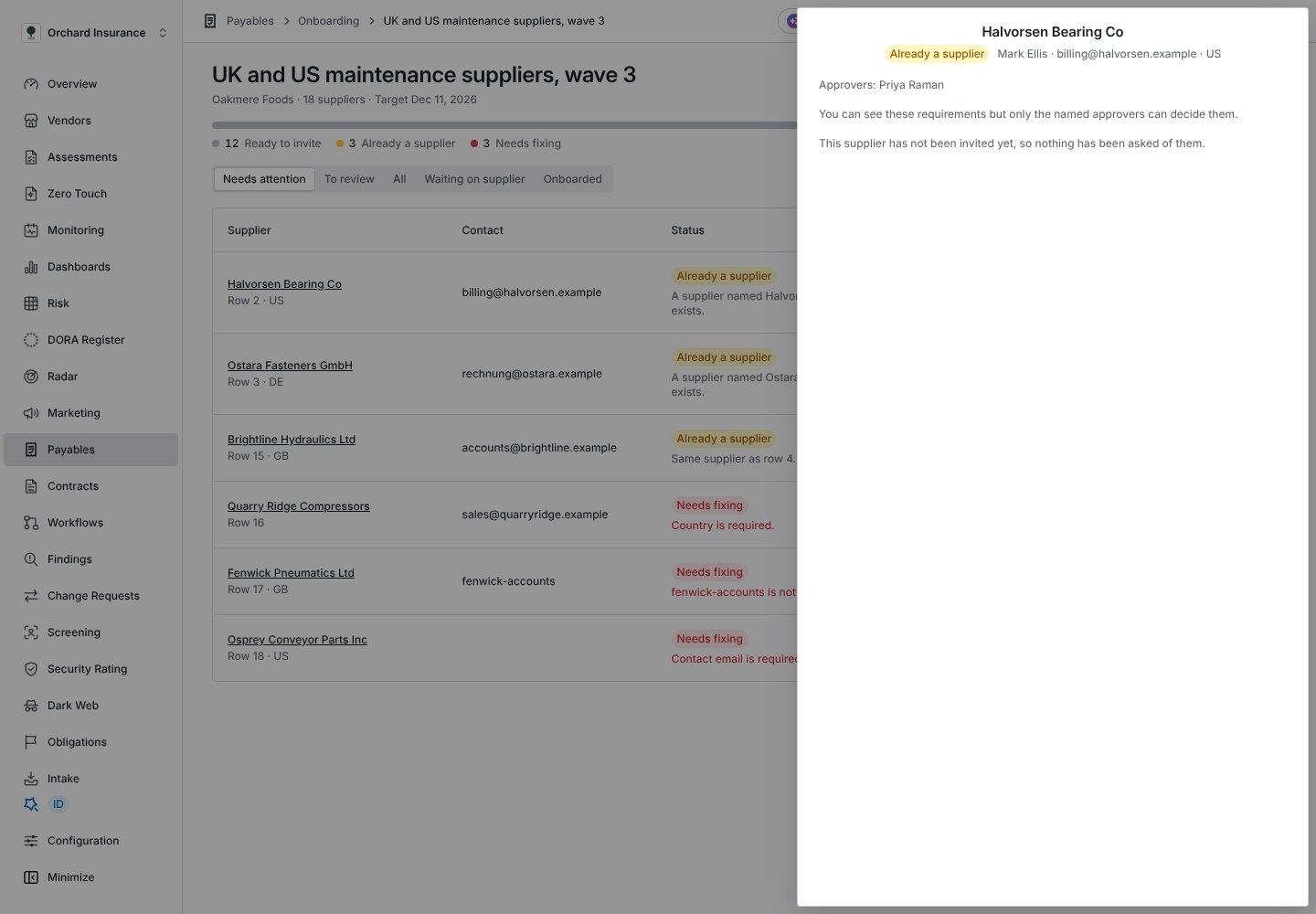
A row's review drawer: its status, its contact, who may approve, and its requirements.
- Approve accepts it.
- Send back returns it with What needs fixing. The supplier sees your note in their portal and can send a new file.
- Waive marks it not needed.
Onboarding one supplier
Onboard one supplier runs the same checks, requirements and reminders as a wave, for one supplier. Nothing is created until you send the invitation.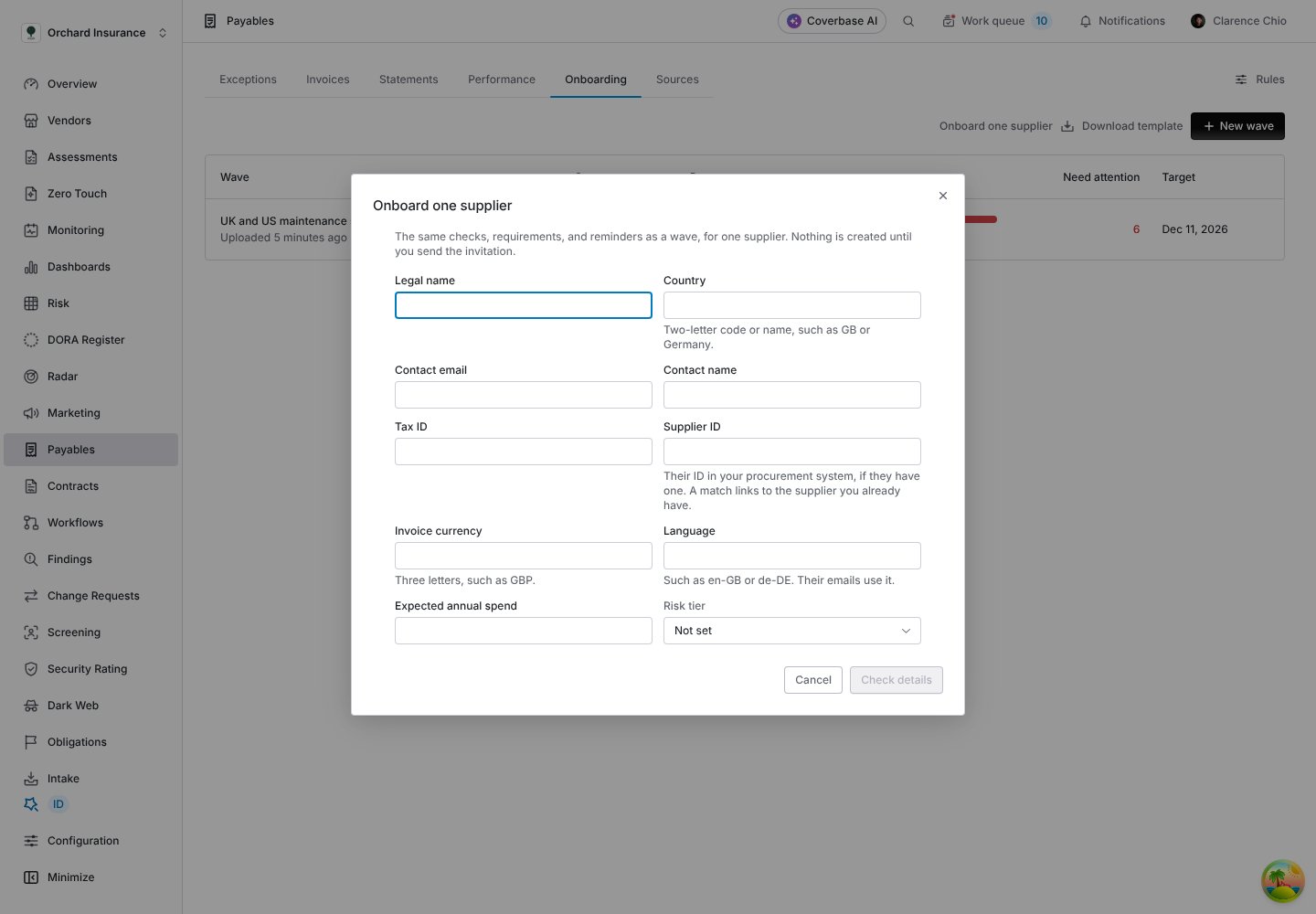
Onboard one supplier: the same fields as a wave row.
1
Fill in the supplier
Legal name, Country and Contact email are required. Supplier ID is their ID in your procurement system, if they have one; a match links to the supplier you already have. Language decides the language of their emails.
2
Check details
Click Check details. If a supplier with that name exists, answer ”… is already a supplier. Is this the same company?” with Yes, onboard the supplier we already have or No, create a new supplier.
3
Send the invitation
They will be asked for lists the requirements that apply. Click Send invitation.
Troubleshooting
Related
Setting up Payables
Requirements, approvers and team roles.
Invoices in the supplier portal
What an invited supplier sees.
Centralized supplier portal
The portal suppliers are invited to.
Supplier information
Bank details, addresses and tax registrations suppliers keep current.