

For AI agents: a documentation index is available at https://docs.coverbase.com/llms.txt. This page is also available in markdown by appending .md to the URL.
This guide is part of the User Guides collection. For cases opened by a mismatch, see Working exceptions. For what suppliers do on their side of a statement, see Invoices in the supplier portal.
Invoices
Open Payables › Invoices.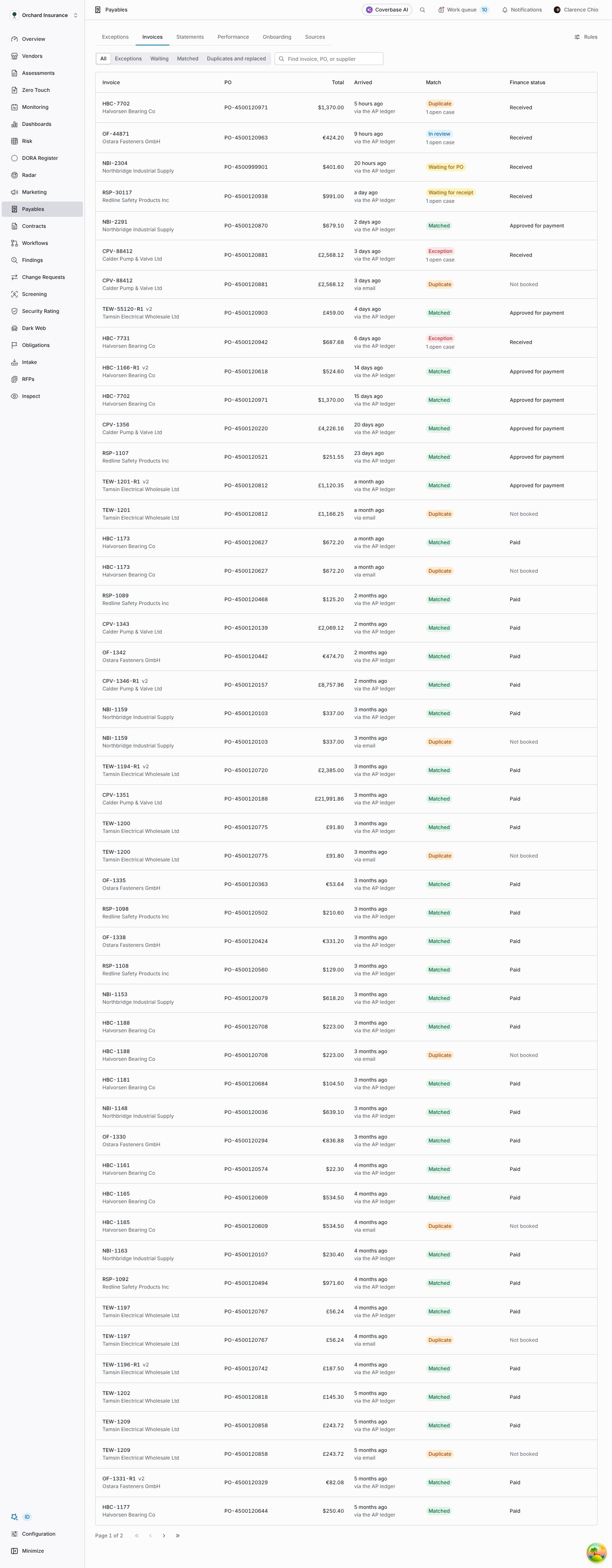
The Invoices tab: every invoice from every channel, with its match state and finance status.
The finance status is copied from your ledger as sent: received, in matching, on hold, approved for payment, payment scheduled, paid, partly paid, rejected or voided. An invoice your ledger has not booked yet, such as an emailed copy or a portal submission, says it is not booked. Coverbase never works out a finance status itself.
The invoice drawer
Click an invoice to open its drawer.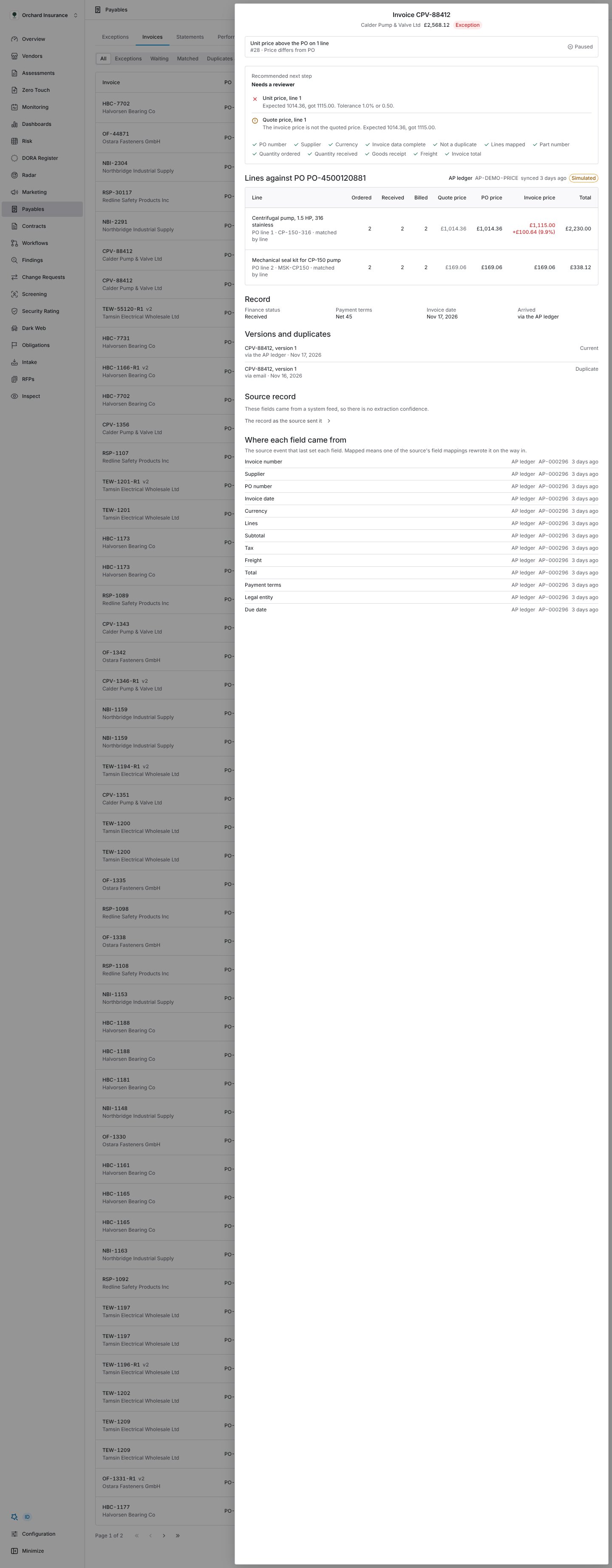
The drawer of an invoice with an open case.
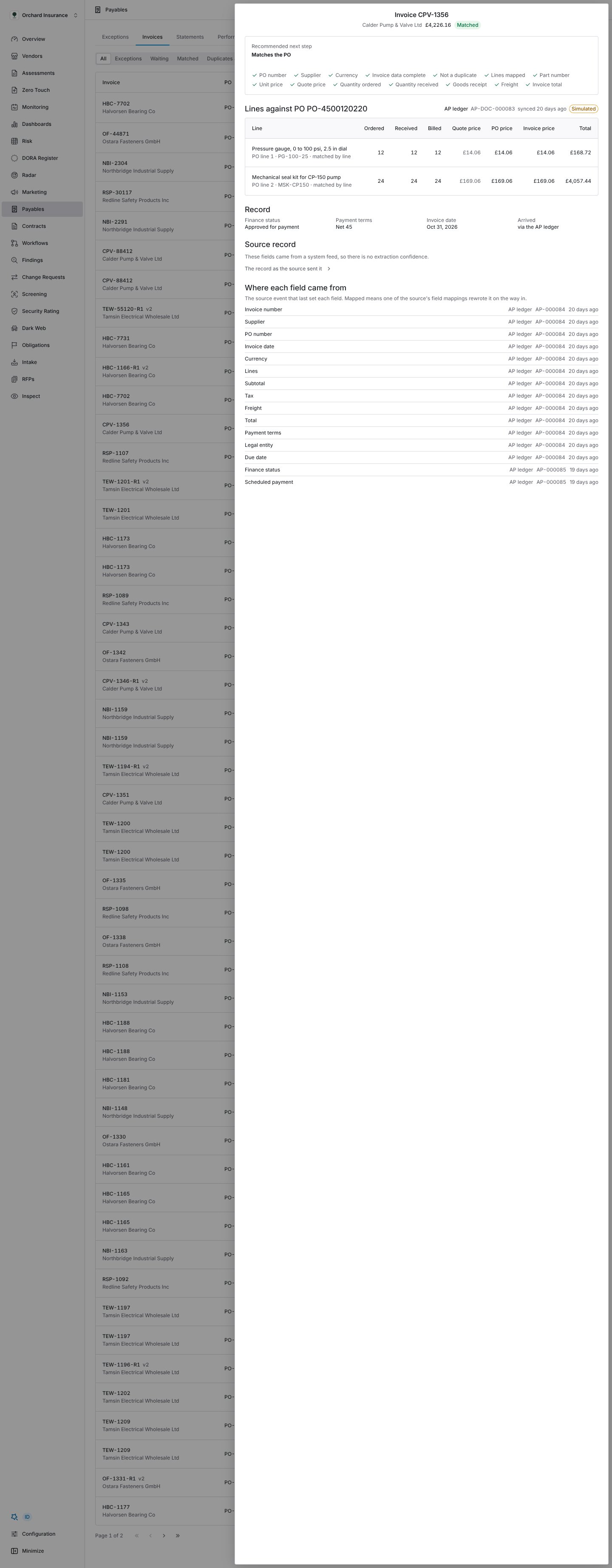
The drawer of an invoice with no open case.
Statements
A statement lists the invoices you have recorded from one supplier for one month, so the supplier can check them against their own records. It is a reconciliation aid, not a promise of payment.How statements are generated
- When. Every month on the day set under Monthly statements (day 1 by default), for the month before. Generate for on the Statements tab generates the chosen month now. A supplier who already has one gets an amended version only if something on it changed.
- Per what. One statement per supplier, per currency, per billing entity. A supplier who bills two of your legal entities in two currencies can get four.
- Which invoices. Invoices your organization has recorded and dated in the month, plus, depending on your rules, invoices paid in the month and invoices still open from earlier months. A portal submission or an emailed copy your ledger has not booked is the supplier’s document, not yours, and is left out. A corrected invoice replaces the one it corrects once your ledger has booked it.
- Each line. Invoice number, PO, date, amount, the status the supplier sees, payment (paid date and amount, an Expected date when you show scheduled dates, or Not scheduled) and, when you show it, why it is on hold. Credit notes are their own lines.
- Totals. Invoiced, Paid, Outstanding and On hold, and the credit notes total.
Amendments
A statement never changes once issued. If something it covers changes while the supplier can still answer (a late invoice, a payment, a credit), Coverbase writes an amended version the next day. It shows as amended (v2) with Amended: and a sentence on what changed. The earlier version stays as it was sent, and the supplier’s answers carry over to lines that did not change. The supplier is emailed again.Reading the Statements tab
Open Payables › Statements and pick the month. Statements are listed 50 to a page.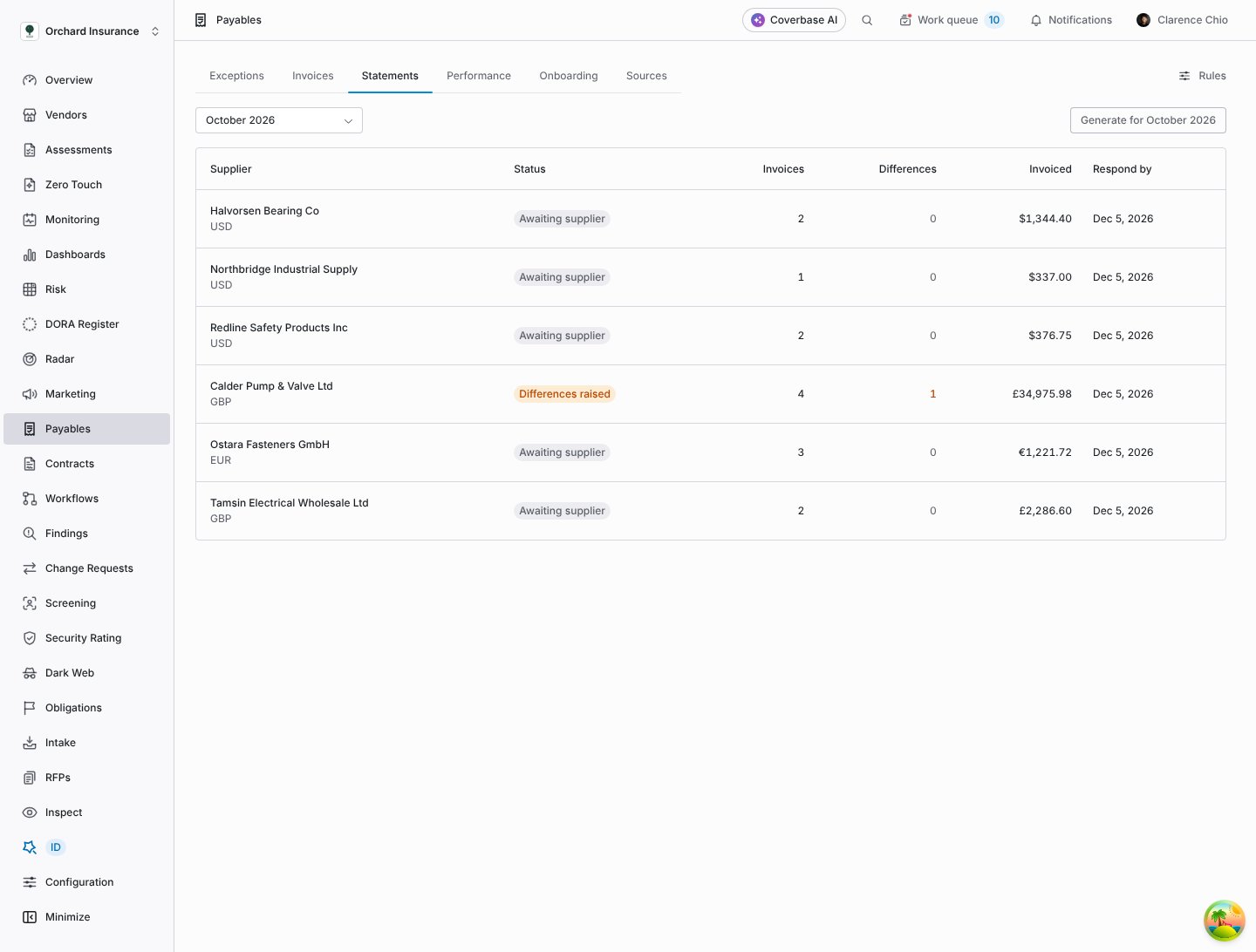
The Statements tab for one month: each supplier's statement, its status and its differences.
Click a row to open the statement. Export CSV downloads it as the supplier received it, with their responses.
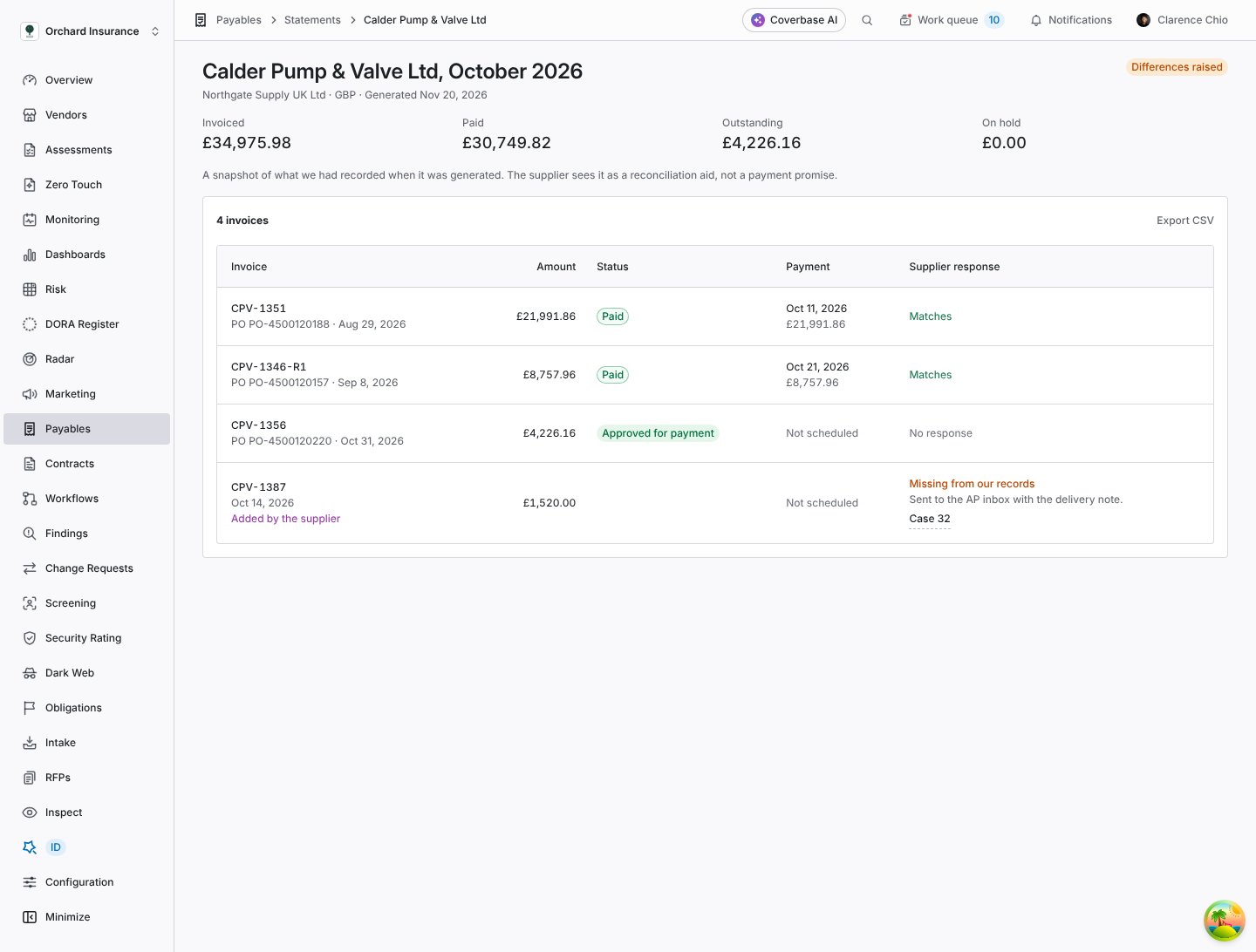
A statement with a difference raised: an invoice the supplier says is missing from your records.
Supplier responses
Suppliers answer line by line in their portal, until Respond by.
A supplier can also confirm the whole statement, which agrees with every line they did not dispute. When the window closes, unanswered lines stay unanswered. They are never taken as agreement.
Missing invoice claims
A supplier who sent an invoice you have no record of adds it to the statement with its number, PO, date, amount, how and when they sent it, and optionally the file. Look for it in the email intake, in your ledger and on the Invoices tab.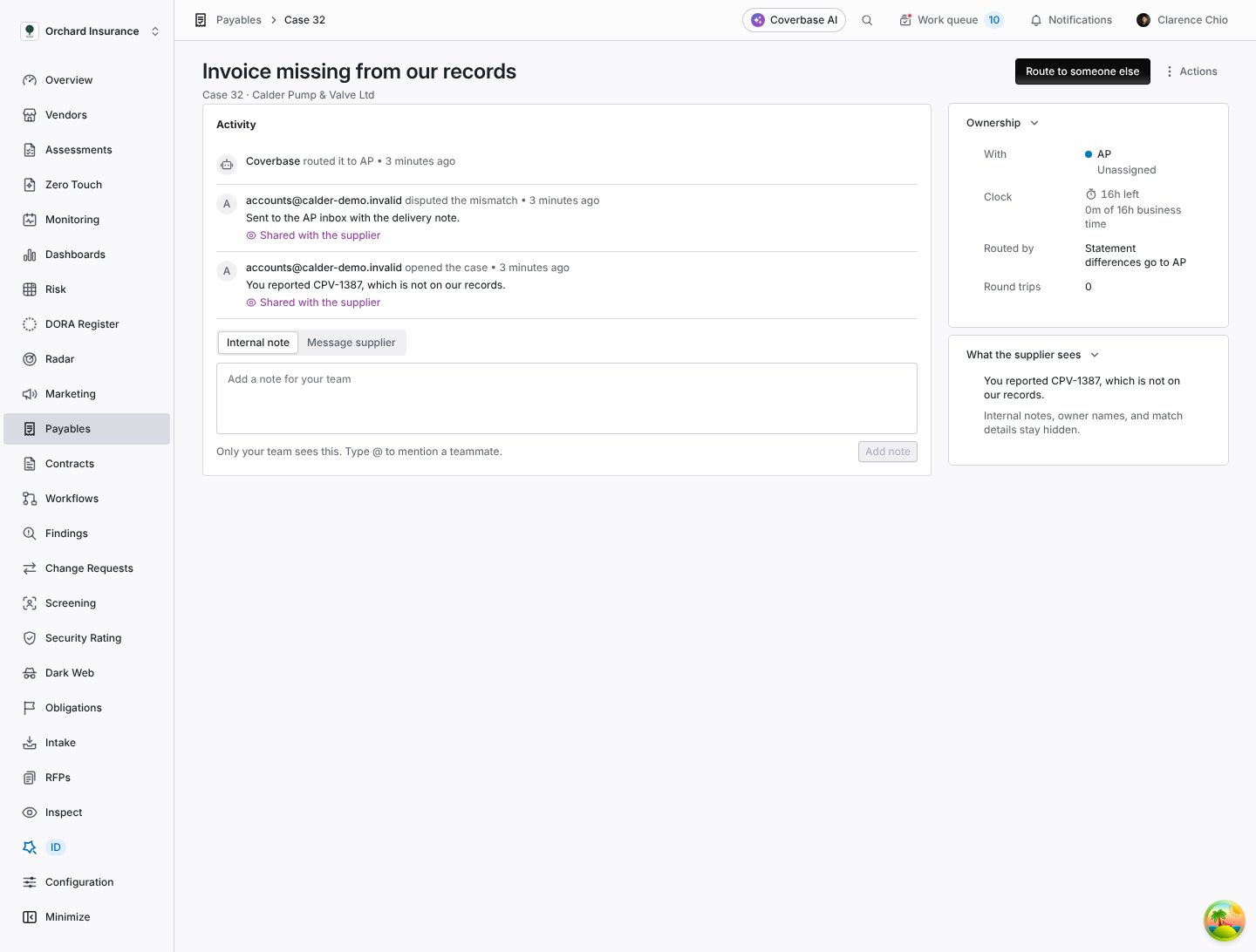
A missing invoice claim, as a case for AP.
Troubleshooting
Related
Working exceptions
Statement differences are cases too.
How matching works
Match states, versions and duplicates.
Setting up Payables
Statement day, response window and what suppliers see.
Invoices in the supplier portal
The supplier’s side of a statement.