For AI agents: a documentation index is available at https://docs.coverbase.com/llms.txt. This page is also available in markdown by appending .md to the URL.
This guide is part of the User Guides collection. Share it with your suppliers. For signing in and the rest of the portal, see The supplier portal, for suppliers. For the settings behind this page, see Setting up Payables.
Your customer checks every invoice you send against the purchase order and the goods they recorded as received. This part of their supplier portal shows you what they have recorded, what is holding an invoice up, and what they need from you. You can answer here instead of emailing their accounts payable team. The mistake suppliers make most often is emailing a corrected invoice to accounts payable. Use Upload corrected invoice on the invoice instead. It is checked against the PO again within minutes, and the question on it closes by itself when it matches. Your customer decides which of these pages you see and what you may send. If a page or button described here is missing, your customer has not turned it on, or your role in the portal cannot use it.

Home

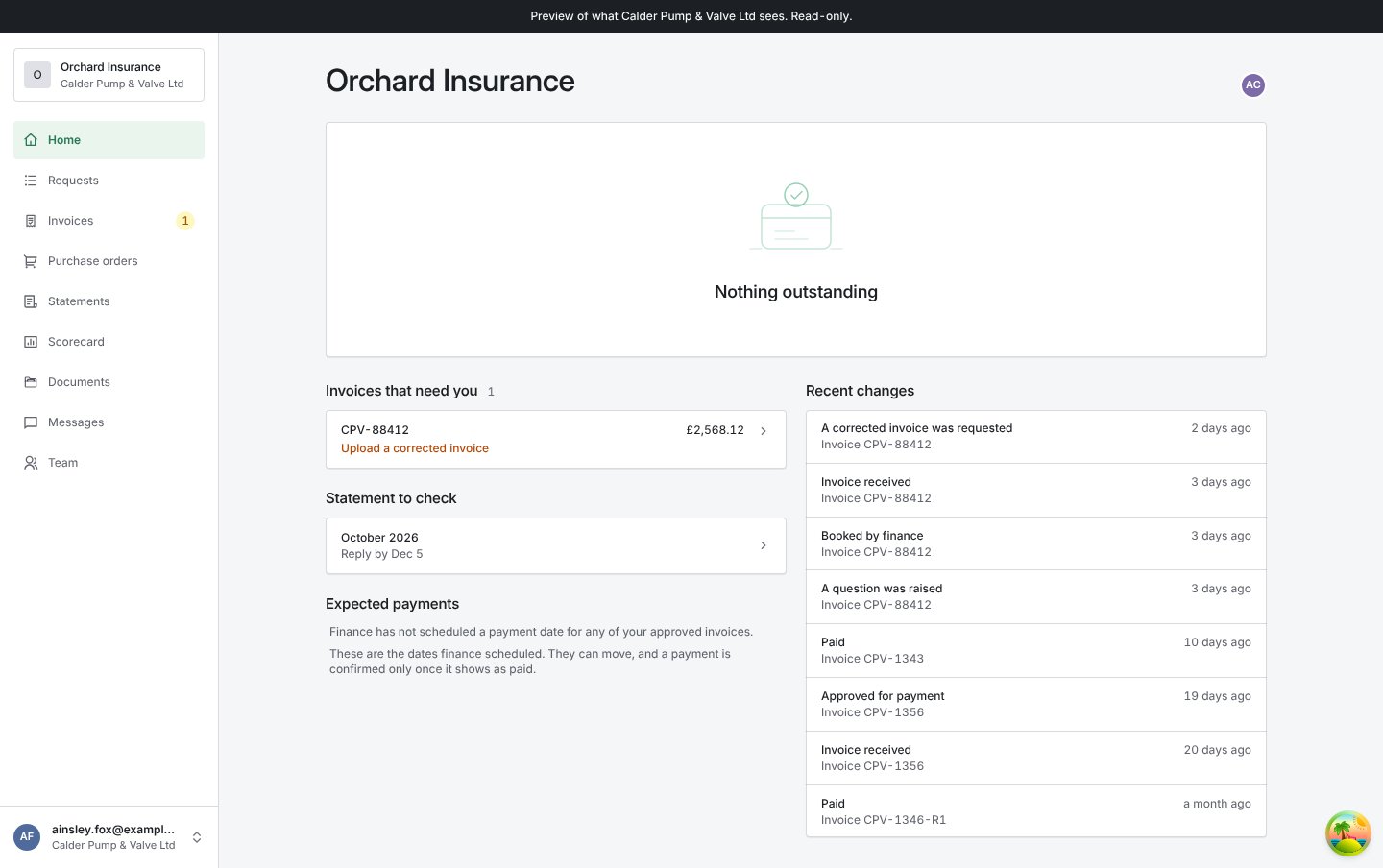
The portal’s home page shows what needs you first.
Supplier portal home page with the left navigation including Invoices, Purchase orders, Statements and Scorecard, a list of invoices that need you with the next step, the statement to check with its reply-by date, expected payments, and a list of recent changes to invoices

Home: invoices that need you, the statement to check, expected payments and recent changes.
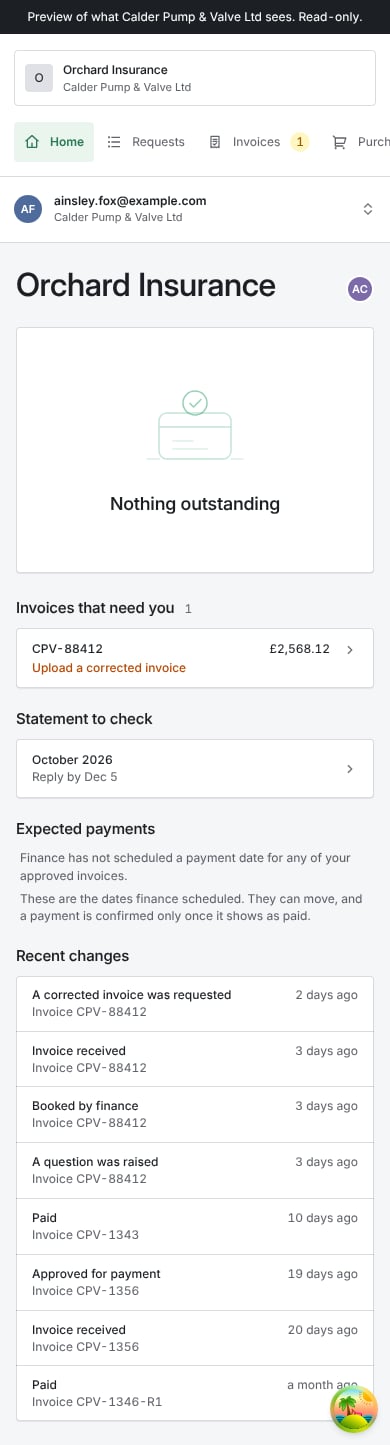
  • Invoices that need you. Each invoice where your customer is waiting on you, with what to do.
  • Statement to check. This month’s statement and the date to reply by.
  • Expected payments. Dates your customer’s finance team scheduled for approved invoices, when your customer shows them. They can move, and a payment is confirmed only once it shows as paid.
  • Recent changes. Each invoice event, such as received, booked by finance, approved for payment or paid.

Your invoices

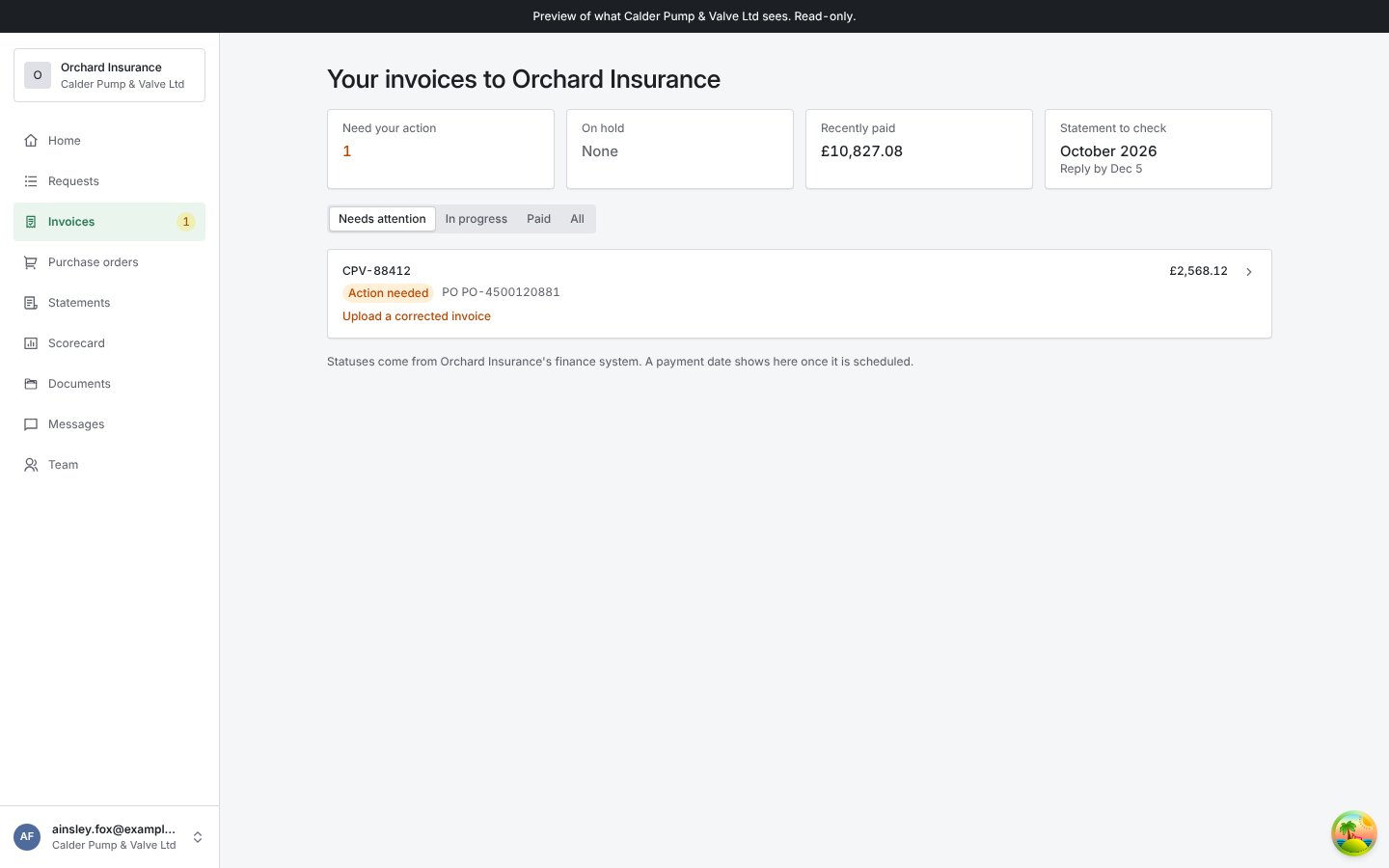
Open Invoices.
Invoices page with tiles for invoices needing your action, invoices on hold, recently paid and the statement to check, filters for needs attention, in progress, paid and all, and an invoice marked Action needed with its PO and the next step to upload a corrected invoice

Your invoices to your customer, filtered to the ones that need your action.
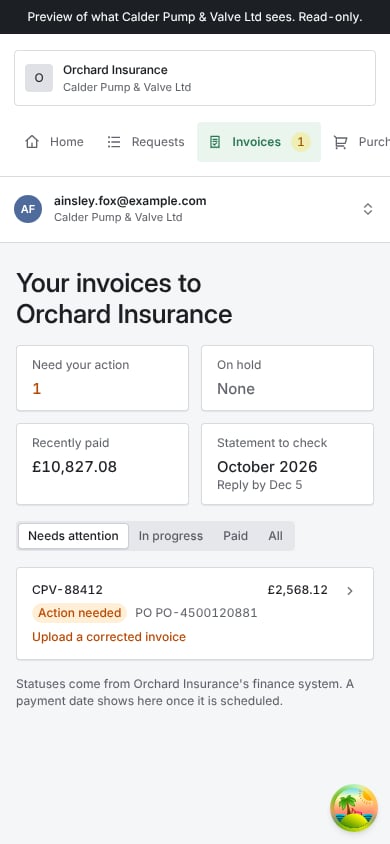
The tiles count invoices that Need your action and are On hold, show what was Recently paid, and link the Statement to check. Filter with Needs attention, In progress, Paid and All. Statuses come from your customer’s finance system. A payment date shows once it is scheduled, if your customer shows them.

An invoice that needs action

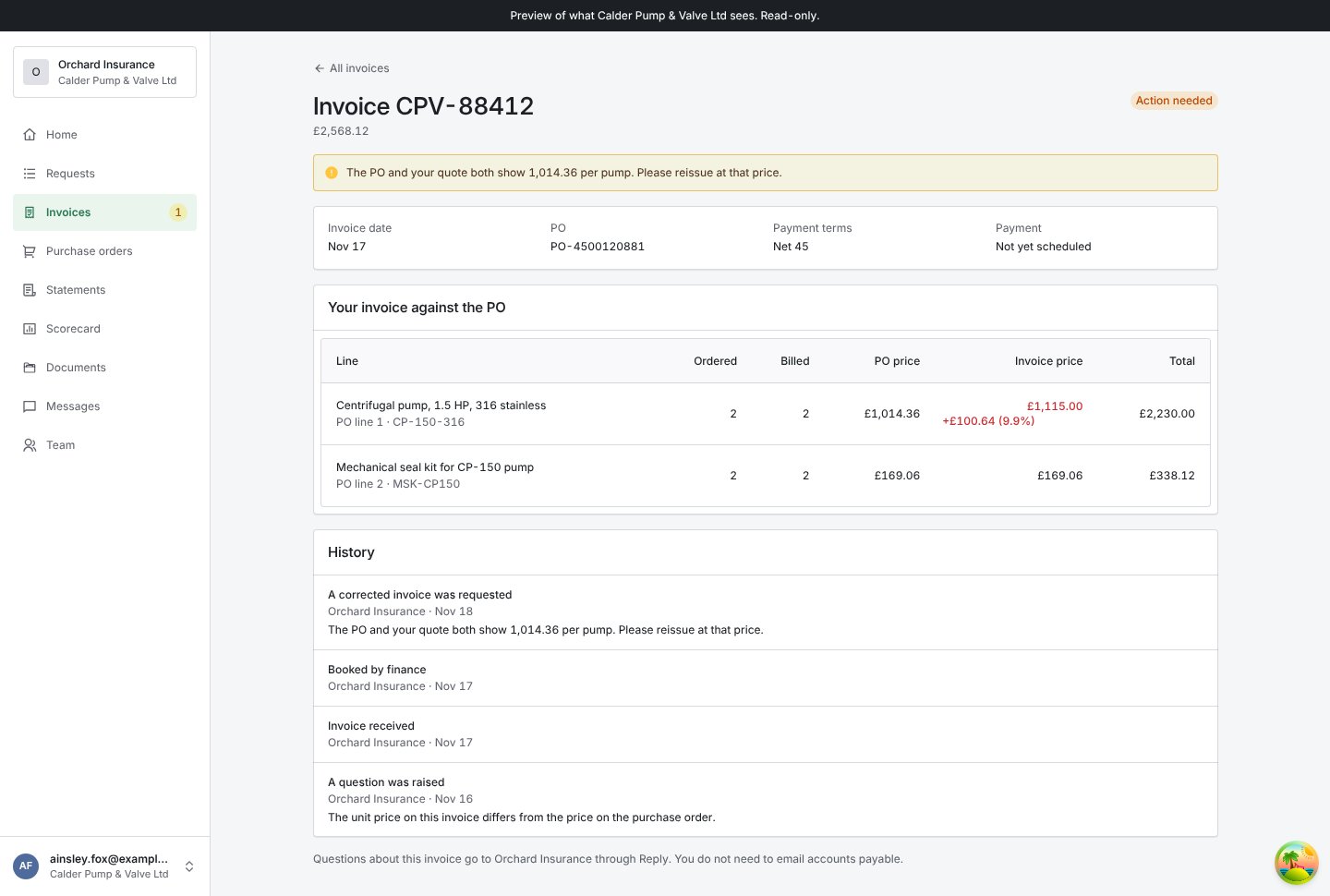
Open the invoice.
Invoice page marked Action needed with a banner carrying the customer's message, the invoice date, PO, payment terms and payment, a table comparing each invoice line's quantity and price with the PO, and the history of the invoice

An invoice that needs action: the message from your customer, the invoice against the PO, and its history.
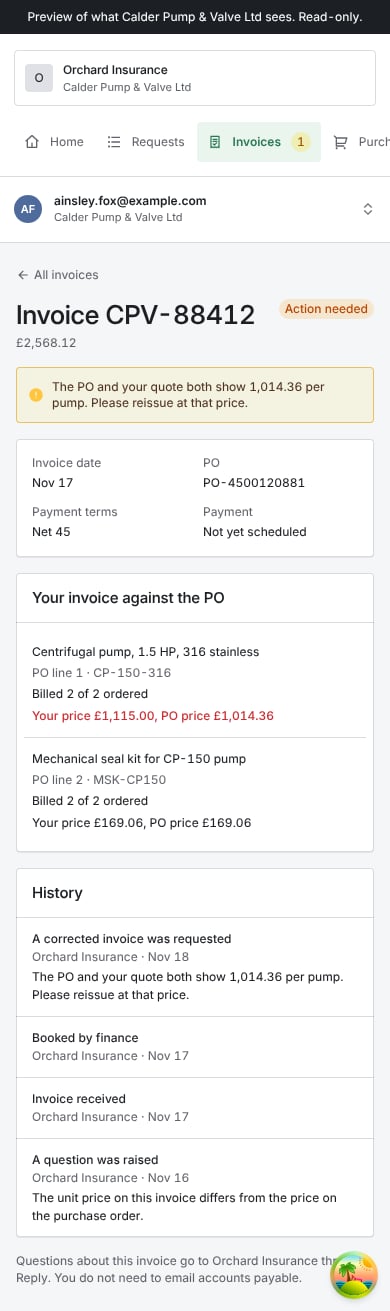
The banner says what your customer needs. Your invoice against the PO shows, line by line, what you billed and what the PO says, with any difference highlighted. History lists everything that happened to the invoice, and every version you sent. What your customer never shows you: their internal notes, the names of the people working on it, and how their checks work.

Send a corrected invoice

1

Open the upload

Click Upload corrected invoice.
2

Attach the corrected invoice

Drop in the PDF, PNG or JPG of the corrected invoice and give its Invoice number.
3

Restate the corrected lines

Each PO line is listed with its Quantity and Unit price. Change the ones you corrected. Your customer’s checks read these values, not the PDF, so a correction that only attaches a new PDF is checked with the old figures.
4

Send it

Add a Note if it helps, then click Send corrected invoice.
Your original invoice stays on record. The corrected one becomes the current version and is checked against the PO again, usually within minutes. If it now matches, the question closes and the invoice shows “Resolved. The invoice now matches the purchase order.”

Reply

Click Reply and choose what you want to tell your customer:
  • We will send a corrected invoice
  • The invoice is right. The price or quantity was agreed with the buyer. Say why in the message. This is required.
  • Something else
You can attach files. Your reply goes to whoever owns the question on your customer’s side.

When nothing is needed from you

Some invoices say “Waiting for delivery to be recorded. Nothing needed from you.” or “We are confirming which purchase order lines this invoice bills. No action is needed from you.” Those are your customer’s to resolve. You do not need to resend anything. Your customer may also ask you for a document, such as a proof of delivery. Send it with Reply, with the file attached. When a question on an invoice is yours to answer, you are emailed once when it opens. When time is running out, you may get a reminder in the portal and by email.

Submit an invoice

If your customer takes invoices in the portal, Submit an invoice appears on Invoices. If it says “Invoices are sent to finance directly. Submitting here is not turned on.”, send invoices the way your customer asked you to.
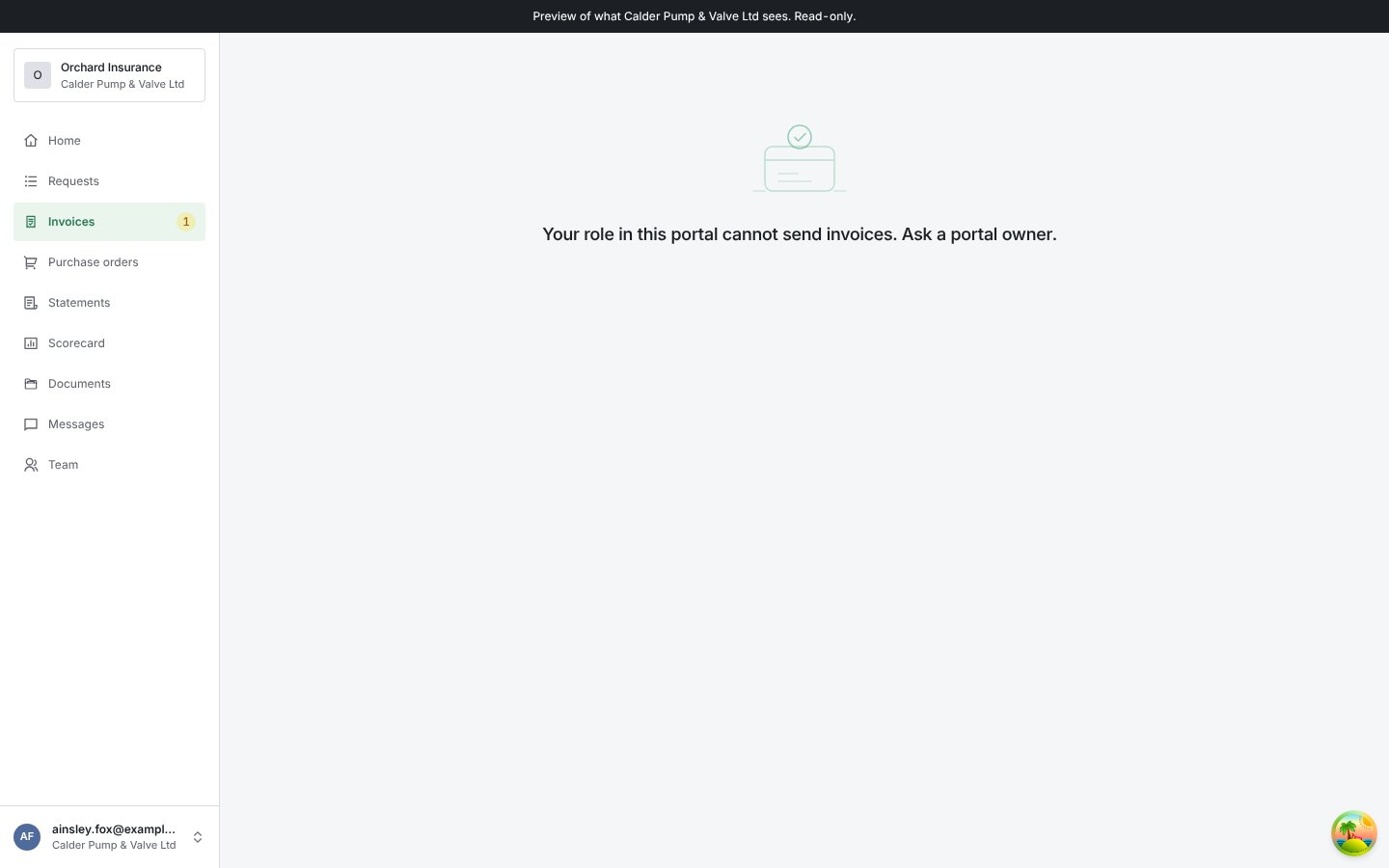
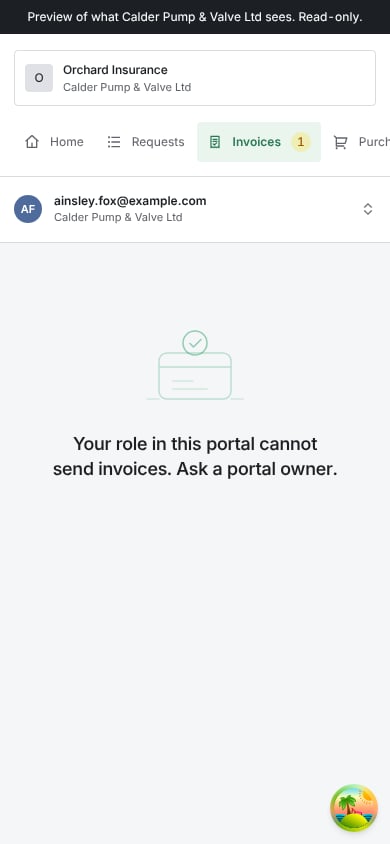
Submit an invoice page showing the message that your role in this portal cannot send invoices and to ask a portal owner

Submit an invoice. A portal role that may not send invoices sees this message instead of the form.
1

Pick the purchase order

Choose it under Purchase order. Only POs with something left to bill are listed. If none is, the page says “Every PO is fully invoiced.”
2

Number and date

Give the Invoice number and Invoice date.
3

Say what you are billing

Under What you are billing, each PO line shows how much was ordered and already billed. Enter the Quantity and Unit price for the lines this invoice bills. You cannot bill more than is left on a line. A price different from the PO price is allowed, but the page warns that it will hold the invoice for review.
4

Tax, freight and the PDF

Add Tax and Freight, and attach the invoice PDF with Attach the invoice PDF.
5

Submit, or save a draft

Submit invoice sends it. Save draft keeps it unsent.
A submitted invoice is checked against the PO, then sent to your customer’s finance team to book. It is not approved until then. If an invoice with the same number and total is already on record, the portal refuses it and says so: check the invoice number before submitting again. Drafts. A draft needs only a PO and an invoice number. Saved drafts are listed on Invoices. Open one to finish it, or discard it. Drafts are never sent to your customer. If the page says “Your role in this portal cannot send invoices. Ask a portal owner.”, your customer has limited sending to some portal roles. Ask the owner of your portal team.

Purchase orders

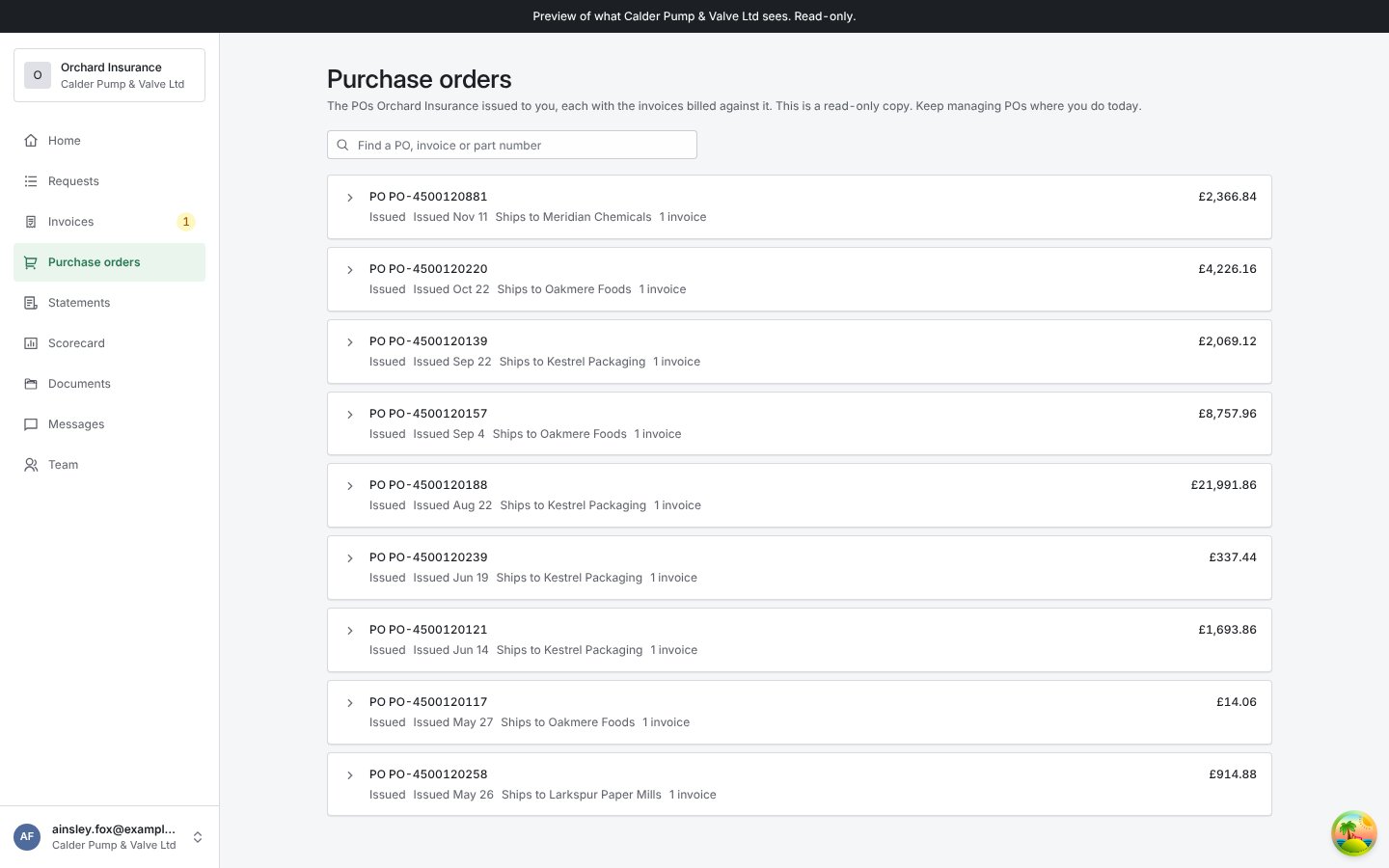
Purchase orders lists the POs your customer issued to you, copied from their procurement system, so you can see what was billed against each. You still manage POs in your customer’s procurement system as you do today.
Purchase orders page with a search box for PO, invoice or part number, and a list of POs each showing number, status, issue date, ship-to location, invoice count and total

Purchase orders, each with its status, issue date, where it ships and how many invoices bill it.
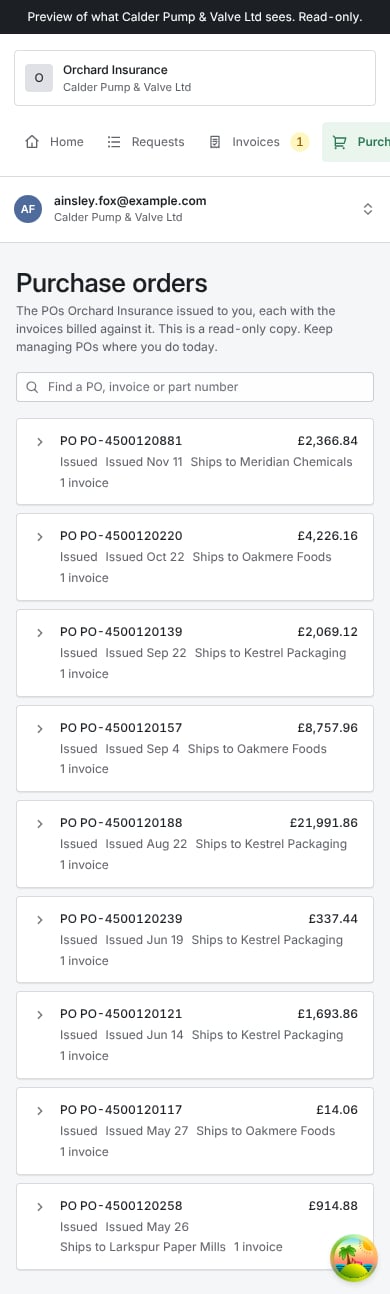
Search by PO, invoice or part number. Open a PO to see each line’s Ordered quantity, what is Left to bill and the Unit price, and the invoices against it. Billing a line by its PO line number or part number is the surest way for your invoice to match.

Checking your monthly statement

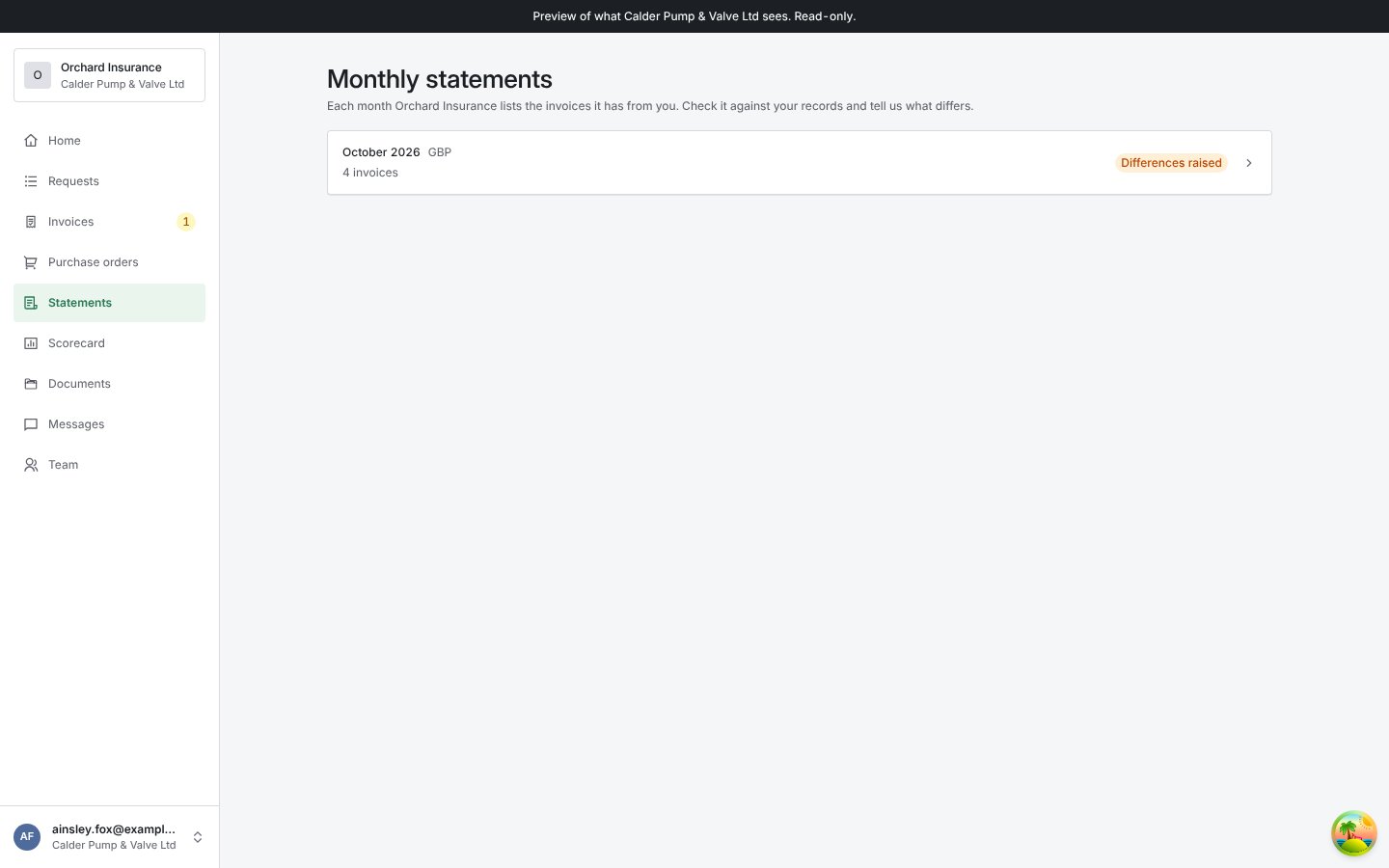
Each month your customer lists the invoices they have from you, one statement per currency and billing entity. Check it against your records and say what differs. You are emailed when a statement is ready.
Monthly statements page listing a month's statement with its currency, number of invoices and status

Your monthly statements.

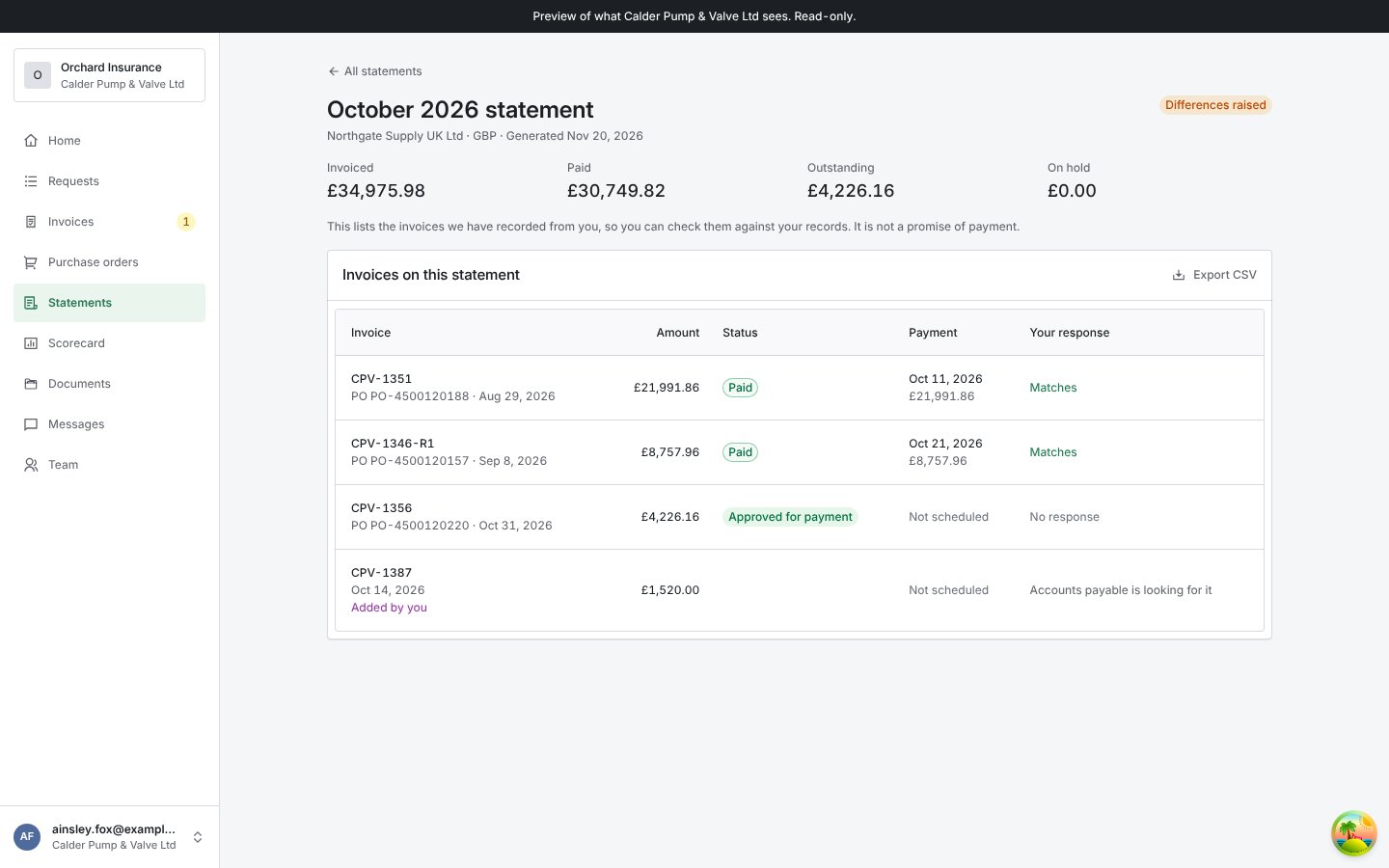
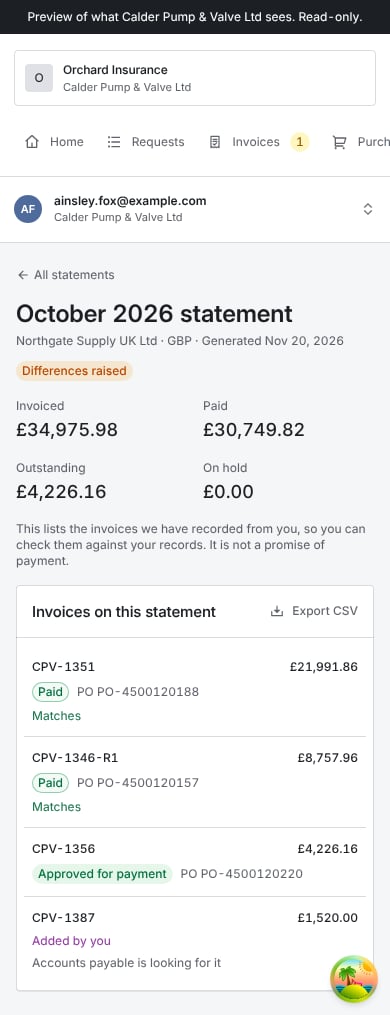
Open a statement. It shows the totals invoiced, paid, outstanding and on hold, and each invoice with its amount, status and payment. It lists the invoices your customer has recorded. It is not a promise of payment.
Statement page with invoiced, paid, outstanding and on-hold totals, an Export CSV button, and the invoices on the statement with amount, status, payment and your response, including a line added by you that accounts payable is looking for

A statement with your response on each line, including an invoice you added as missing.
1

Answer each line

Click Matches when a line agrees with your records, or Differs when it does not. For a difference, choose The amount is different in our records (and give the amount), The status is wrong, for example we were already paid, or This is not our invoice, add Details and any files, then Send.
2

Add what is missing

If you sent an invoice that is not listed, click Add an invoice we don’t have. Give its number, PO, date, amount and how and when you sent it, and attach it if you can. Accounts payable looks for it and replies here. The line shows “Accounts payable is looking for it” until they do.
3

Finish

Mark the rest as matching answers every line you have not answered. Then Confirm statement, or Send responses when you raised a difference.
Reply before the date shown. After it, the statement closes: lines you did not answer are not taken as agreement, and you raise anything still open with your contact or on next month’s statement. Export CSV downloads the statement with your answers. If your customer records something late, such as a payment or a credit, while you can still answer, you get an amended statement. Your answers on unchanged lines carry over.

Your invoice scorecard

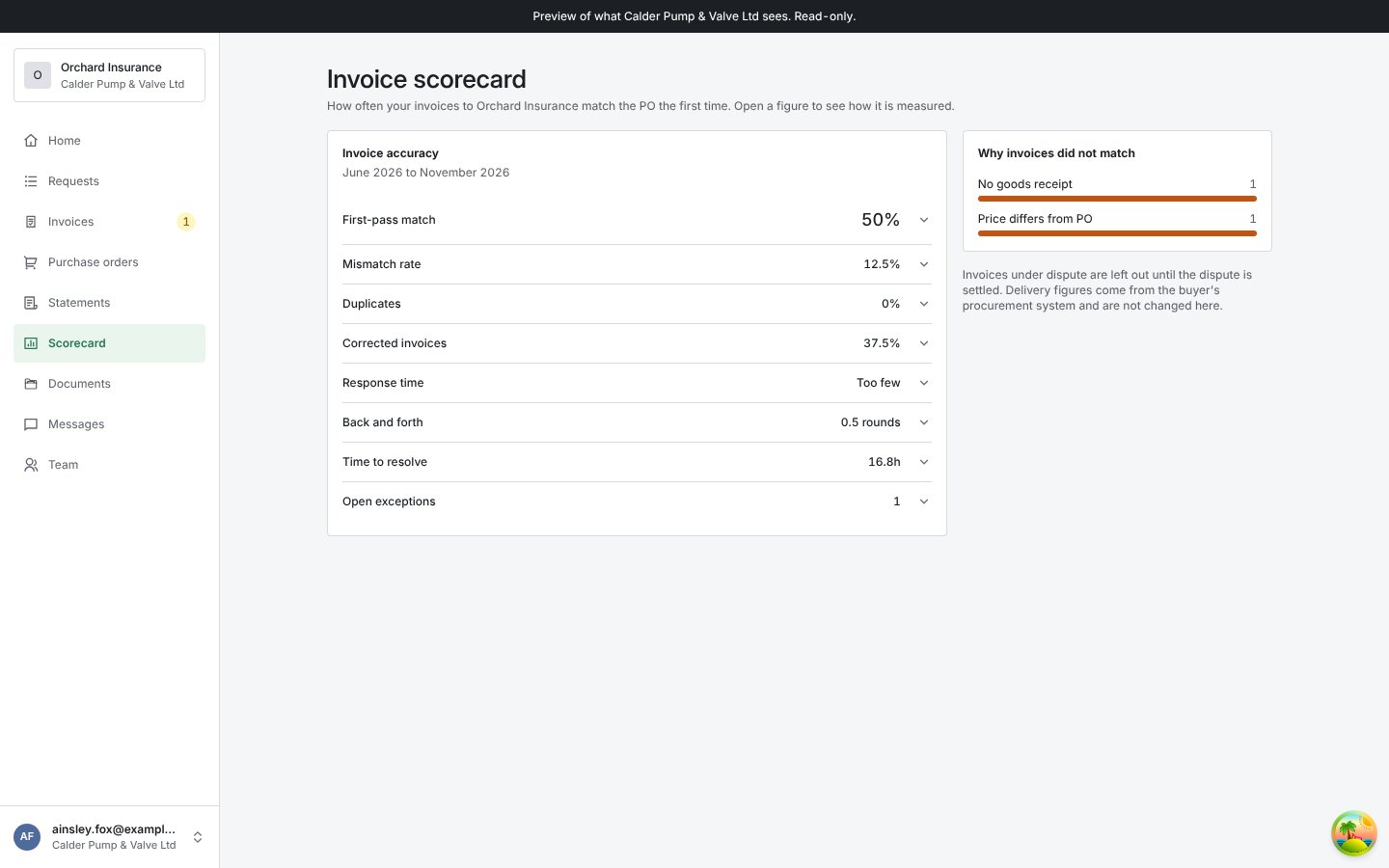
Scorecard shows how often your invoices match the PO the first time, over the last six months. Open a figure to see how it is measured.
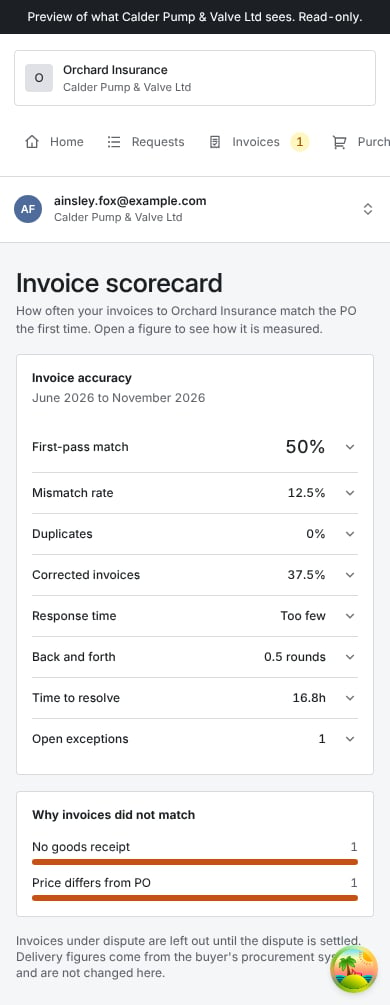
Invoice scorecard with first-pass match, mismatch rate, duplicates, corrected invoices, response time, back and forth, time to resolve and open exceptions, beside why invoices did not match

Your invoice scorecard.

A goods receipt your customer had not recorded is their delay, not yours, and does not count against your first-pass match. A figure built on fewer than 5 invoices or replies shows Too few. Delivery figures, when shown, come from your customer’s procurement system and are not changed here.

Dispute a figure

1

Open the figure

Open the figure and click Dispute this figure.
2

Say what is wrong

Pick the Month. Tick the invoices you think were counted wrongly, if any. Explain under Why the figure is wrong, and attach anything that shows it, such as your own invoice records.
3

Send it

Click Send dispute.
Accounts payable reviews it. The invoices you named are left out of your score until they reply, and that month reads as under review. Your challenges lists each dispute as In review, then Answered. You can dispute one figure once per month at a time.

Onboarding

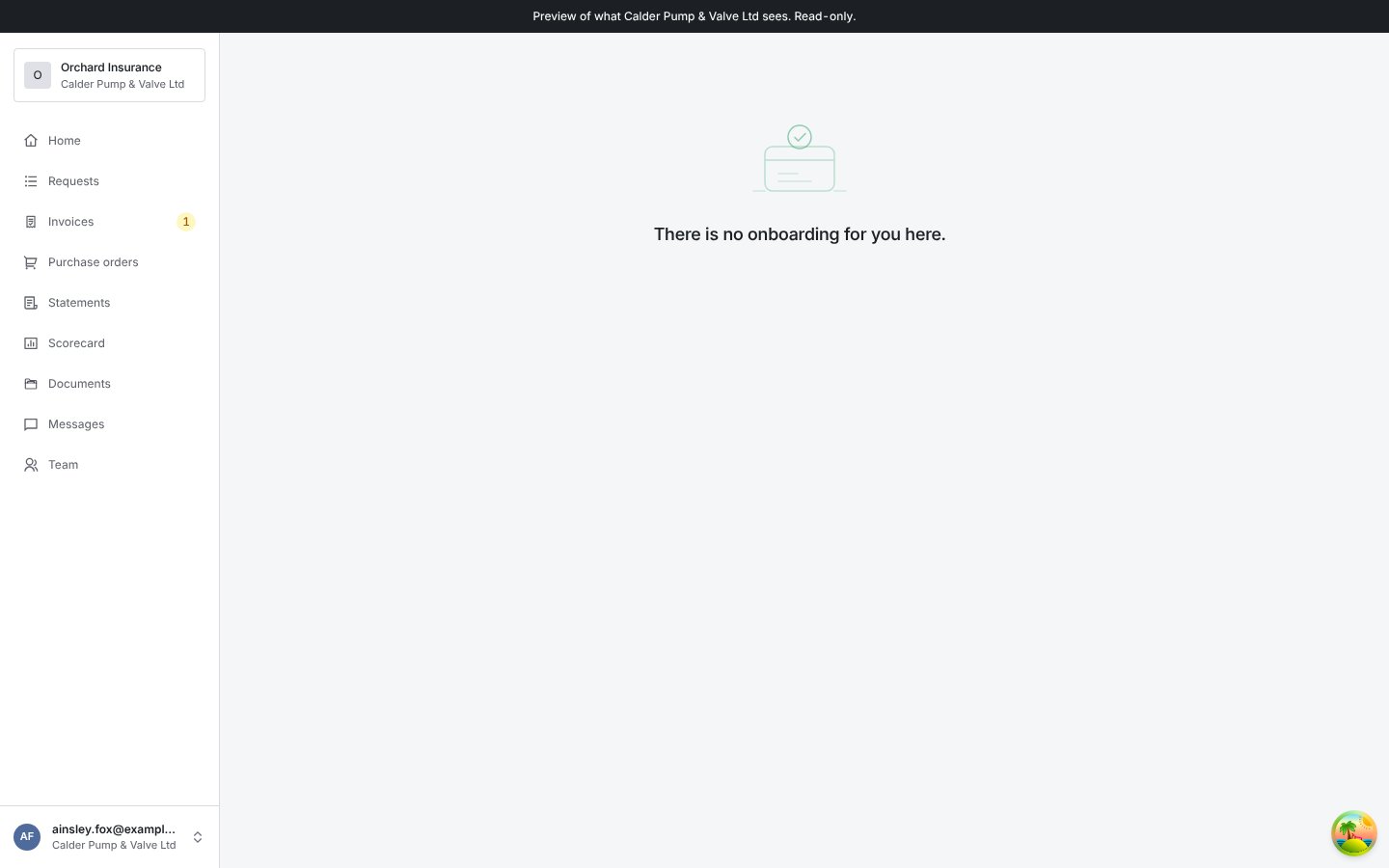
If your customer is onboarding you, Onboarding lists what they need from you, each with a due date and a target date to finish.
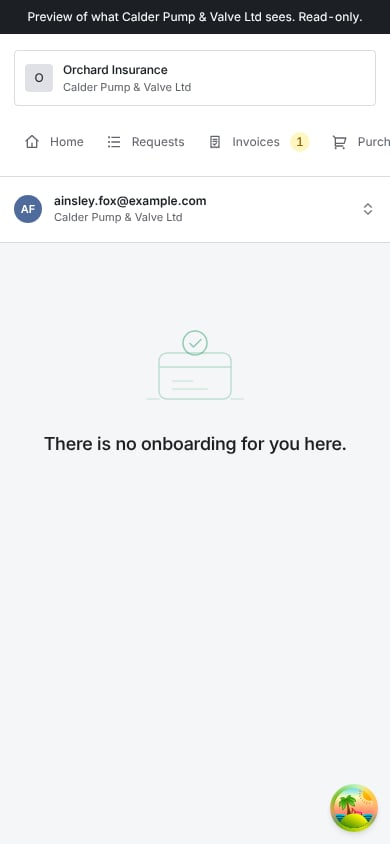
Onboarding page saying there is no onboarding for you here

Onboarding. When your customer has not asked you for anything, the page says so.
For each item, click Send, attach the documents, add a Note for the reviewer if it helps, then Send files. An item reads Needed, Sent, in review, Accepted, Not needed or Sent back. When an item is sent back, the reason is shown: send a new file. An item that is an assessment opens as a request in your portal. Onboarding is separate from your invoices. An open item here does not hold up payment of an invoice your customer already approved.

Troubleshooting

The supplier portal, for suppliers

Signing in, your team and the rest of the portal.

Portal languages

Reading the portal in your own language.