

For AI agents: a documentation index is available at https://docs.coverbase.com/llms.txt. This page is also available in markdown by appending .md to the URL.
This guide is part of the User Guides collection. Read How Payables works first. After setup, see How matching works for what your tolerances do, and Supplier onboarding to bring suppliers in.
Sources
Open Payables › Sources. Each source has a card with its health, when it last synced, how it updates, how many events it has applied and how far behind it is. How it updates reads Polls every followed by that source’s own interval in minutes, or Sends events for a source that pushes. Cards and events use the names your teams set under Source names.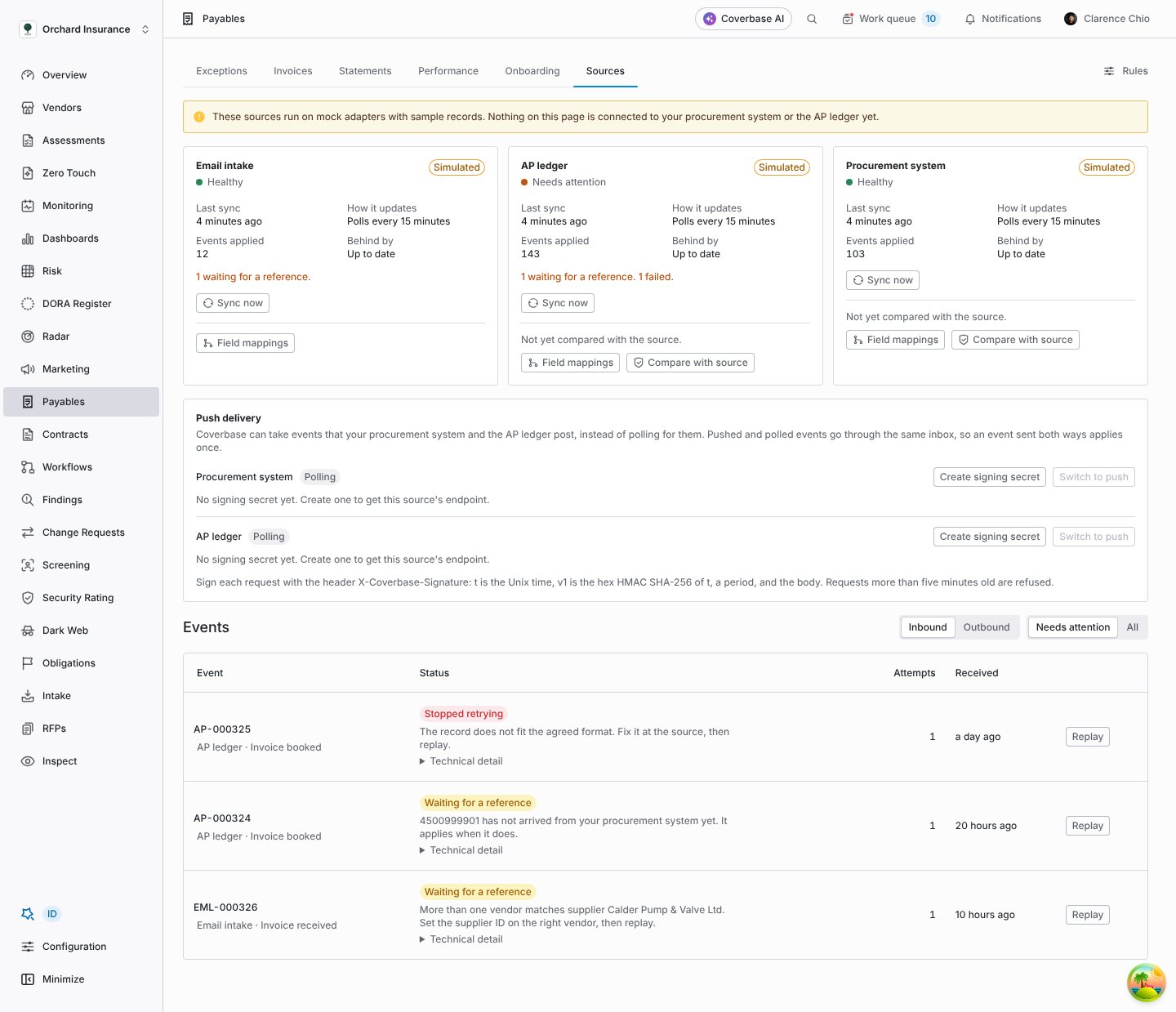
The Sources tab: one card per source, push delivery settings, and every event received.
Your Coverbase team connects the procurement system and the ledger with you. Once connected, each appears here as a card.
Simulated and connected sources
A card marked Simulated runs on sample records from a test adapter. It is not connected to your live system, and a banner at the top of the tab says so. Use a simulated source to try your rules, routing and clocks before go-live. Data from a simulated source is labeled Simulated wherever it appears, including on cases. A connected source has no badge.Health and events
A card reads Healthy, Behind, Failing, Off, Not started or Needs attention. Under it, a line counts the events waiting for a reference and the events that failed. Sync now pulls from the source straight away. Polled sources are also pulled on their own schedule. The Events table lists every event, inbound or outbound, 50 to a page. Needs attention shows only the ones that did not apply. Each row says why in plain words, with the raw error under Technical detail:
Click an event to see the record it wrote, the fields it set, and the event exactly as the source sent it.
Field mappings
Your systems will not name their fields the way Coverbase expects. Field mappings on a source card opens the rules that rename its fields and recode its values, without a code change.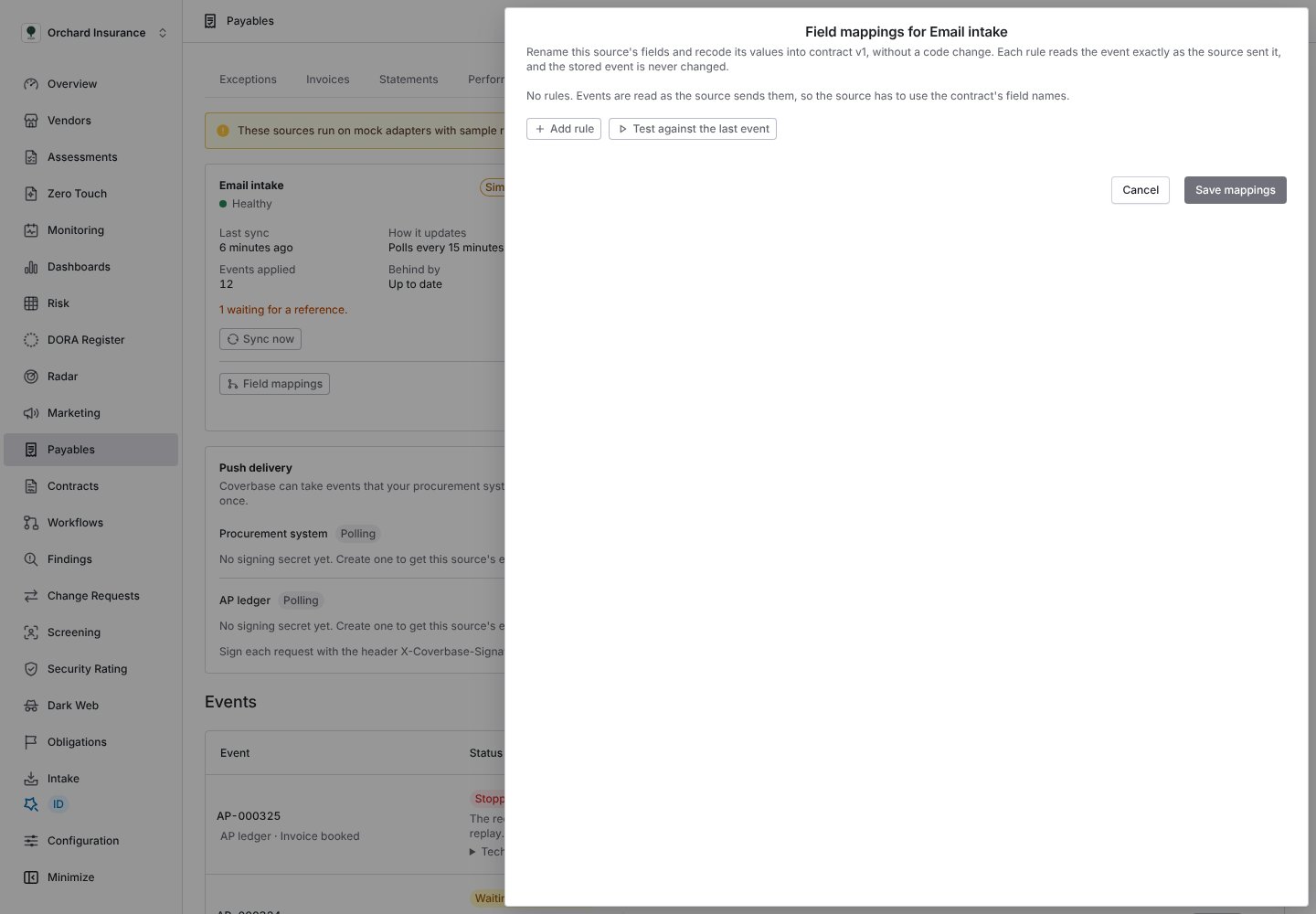
Field mappings for one source. With no rules, events are read as the source sends them.
1
Add a rule
Click Add rule. Read from is a dot path in the event as sent, such as
Header.InvNo. Put [] after a list, as in Lines[].UOM. Leave it empty to recode the field in place. Write to is the Coverbase field the value goes into.2
Recode values
Value map takes one conversion per line, written
code = value, such as EA = each. Supplier aliases work the same way, which is how you map a ledger’s supplier number to the supplier ID your procurement system uses. A value with no line passes through unchanged. Default when empty fills a missing value.3
Limit and enforce
Applies to limits a rule to some event types. Refuse the event when this field is empty stops an event with no value and sends it to Stopped retrying with the rule named.
4
Test, then save
Test against the last event shows the last stored event as sent and as Coverbase would read it, and lists anything ingestion would refuse. Nothing is saved or applied. Save mappings applies the rules to new events and to any event you replay.
Comparing with the source
A missed event leaves Coverbase’s copy quietly wrong. Compare with source asks the procurement system or the ledger for its records as they stand and compares them field by field. It only reads the source.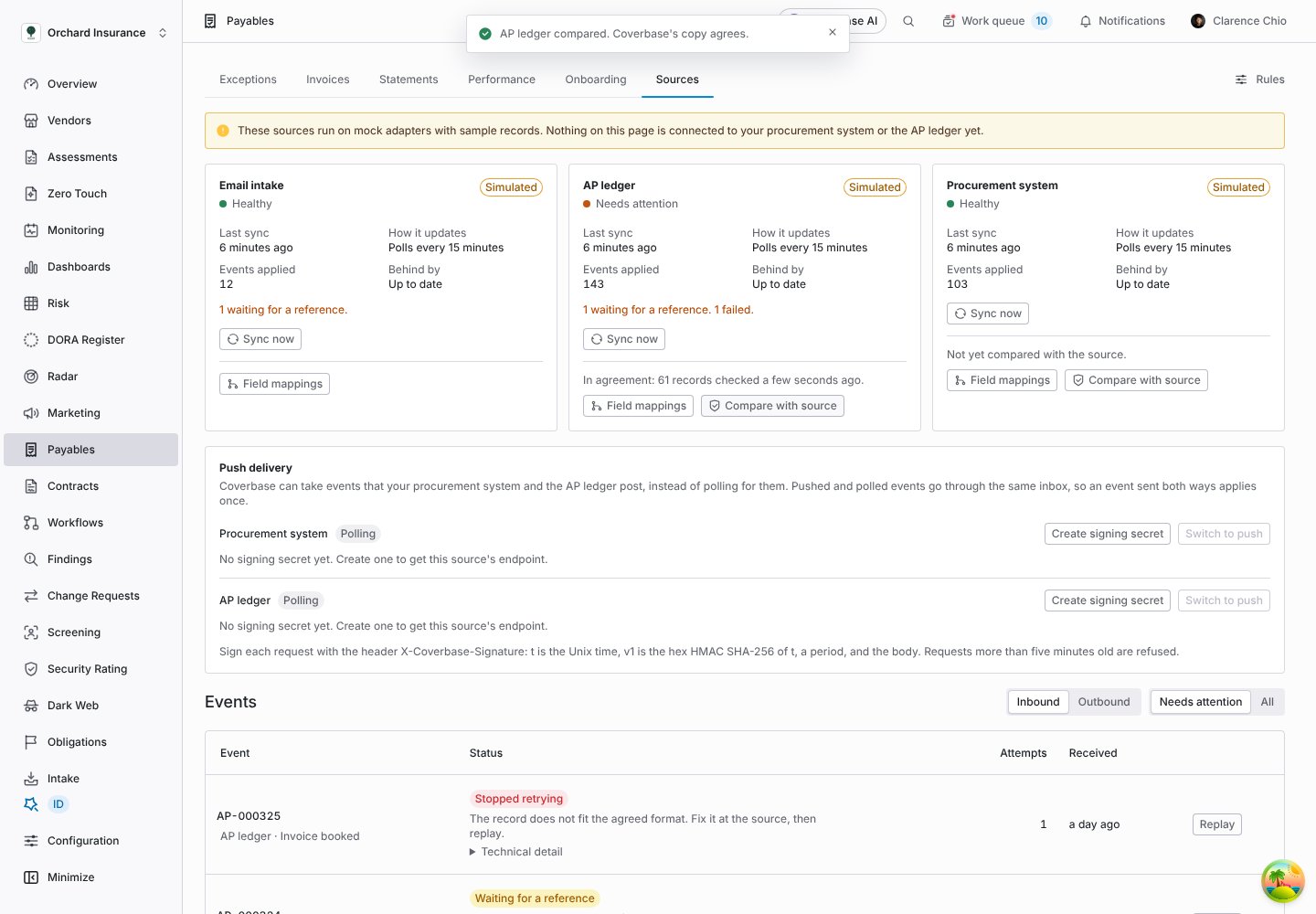
After a comparison, the card says whether Coverbase's copy agrees with the source.
Push delivery
Your procurement system and ledger can post events to Coverbase instead of waiting to be polled. Pushed and polled events go through the same inbox, so an event sent both ways applies once.- Click Create signing secret for the source. Copy the secret and the endpoint and give them to the team that runs the source. Coverbase shows the secret once.
- That team signs each request with the
X-Coverbase-Signatureheader:tis the Unix time,v1is the hex HMAC SHA-256 oft, a period, and the body. Requests more than five minutes old are refused. A request can carry one event or up to 500. - Click Switch to push. Switch to polling goes back.
Outbound calls
Coverbase sends three things to other systems, each off until you turn it on under Invoice channels: a match decision to your ledger, a case note to the PO in your procurement system, and portal invoices handed to your ledger to book. None writes a field the target owns.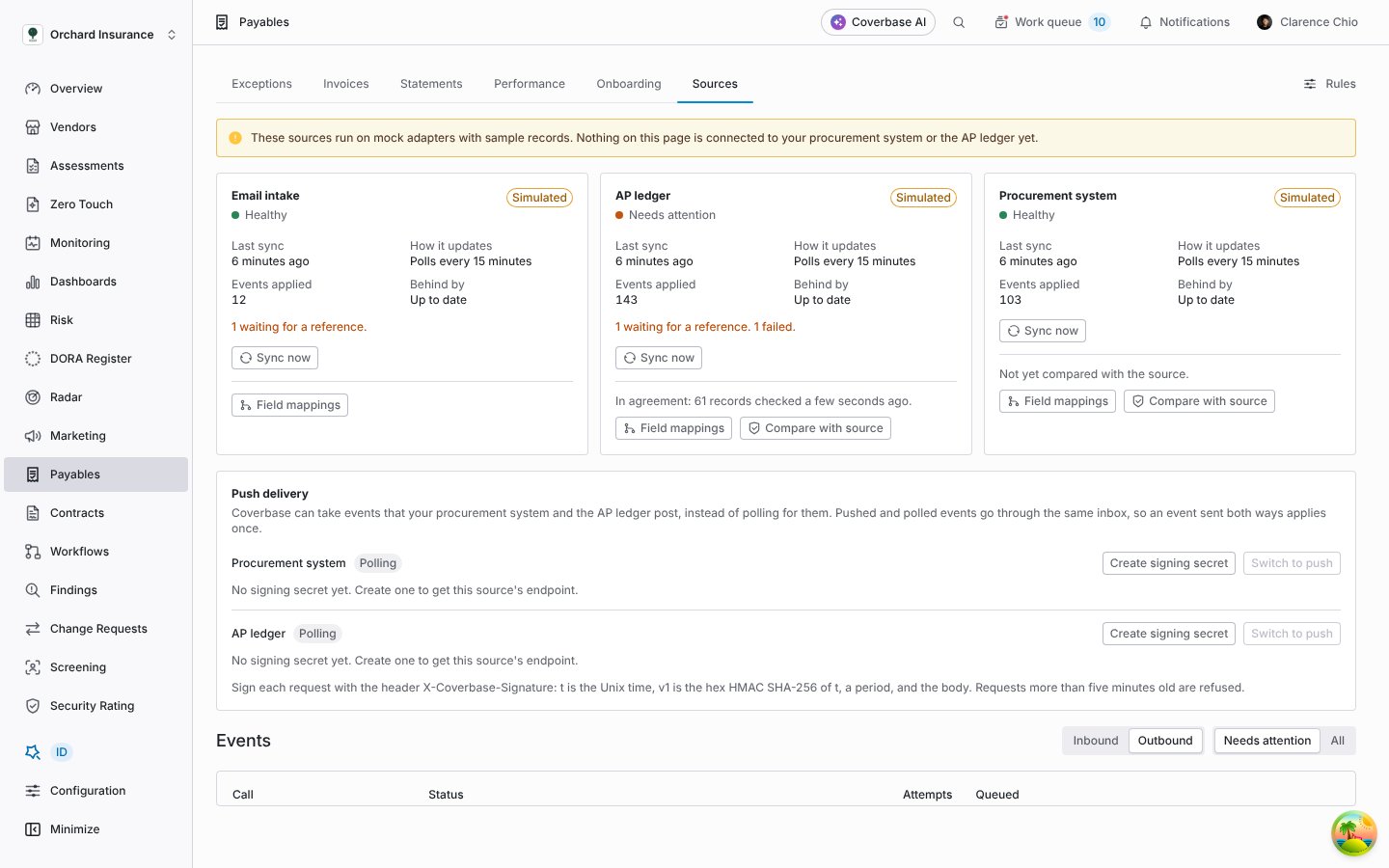
Outbound calls, with their delivery status.
Email intake
Turn on Read invoices sent by email under Invoice channels, then save the rules once to get your Intake address. Coverbase assigns it, and reads only mail sent to it. Suppliers or your AP team forward invoices there. Each message and the text of its attachments are stored first, keyed by the message, so a message delivered twice is read once. AI then reads the invoice into fields and lines and passes it through the same checks as any invoice. If the reading fails three times, the message shows Stopped retrying in the events table, under the email intake source. Replay hands it back for another try. See Reading emails and PDFs for what the reading does and how its output is checked.The intake API
Integrators and service accounts can send invoices straight to Coverbase:POST /v1/supplier-invoices/intake/invoiceswithContent-Type: application/jsonand a list of invoices, each with your own event ID. The event ID makes a resend harmless.- The same address with
Content-Type: application/edi-x12takes an X12 810 interchange. Each transaction set is one invoice. A document whose line count or segment count does not add up is refused rather than read partly. POST /v1/supplier-invoices/intake/documentstakes a PDF. It is kept as evidence and read by the same AI as forwarded email. The same file uploaded twice is read once.
The supplier portal
Suppliers see Payables in their portal once you turn on Invoices and statements under Configuration › Portal › Centralized Portal › Sections. Without it, they see none of it and are emailed nothing about invoices.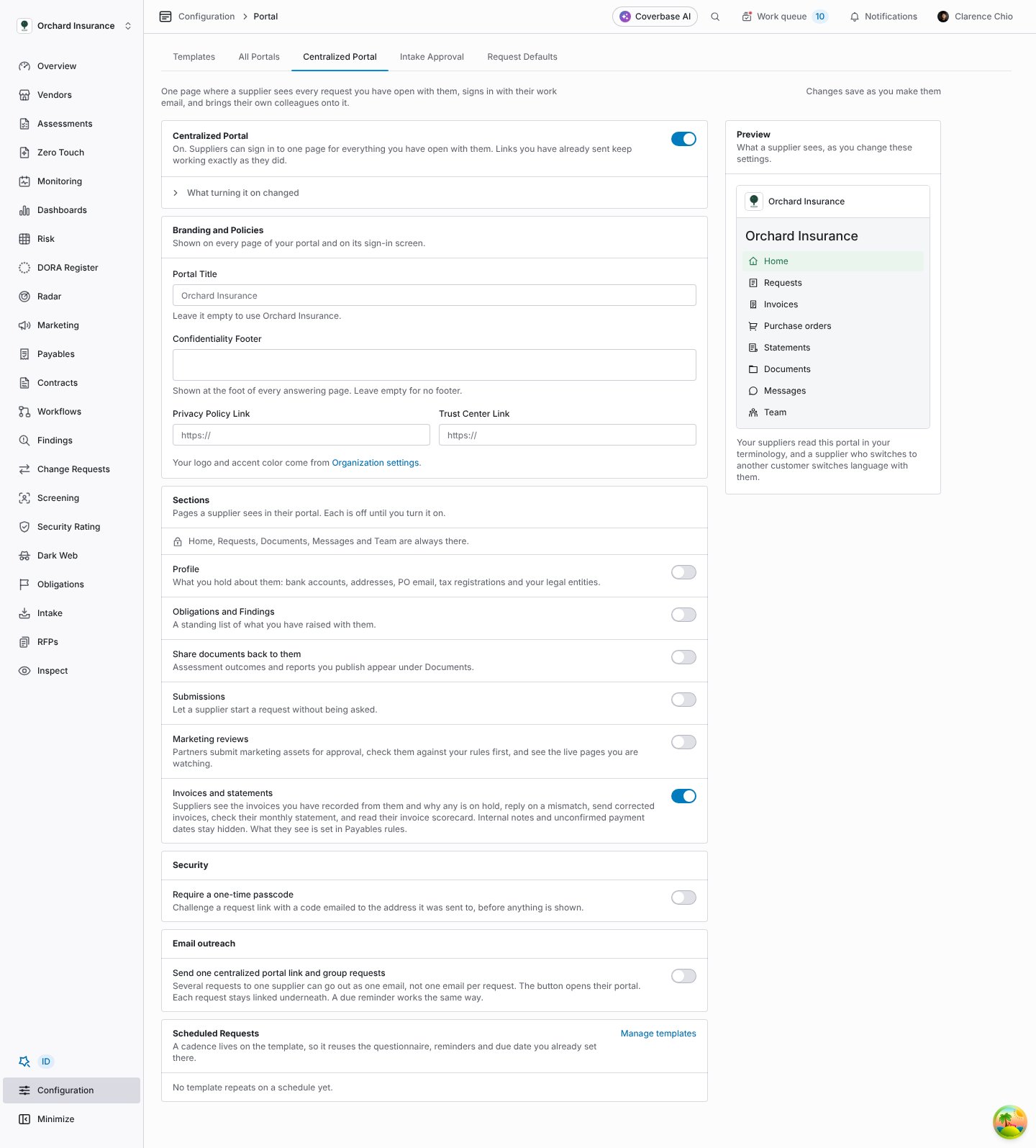
The Invoices and statements section in the centralized portal settings.
The Payables rules page
Click Rules at the top right of Payables, or go to Configuration › Payables rules. Each section saves with Save rules at the foot of the page. A section still on the shipped defaults shows Default, not confirmed. Confirm as is marks it as your policy without changing it. Change history at the end lists who saved or confirmed which section, by version.
The Payables rules page, every section on one page.
The setup checklist
Setup questions at the top of the page lists twelve questions your AP and procurement teams answer during setup, such as how invoices reach your AP ledger, which statuses suppliers may see, and your matching tolerances. The questions name your own systems, using the names under Source names. Each shows the default Coverbase runs on and Set in the section that holds it. It carries a Proposed default badge until someone confirms that section, then Confirmed by your team. The count at the top reads ”… of 12 not confirmed” until every section holding an answer is confirmed.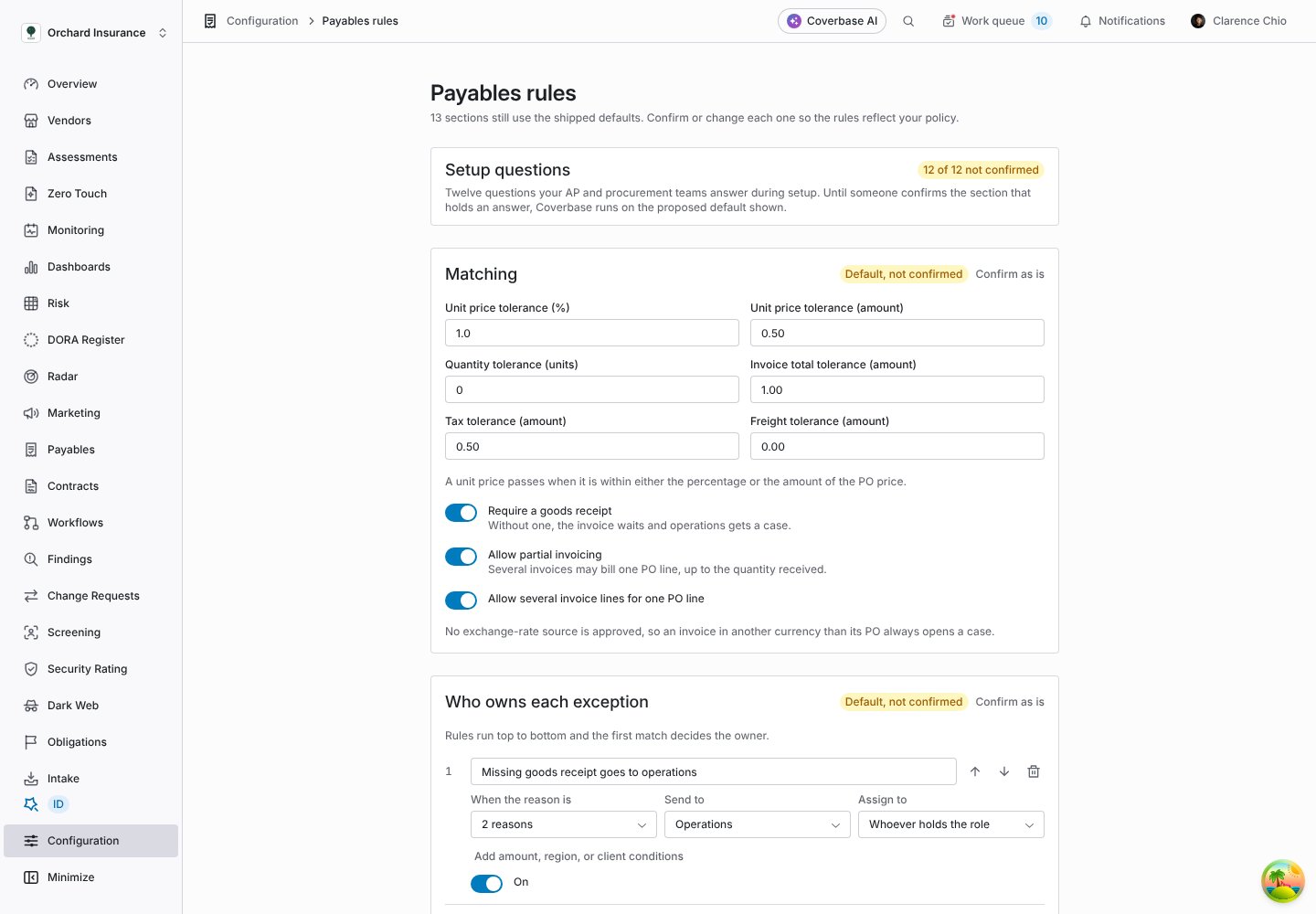
The setup checklist: each open decision, the default in use and where to set it.
Source names
Source names sets what your teams call each system of record, so cases, invoices and the Sources tab use your words:
Use 60 characters or fewer. Leave a name empty to use the generic one. Suppliers in the portal always see the generic name.
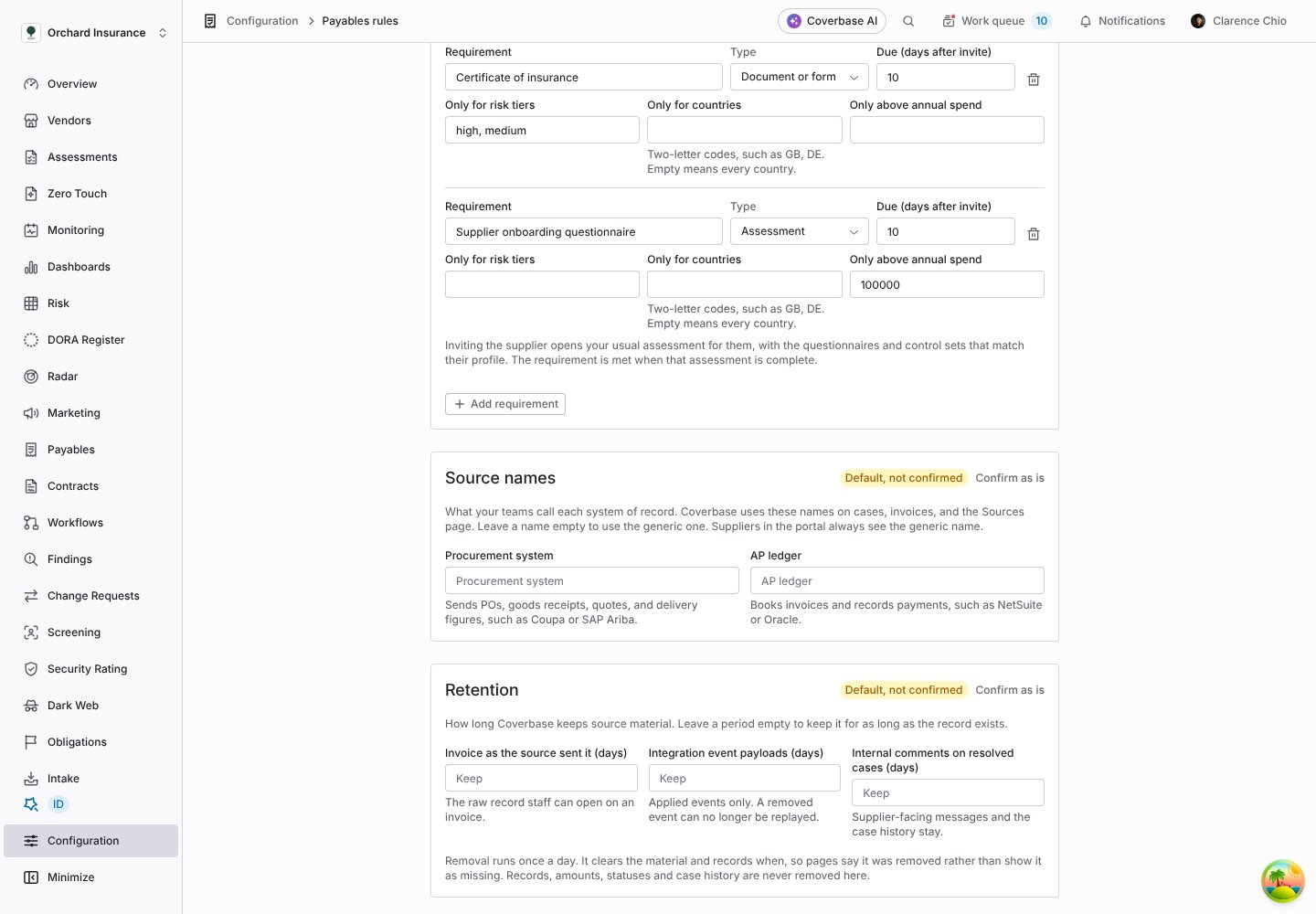
Source names on the Payables rules page.
Matching
No exchange-rate source is approved, so an invoice in a different currency from its PO always opens a case, and prices in different currencies are never compared.
Two values are not on this page. An invoice that cites a PO waits 72 hours for it before a PO not found case opens. A field read by AI with a confidence below 0.8 holds the invoice for AP. See How matching works.
Who owns each exception
Routing rules run top to bottom, and the first rule that matches decides the owner. A rule matches on When the reason is, and optionally on amount, region or client under Add amount, region, or client conditions. Send to picks the owner role. Assign to picks a person, or Whoever holds the role. Switch a rule off with On rather than deleting it.
The last rule catches PO not found, No PO number on the invoice, PO is closed, Invoice data incomplete, Invoice reading to check, Line needs review and Possible duplicate. Keep a rule with no reasons at the bottom. Without one, a reason no rule names goes to AP anyway.
A case that opens routed to the supplier emails the supplier’s portal members once, when it opens, with the sentence they see on the invoice.
Team roles
Team roles says who holds AP, Operations, Procurement and Manager. A case sent to a role with one person is assigned to them and they are notified. With several people, the case waits for one of them to pick it up, and clock reminders go to all of them.Who may accept a match
People in the roles listed here may click Accept invoice, each up to the amount under Up to. Blank means no limit. The defaults are AP and Manager with no limit. Until anyone is named under Team roles, the permission to edit vendors alone decides who may accept. Once roles are set, someone outside them sees Your role may not accept matches. Show staff the source record lets reviewers open each invoice exactly as the ledger or the email reading produced it.Response clocks
Set your office hours first: Time zone, Office opens, Office closes, Working days and Holidays (dates asYYYY-MM-DD, separated by commas). Then each clock:
The default office hours are Monday to Friday, 08:00 to 17:00 Central time. A role with no clock shows No clock on its cases. See Clocks for how a clock runs.
What suppliers see
Internal notes, owner names and match details never reach a supplier, whatever you set here.
Invoice channels
The last three labels end with the names set under Source names.
Monthly statements
Generate on day of month (default 1) and Days to respond (default 15). Include invoices paid in the month and Include open invoices from earlier months decide which older invoices appear, so a supplier sees everything still unpaid. See Statements.Supplier onboarding
Days to finish, Remind every (days), Most reminders, who approves what suppliers send, and the requirements themselves. See Supplier onboarding.Retention
How many days to keep the invoice as the source sent it, integration event payloads, and internal comments on resolved cases. Leave a period empty to keep it as long as the record. Removal runs once a day and records when it happened, so pages say the material was removed rather than show it as missing. A removed event can no longer be replayed. Records, amounts, statuses and case history are never removed.Troubleshooting
Related
How matching works
What each tolerance does to an invoice.
Working exceptions
What routing and clocks look like on a case.
Centralized supplier portal
The portal your suppliers sign in to.
Integration Hub
Other procure-to-pay connections Coverbase makes.