

For AI agents: a documentation index is available at https://docs.coverbase.com/llms.txt. This page is also available in markdown by appending .md to the URL.
This guide is part of the User Guides collection. For why a case opened, see How matching works. For the rules that route cases and set clocks, see Setting up Payables. For the invoices behind the cases, see Invoices and statements.
The queue
Open Payables. The Exceptions tab opens first.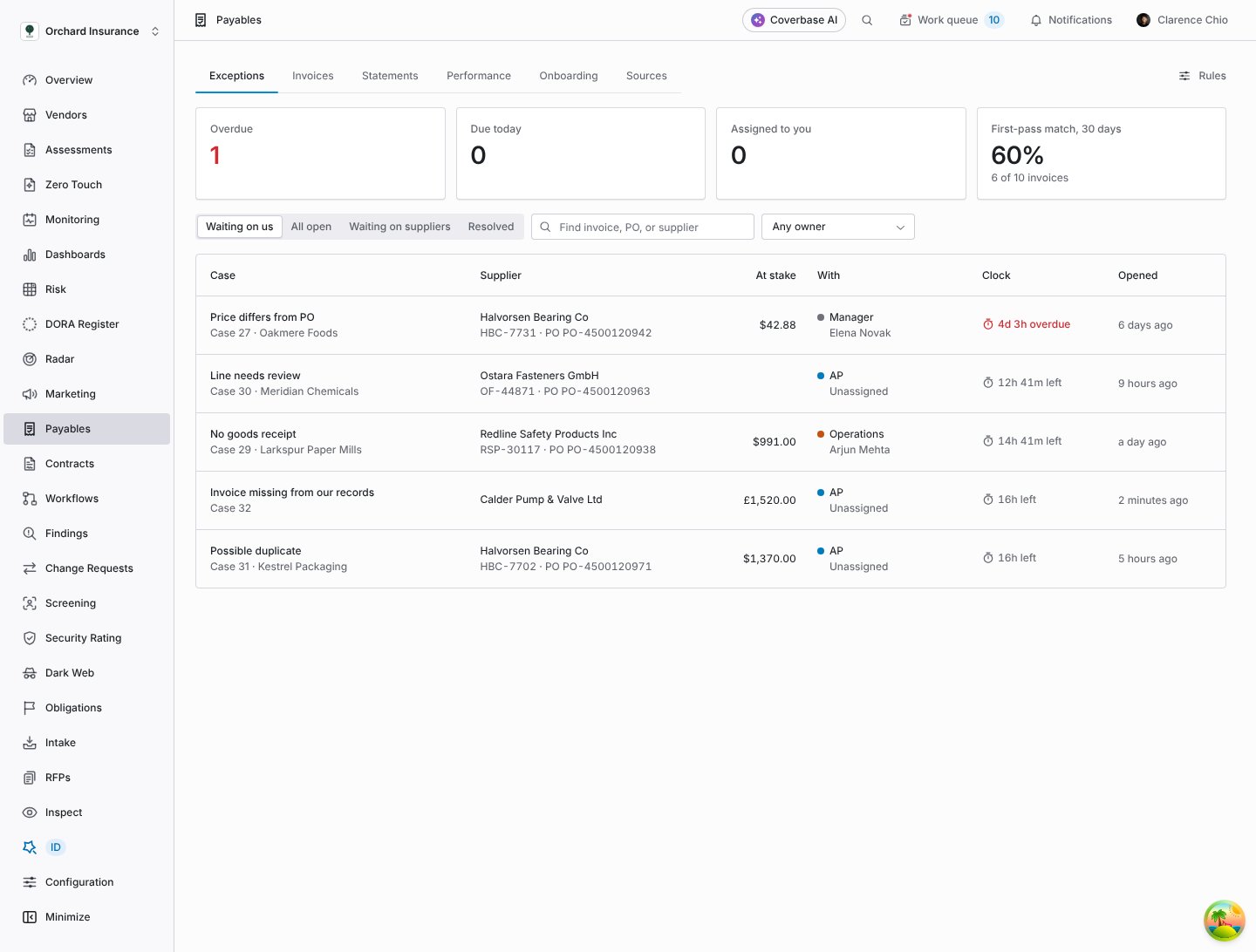
The Exceptions tab, filtered to cases that wait on your team.
Narrow the list with Find invoice, PO, or supplier and the Owner filter. Each row shows the reason and case number, the supplier with its invoice and PO, At stake, With (the owner role and the person), Clock and Opened. The clock reads the time left, the time overdue in red, Paused, or No clock when the owner has no clock in your rules.
A link from a metric on the Performance tab opens the queue filtered to the cases behind it. Show all cases clears that filter.
A case
Click a row to open the case.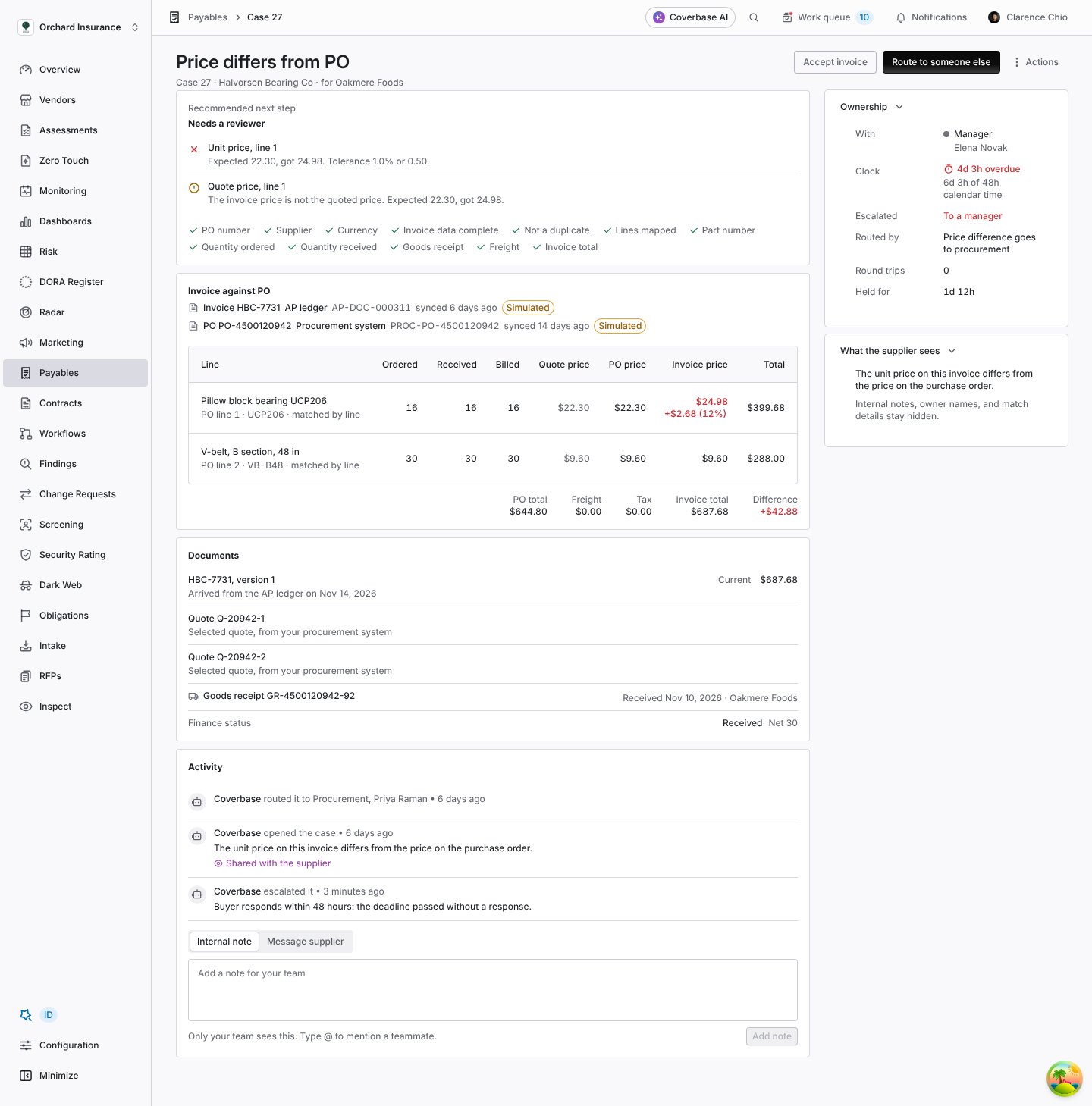
A price difference past its deadline, escalated to a manager.
- Recommended next step. What Coverbase suggests, then each failed or warning check with what was expected and what was invoiced, then the checks that passed. See the checks.
- Coverbase AI reading. When Coverbase AI explained the mismatch, its explanation and the fields it read. A suggestion, not a decision.
- Invoice against PO. The invoice and the PO, each with the system it came from and when it synced. The lines table compares Ordered, Received, Billed, Quote price, PO price and Invoice price per line, with how each line was matched. Under it: PO total, Freight, Tax, Invoice total and Difference.
- Documents. Every version of the invoice (Current or Replaced) and the channel it came by, the quotes and goods receipts on the PO, and the finance status your ledger reported.
- Activity. Every event on the case. Entries the supplier can read say Shared with the supplier.
- Ownership. With, Clock and how much of its target is used, Escalated, Routed by (the rule that chose the owner), Round trips to the supplier and back, and Time with each owner.
- What the supplier sees. The sentence on the supplier’s portal for this invoice. Internal notes, owner names and match details stay hidden.
Actions
The buttons at the top depend on the recommendation. Ask the supplier for a corrected invoice puts Request corrected invoice first. Likely a match puts Accept invoice first. Otherwise Route to someone else is first and Accept invoice sits beside it. Everything else is under Actions, including Request corrected invoice on every open case that has an invoice, and Run the checks again.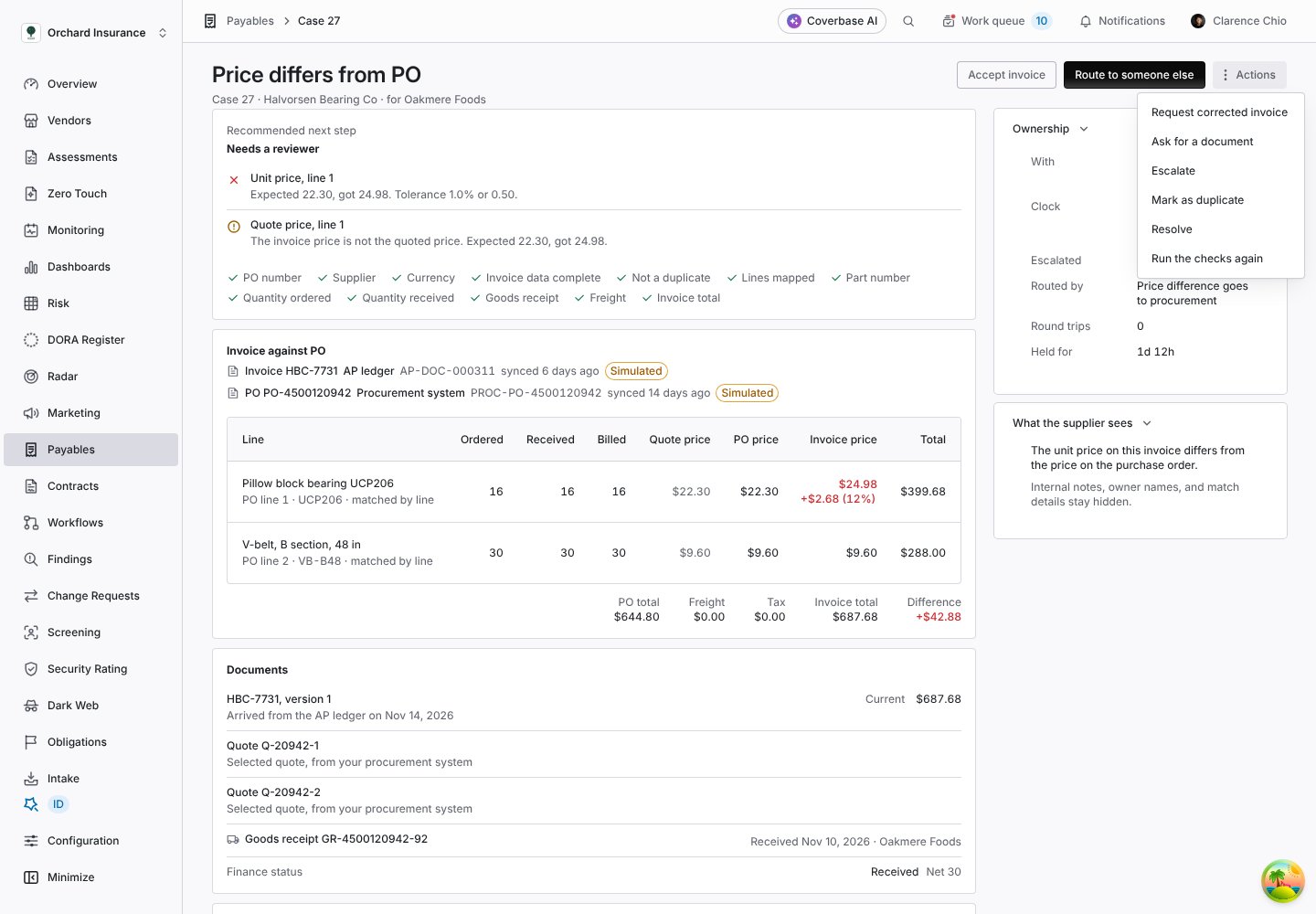
The Actions menu on an open case.
Accept invoice
Records that you accepted the invoice despite the differences. Write a reason, then click Accept invoice. Under Line mapping, the dialog lists each invoice line with the PO line it was matched to. If a suggestion is wrong, pick the right PO line from the list. The checks run again with your mapping before the invoice is accepted, so a line you move is checked for price and quantity against the PO line you chose. The activity records each change, such as “Invoice line … moved from PO line … to PO line …”, and the line then shows mapped by reviewer.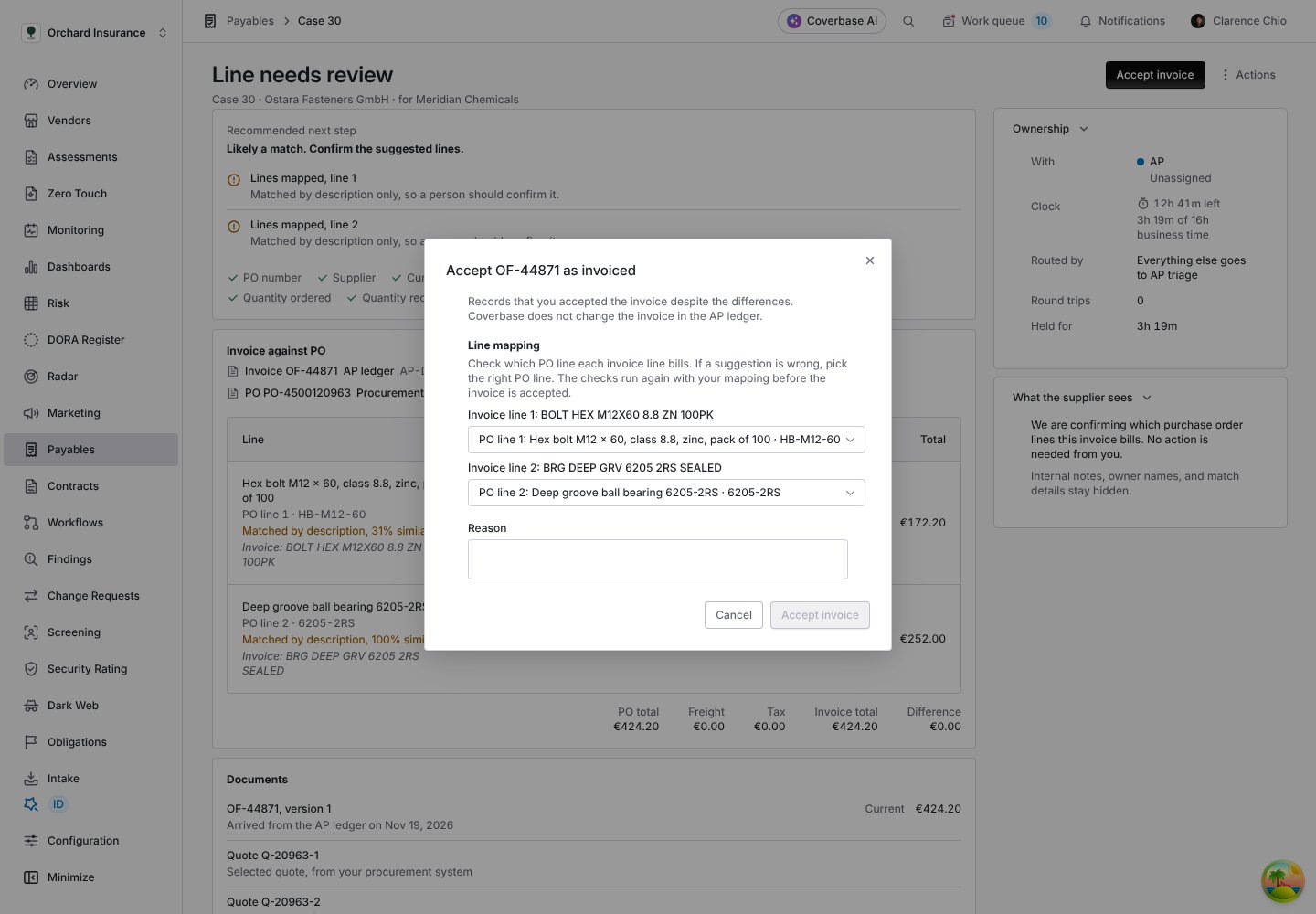
Accepting an invoice as invoiced. A reason is required.
- Marks the invoice Matched and every mapped line verified.
- Resolves every open match case on the invoice: Price accepted for a price difference, Match accepted for the rest. The supplier sees “Resolved. The invoice was accepted against the purchase order.”
- Teaches Coverbase the lines you confirmed. See Description mappings.
- Sends the decision to your ledger, if Send match decisions is on. The activity then shows that the decision was sent to finance.
Request corrected invoice
Asks the supplier to reissue the invoice. It is the main button when the recommendation is Ask the supplier for a corrected invoice, and it is under Actions on every other open case that has an invoice. A price difference can be the supplier’s error even when the checks suggest otherwise. The message starts with the sentence the supplier already sees. Edit it to say exactly what to fix, then Send request.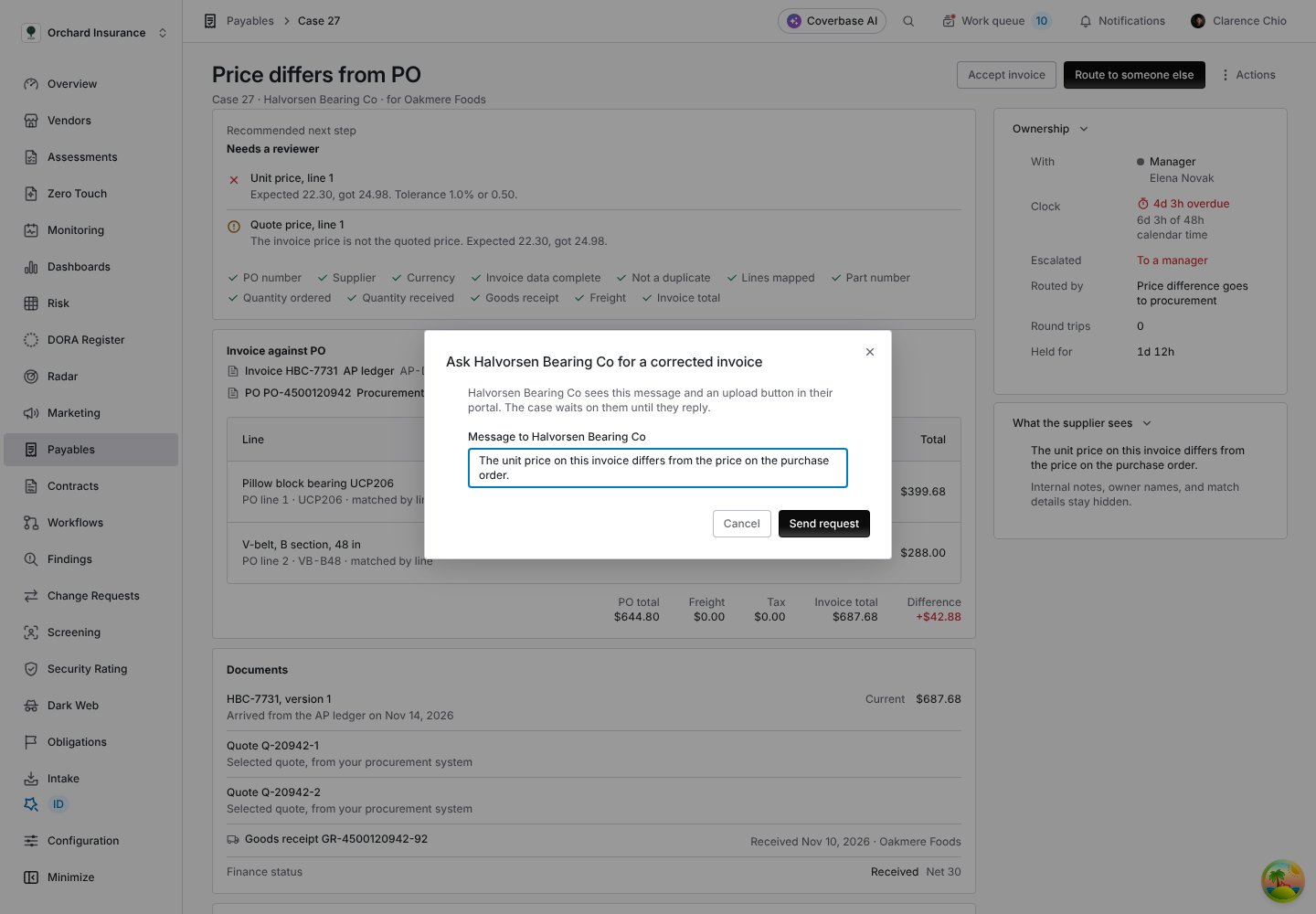
Requesting a corrected invoice from the Actions menu. The message is what the supplier reads.
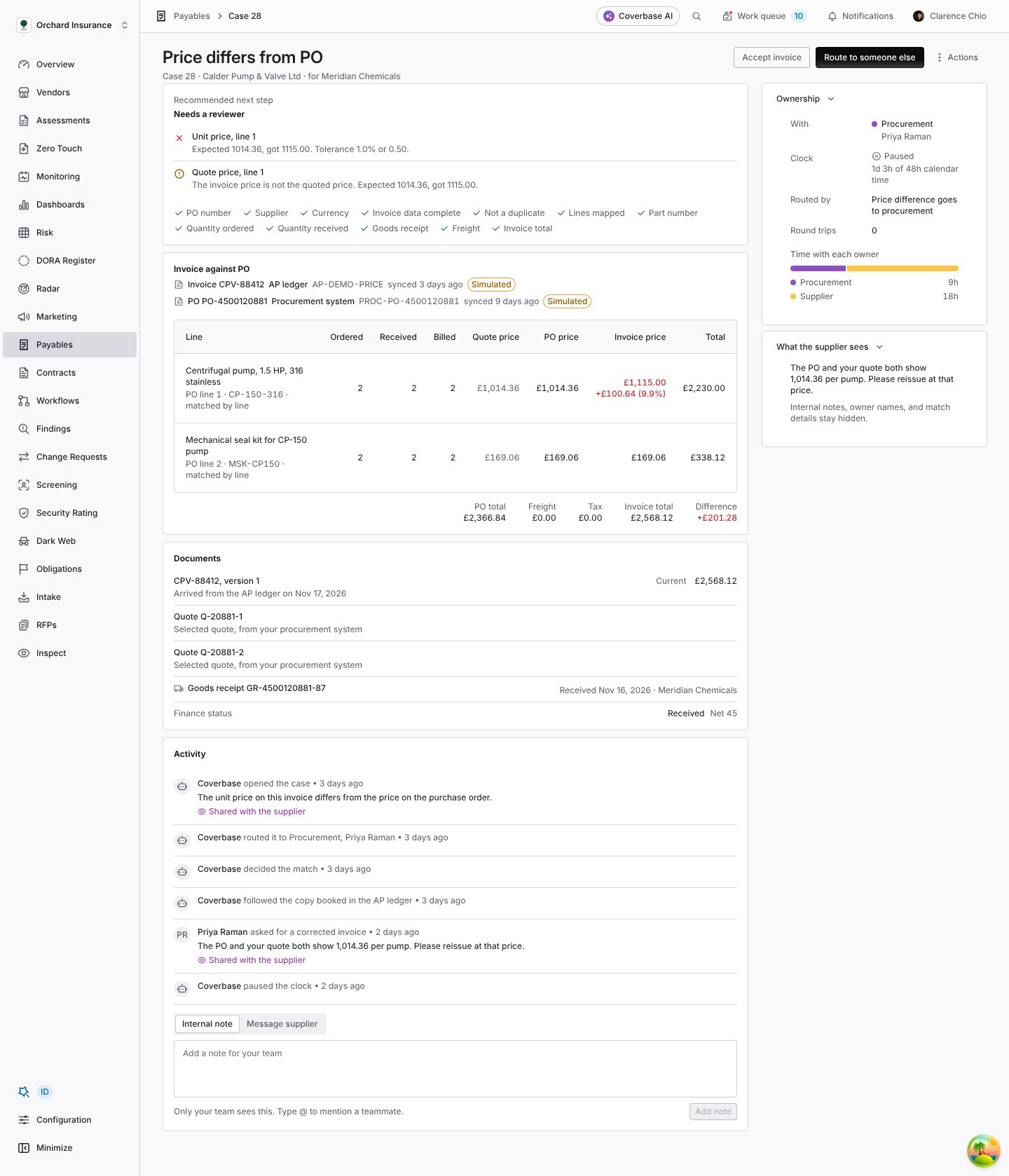
A price difference where procurement asked for a corrected invoice. The clock is paused while the supplier owes the next step.
Ask for a document
The same as a correction request, for a document instead: a proof of delivery, a signed quote, a credit note. The supplier uploads it in their portal.Message supplier and internal notes
Under Activity, Internal note is for your team only. Type@ to mention a teammate. Message supplier goes to the supplier’s portal. The box says which one you are writing.
Send a note to the procurement system
The action reads Send a note to followed by your procurement system’s name, as set under Source names. On a No goods receipt case, when your rules turn on case notes to the procurement system, this adds your note to the PO there for operations to see. It does not record a receipt or change the PO. Operations records the receipt in the procurement system, and when it arrives, the case resolves itself.Route to someone else
Hands the case to another owner role: AP, Operations, Procurement, Supplier or Manager. The new owner gets a new clock. Time with the previous owner stays in the history. For an internal role, Person picks someone in it, or Anyone in the role. Only people set up for that role under Team roles are listed, and the person you pick is notified. With Anyone in the role and one person in it, the case is assigned to them. When nobody is set up for the role, the dialog says so and the case goes to the role.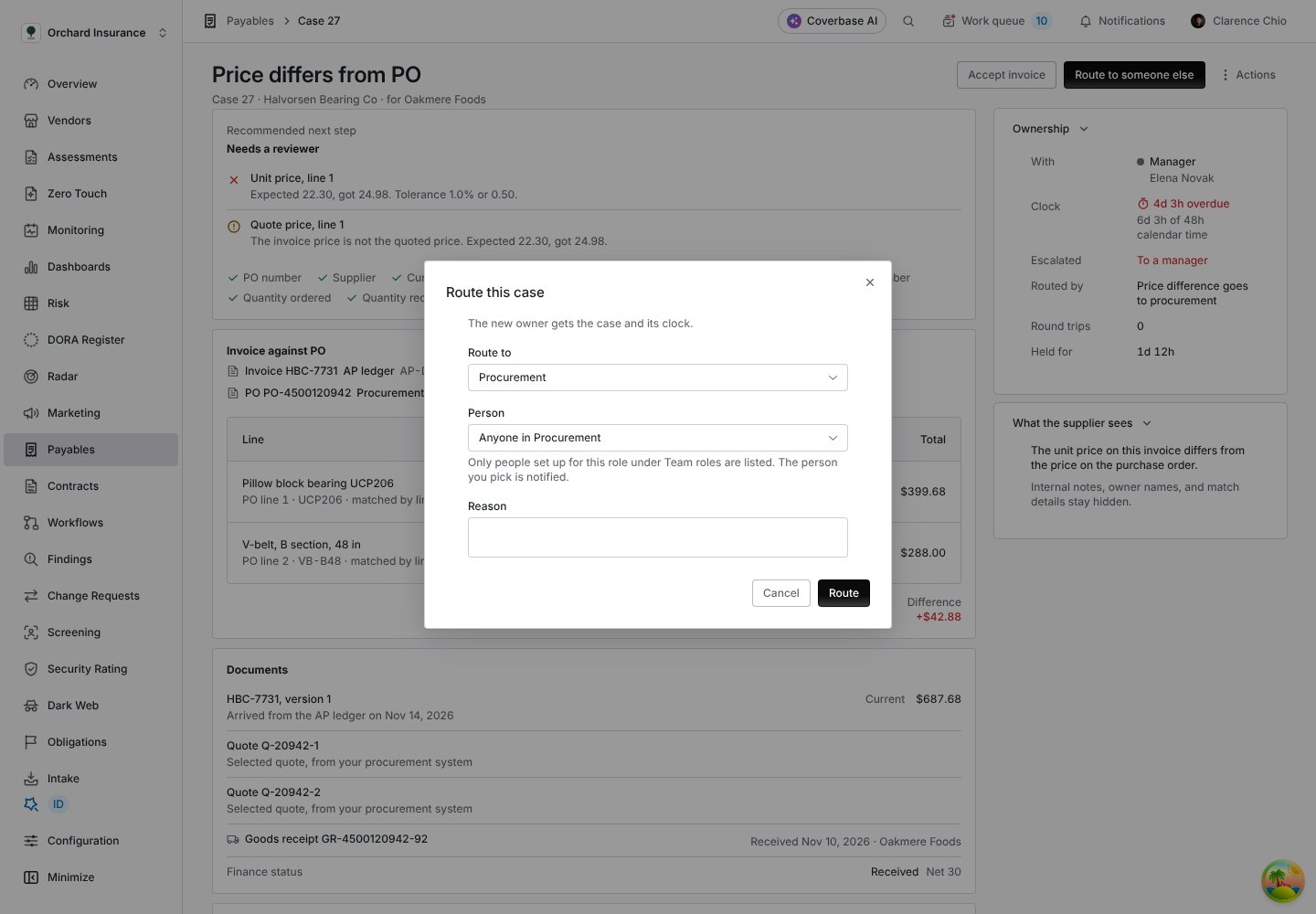
Routing a case to Procurement, with a Person picker for the people set up in that role.
Escalate
Sends the case to the escalation role of its clock (a manager by default) and keeps the clock running. Escalating does not reset the deadline, so an overdue case stays overdue until someone acts.Mark as duplicate
The invoice stays on record and is left out of matching. Open cases on it resolve as Duplicate voided. The supplier sees its status as Duplicate. Void it in your ledger too.Resolve and Reopen
Resolve stops the clock with a Resolution: Supplier sent a corrected invoice, Goods receipt recorded, Invoice price accepted, PO amended, Credit note issued, Duplicate voided, Match accepted, Statement confirmed, Scorecard figure corrected, Scorecard figure upheld or No action needed. Use it when the fix happened outside Coverbase. Reopen brings a resolved case back to its owner with a fresh clock. A reason is required. The earlier resolution stays in the history.Run the checks again
Reruns matching on the invoice with the latest PO, receipts and rules. Use it after changing a tolerance. Reasons that no longer apply resolve their cases.Line review and Coverbase AI
A Line needs review case means every check passed but at least one line was matched only by its description, or suggested by Coverbase AI. The lines table shows, for each such line, the PO line, the invoice’s own wording under Invoice:, and the similarity or Suggested by Coverbase AI.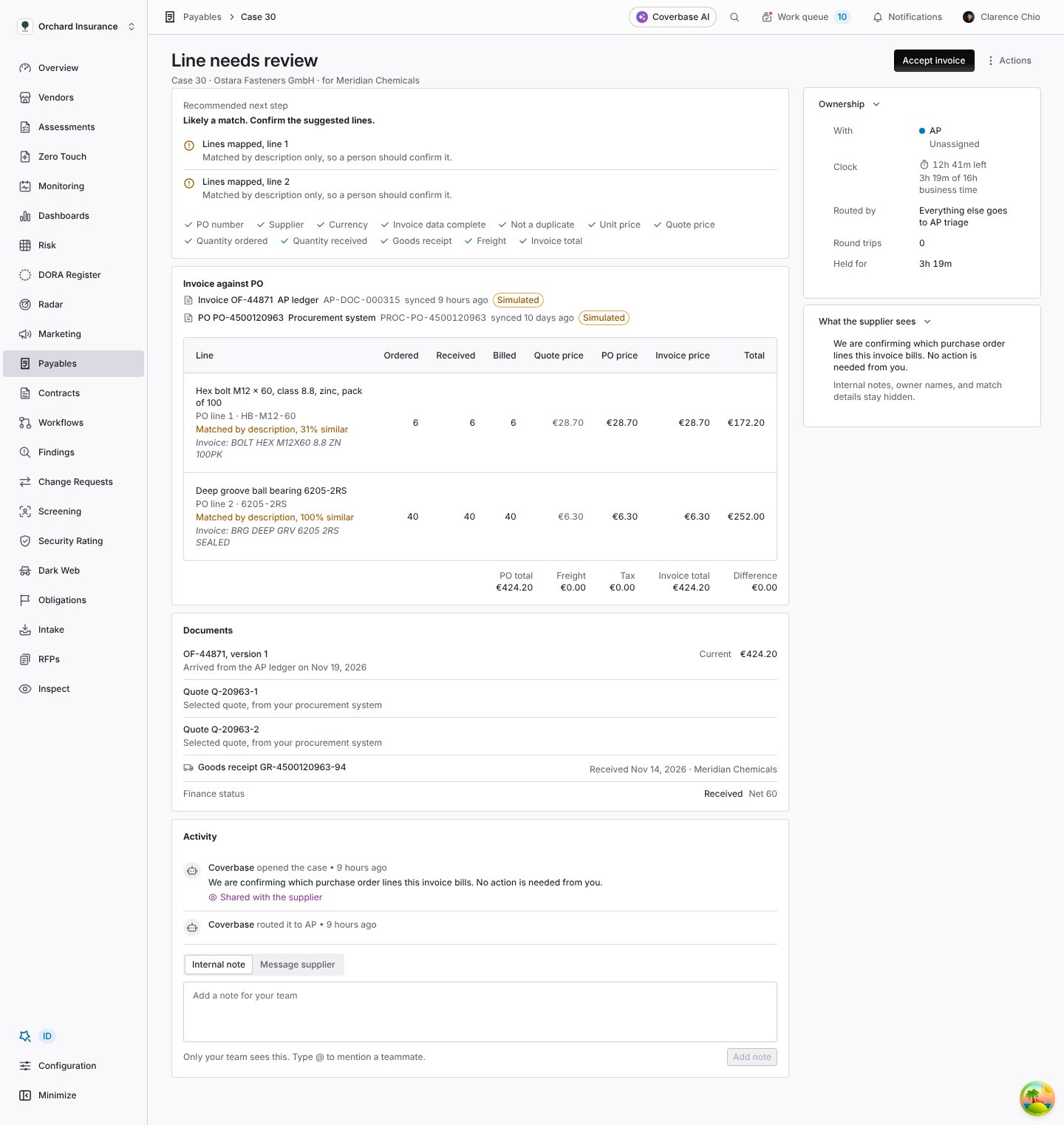
A line review: each line shows the PO description, the supplier's own wording and how similar they are.
Clocks, pauses and escalation
1
The clock starts
When a case opens or is routed to a new owner, it gets that owner’s clock from your rules, counted in business hours on your calendar or in calendar hours. The Clock column’s tooltip says which, such as “Counted in business hours.”, and Ownership shows the time used against the target in business time or calendar time.
2
It pauses while the supplier owes the next step
When you request a correction or a document, an internal owner’s clock pauses if its rule says Pause while waiting on the supplier. The activity shows “paused the clock”. It resumes, with the time it had left, when the supplier replies.
3
The supplier's own clock never pauses
A case routed to the supplier runs the supplier’s clock. When they reply or send a correction, the case returns to AP with a new AP clock, for AP to review what they sent.
4
It reminds
At the rule’s Remind at (% used), 75% by default, the assignee is notified, or everyone in the owner role when nobody is assigned. A supplier who owns the case is emailed and sees a reminder in their portal, and is reminded once more when the clock runs out.
5
It escalates
When the clock runs out, the case escalates once to the rule’s Escalate to role: a manager for internal owners, AP for the supplier. The activity records it with the rule’s name. The original deadline stays.
6
It stops
Resolving a case stops its clock.
Troubleshooting
Related
How matching works
Why each case opened.
Setting up Payables
Routing, team roles and clocks.
Performance and scorecards
Where cases wait and how clocks are met.
Invoices in the supplier portal
What the supplier sees when you ask them.